Item Display Settings
Configure how products and categories appear in your e-commerce store. Select card styles, hover effects, layouts for desktop and mobile, and control image display, sorting, pricing, and visibility options.
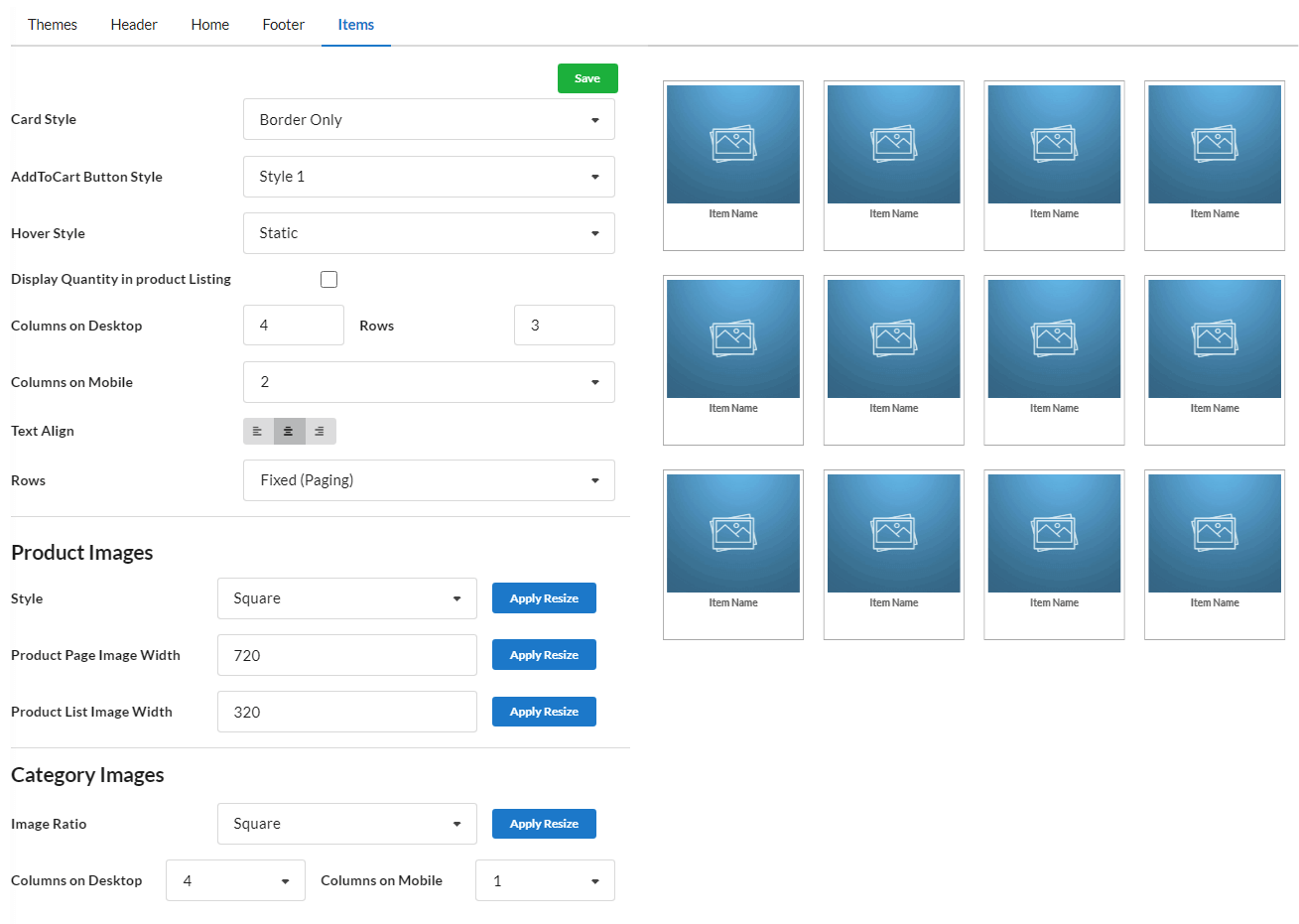
- Go to Design > Items.
- Select the card style as Border Only, Shadow Only, or No Border and Shadow.
- Set Add To Cart Button Style as Hover In, Hover Out or Static. On hovering item, Add to Cart button will be displayed.
- Set the image hover style to Static or Zoom In. When hovering over an item image, a zoom effect will be applied.
- Display Quantity in product Listing – Enable this option to display the quantity input box for each product in the product listing.
- Set the number of rows & columns for the Items to be displayed in Products/Item page – In Desktop.
- Enter the number of columns for items to be displayed in Products/Item page in mobile.
- You can align the Item name – text here.
- Set paging for rows as fixed or scrolling.
- Display Side Bar Menu – Enable Yes or No to display the product categories as sidebar menu in Products page.
- Brand Filter – Enable Yes or No to display brand-related categories at the top of the Brand page.
Product Images
Here you can configure settings for products images display.
- Style – Set style for products display as Square or Vertical Rectangle or Rectangle.
- Product Page Image Width – You can set width for products images to be displayed in products page here.
- Product List Image Width – You can set width for product images to be displayed in products listing.
You can use the Apply Resize button associated with each of the above 3 options.
Category Images
Here, you can configure settings for category images display.
Image Ratio – For category image uploaded, you can set image ratio as Square/Portrait or Adapt to Image option.
Columns on Desktop – Enter number of columns for displaying categories in desktop.
Columns on Mobile – Enter number of columns for displaying categories in mobile.
Product Configuration
To set item sorting, pricing display:
- Go to Configuration > Products.
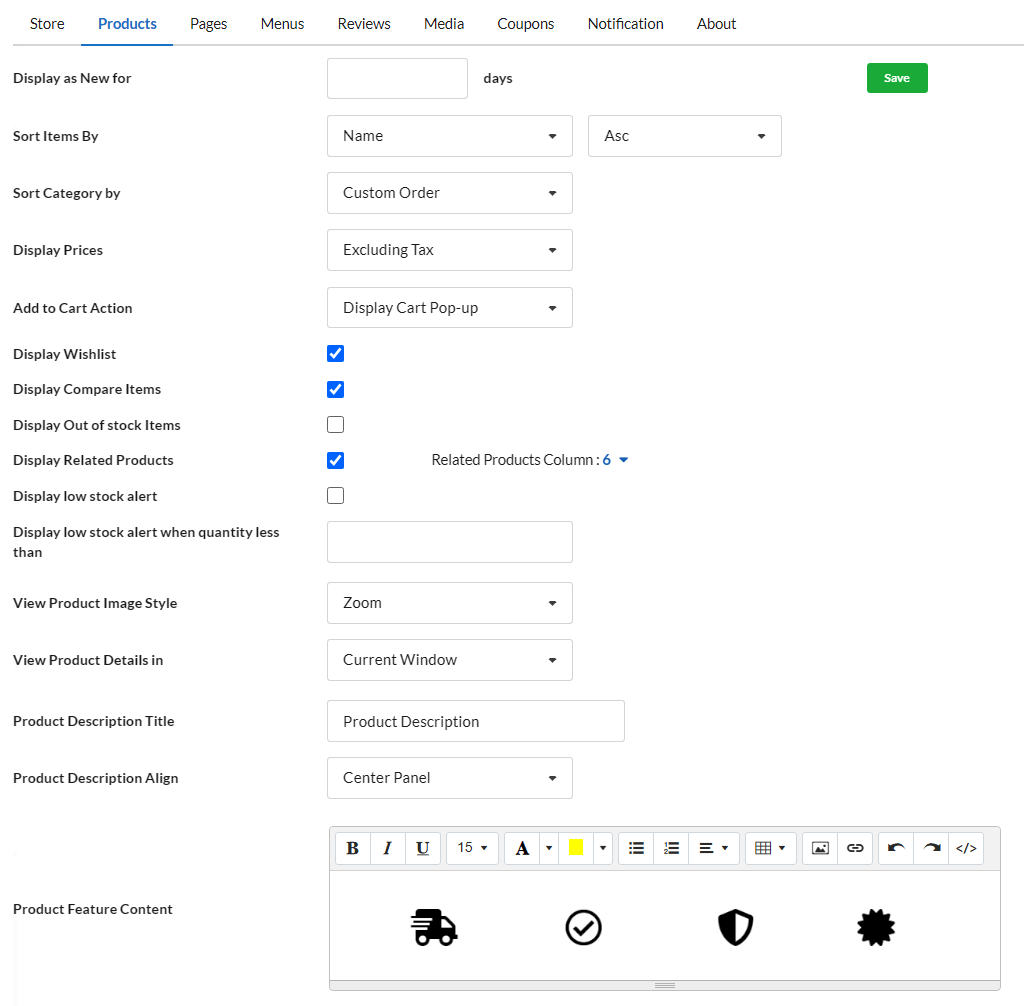
- Display as New for — days -> If you want to display a product as New with a label upon it, set the number of days to be displayed as new.
- Sort Items By -> You can sort the item display based on Name, rate, modified date, created date in ascending or descending order.
- Sort Category By – You can sort item categories by name or set custom order.
- Display Prices -> Select Including Tax or Excluding Tax for displaying price for each Item.
- Add to cart action – When you click Add to cart button present in each item, you can set any of the below 4 action to take place.
- Display Cart pop-up – Displays the cart pop -up with all products added in cart with rate.
- Display Notification – Displays “Item added to cart” notification in the screen.
- Redirect to Cart Page – Redirects to My cart page.
- No Notification – Adds the product to cart but no notification will be displayed.
The other options you can set are:
- Display Wishlist – Displays “Wishlist Icon” in all items.
- Display Compare Items – “Display Compare Items” is used to compare two or more items.
- Display Out of stock Items – You can enable this option, when a product is out of stock.
- Show Out of Stock label – Enable this option to show an Out of Stock label on the product.
- Display Related Products – You can enable this option to display related products on the product pages. By presenting related products, e-commerce businesses can enhance customer satisfaction.
- Display low stock alert – If you wish to display low stock alert for products in website like (Remaining 10 left), enable this option.
- Display low stock alert when quantity less than – Enable Display low stock alert option & enter the minimum number of stock quantity from which alert must be displayed.
- Display Quantity in product Listing – You can enable this option to display stock quantity for each item.
- View Product Image Style – Select the style as either Zoom or Popup.
- View Product Details in – Choose to view the product in either a new window or the current window.
- Product Description Title – Set title for Product description if needed.
- Product Description Align – Align the Product description to the Center Panel or Right Panel for the Products Page.
- Product Feature Content – In this description box, enter the feature content you want to display on the product page.(like Free Delivery, Secured Gateway, Best Price)


