The next step to start with is choosing the best suitable theme for your Ecommerce Store. From the variety of themes we provide, you can choose any theme for your store & customize it as per your requirement.
How to set up theme for Ecommerce
From the Ecommerce module, open Design > Themes. You can find various themes. Click on the Preview button to preview the theme design.
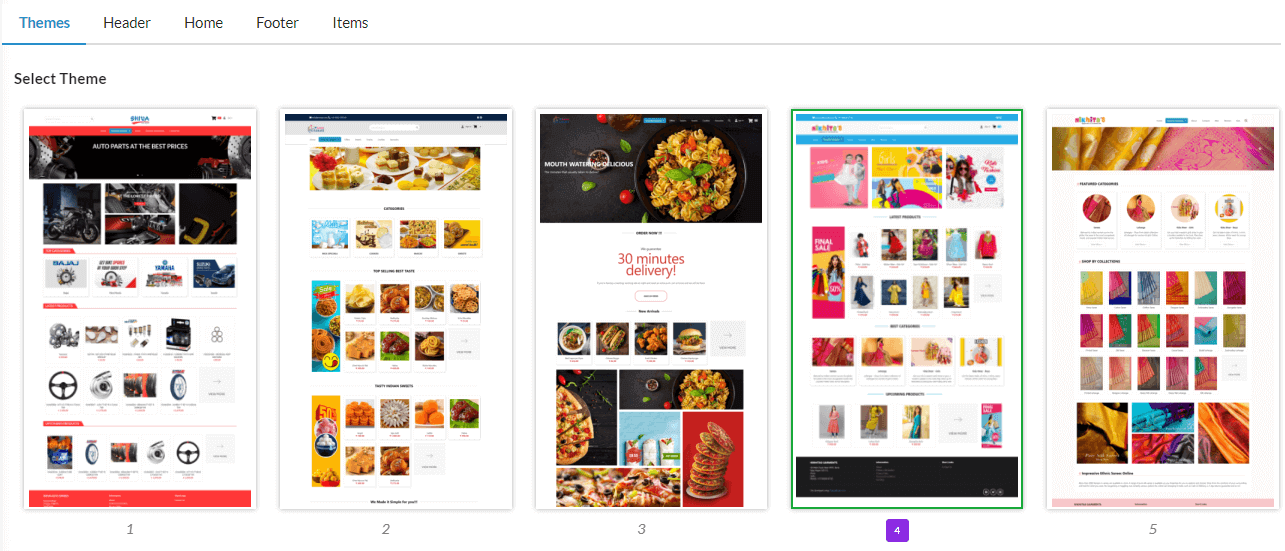
To select a theme, just click on the Select button associated with the theme. Once you select a theme, it will get applied for your Ecommerce store. You can access your Store URL & view it.
Theme Customization
After selecting a theme, if you wish to customize the theme, you can do that too. Click on the Customize button & start customizing.
Theme Name
Provide any name for your customized theme.
Width
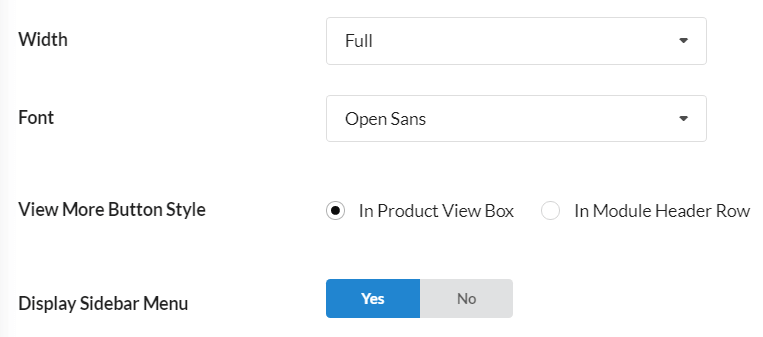
Choose Width for your Ecommerce website from Normal, Moderate to Full.
Font
Choose the desired font for the website from the font styles we provided.
View More Button Style
Choose whether you want to display View More button near Product View Box or upon Module Header Row on the home page.
Color Settings for Theme
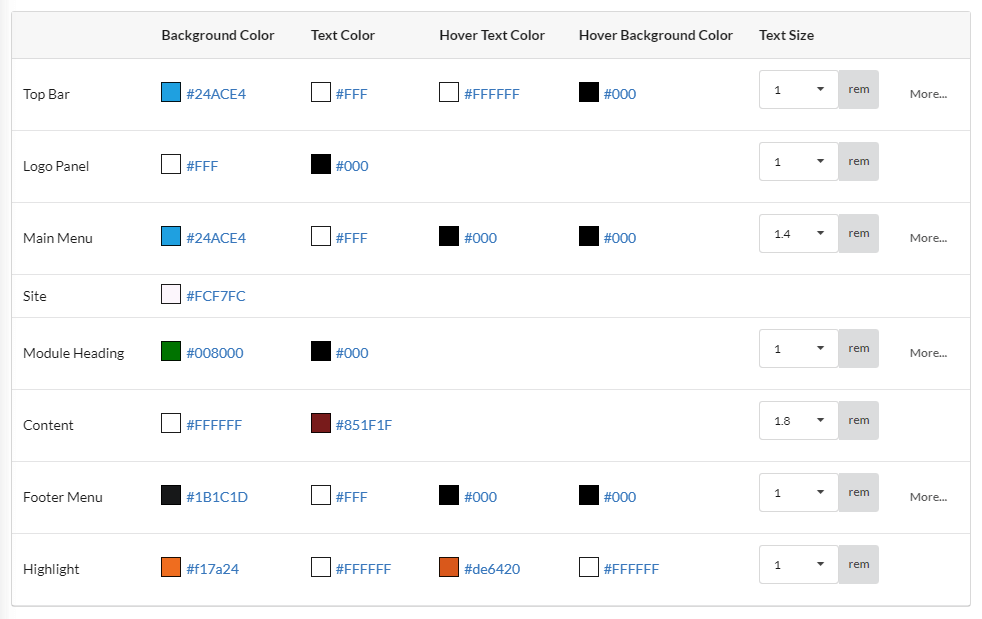
You can set background color, text color, hover text color, hover background color, text size, menu hover style for the following:
- Top Content
- Top Bar
- Logo Panel
- Main Menu
- Site
- Module Heading
- Content
- Footer Menu
- Highlight
- Button Style
Header Style & Customization
Navigate to Ecommerce → Design → Header to configure your header settings.
There are 4 default header styles available. You can select any of the header style from that & customize it if needed. The selected style will get displayed on your ecommerce website.
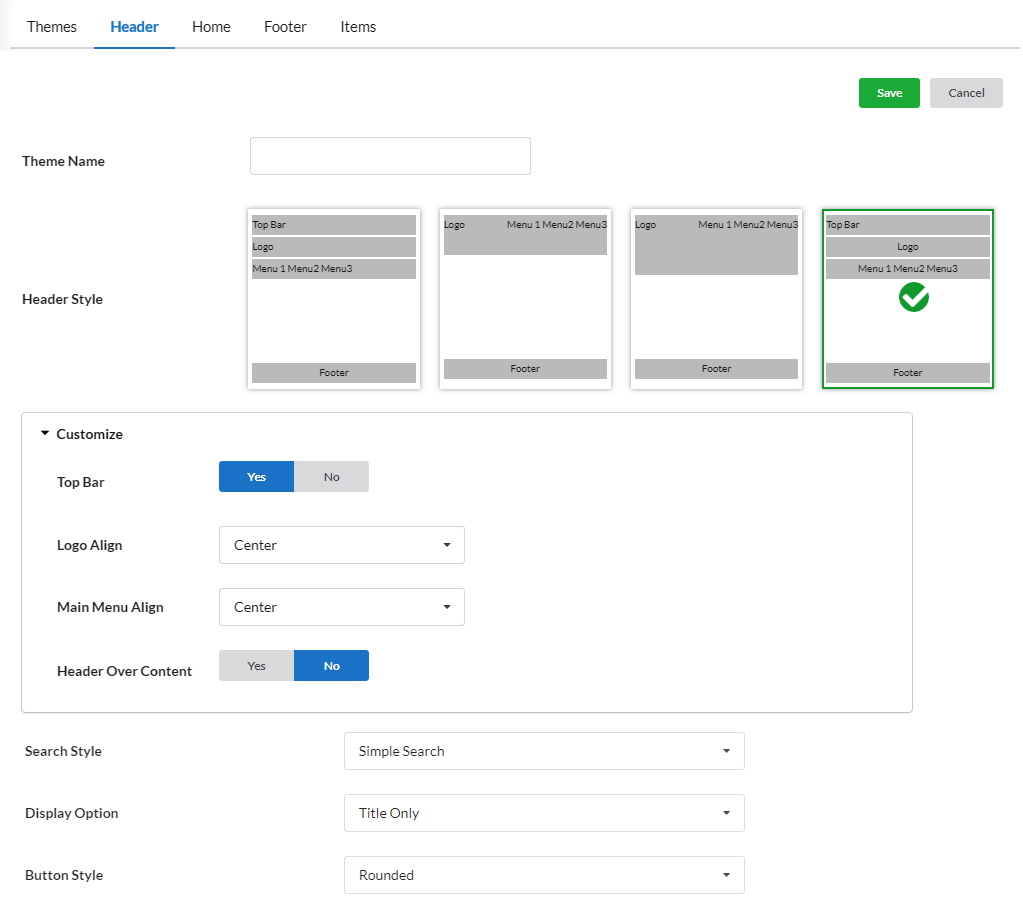
To customize the chosen header style, click Customize & you can customize the following:
- Top Bar – Yes or No – You can either click Yes or No to display Top bar in website
- Logo Align – Align your store logo to left, center or right.
- Main Menu Align – Align the main menu as per your requirement to left, center, right, left with logo, etc.
- Header Over Content – Yes or No – Click Yes or No to display header over content.
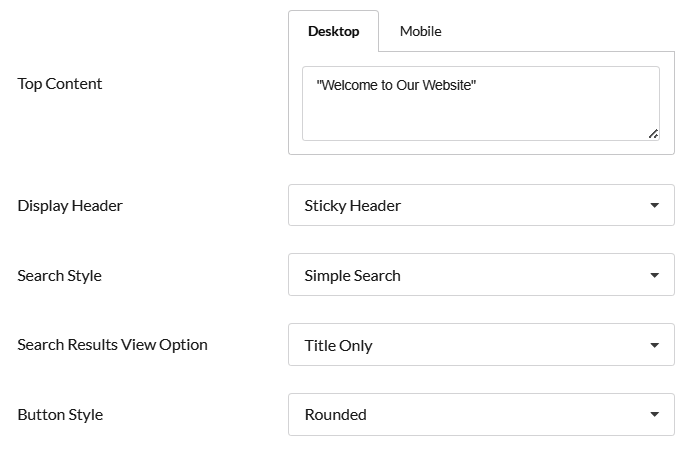
Top Content
The Top Content section allows you to add promotional text, announcements, or important information at the top of your website.
Display Header
The Display Header setting lets you choose how your website header behaves as users scroll through the page.
Sticky Header : The header stays fixed at the top of the screen even while scrolling. This is useful for ensuring easy access to the menu and search bar.
Scroll Header : The header moves along with the page as you scroll. It appears only at the top and scrolls out of view when you move down the page.
Search Style
Customize the search bar to match your design and user experience needs.
Simple Search : Displays a basic search box for quick keyword-based searches.
Button Search : Adds a dedicated search button next to the search bar.
Category Search : Allows users to select a category before searching, making it easier to find relevant products.
Floating Search : A modern, floating-style search box that remains accessible regardless of page scroll.
Search Results View Option
Choose how search results are displayed to your customers.
Title Only : Displays search results with just the product titles, suitable for quick text-based browsing.
Detailed : Shows a detailed view with product images, descriptions, and price details.
Button Style
Select the shape of buttons on your website to match your branding style.
Rectangle : Standard rectangular buttons with sharp edges.
Rounded : Buttons with smooth, rounded corners for a modern look.


