Page Contents
Overview
Tax on Tax is a taxation method where one tax is calculated on top of another tax, rather than being calculated only on the base value of the goods or services.
Ghana follows a Tax-on-Tax structure for indirect taxation. Under Ghana’s Value Added Tax (VAT) system, additional statutory levies— National Health Insurance Levy (NHIL) at 2.5%, Ghana Education Trust Fund Levy (GETFund) at 2.5%, and COVID-19 Health Recovery Levy (COVID) at 1%—are applied together with VAT on taxable supplies.
These levies form part of the VAT base, creating a cascading or “tax on tax” effect. While VAT is recoverable as input tax (subject to eligibility), the levies are not claimable as input VAT, which increases the effective tax burden across the supply chain.
Output Books supports this calculation model to ensure accurate invoicing and compliance with Ghana Revenue Authority (GRA) requirements.
What is Tax on Tax?
Normally, taxes are calculated only on the taxable value (base amount).
In Tax on Tax,
- Tax A is calculated on the base value
- Tax B is calculated on (Base value + Tax A)
This means Tax B includes Tax A in its calculation base.
Computation Method – Ghana
In Ghana, the calculation follows this sequence:
- Levies are calculated on the taxable supply value
- NHIL: 2.5% of base value
- GETFund: 2.5% of base value
- COVID-19 HRL: 1% of base value (where applicable)
- VAT (15%) is calculated on the base value plus all applicable levies.
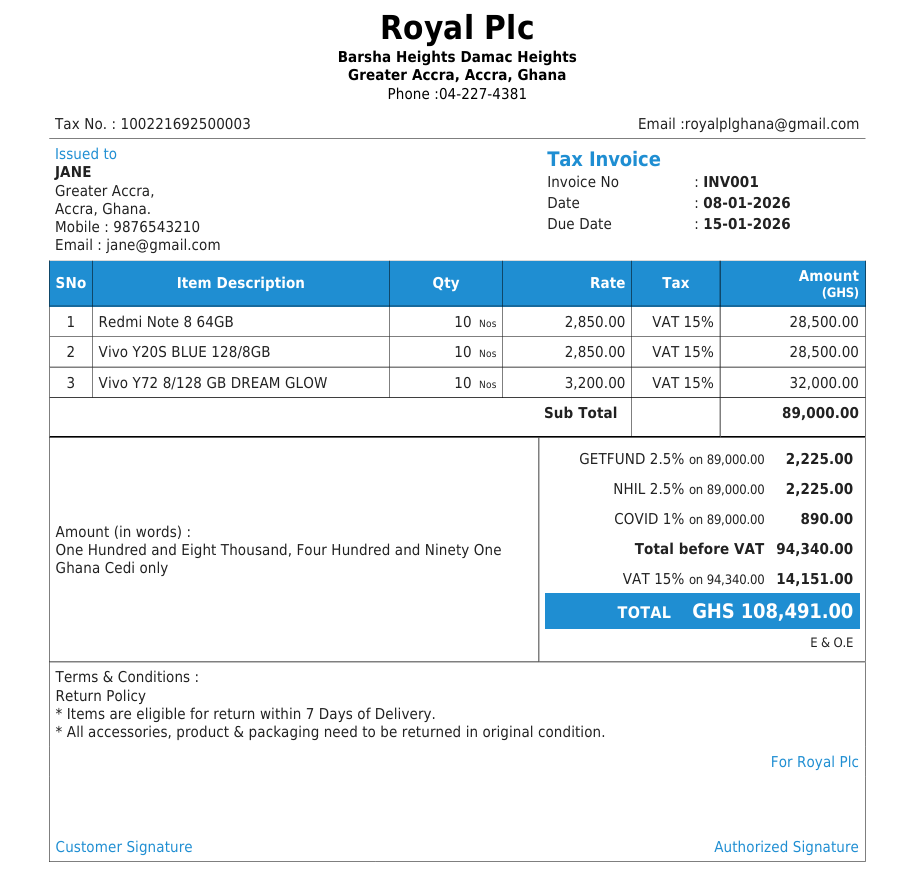
Example : Taxable Supply Value: GHS 89,000
| Component | Base Value | Rate | Amount (GHS) |
|---|---|---|---|
| Taxable Supply | 89,000 | – | 89,000 |
| NHIL | 89,000 | 2.5% | 2,225 |
| GETFund | 89,000 | 2.5% | 2,225 |
| COVID-19 HRL | 89,000 | 1% | 890 |
| Subtotal (for VAT) | 94,340 | – | 94,340 |
| VAT | 94,340 | 15% | 14,151 |
| Total Invoice | – | – | 108,491 |
How Output Books Handles Tax on Tax (Ghana)
Output Books supports Tax on Tax by clearly separating:
- Tax definition
- Tax calculation
- Tax display on invoices
This separation ensures compliance with local tax laws and helps avoid E-VAT or tax authority rejections.
Step 1. Tax Types
Tax Types define which taxes exist in your system, not how they are calculated.
1.1. What Tax Types do
- Store tax names and internal codes.
- Act as a common reference used by Tax Rates and Tax Templates.
1.2. Configuration Steps
- Go to Settings → Tax Rates
- Choose Tab Tax Type
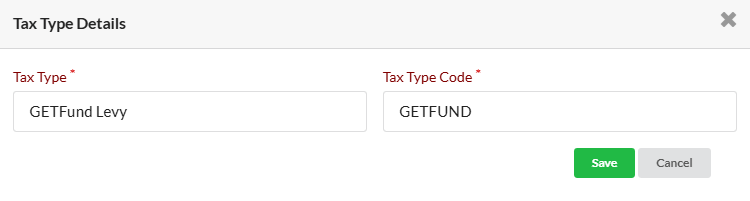
- Click Add Tax Type
- Enter:
- Tax Type Name (e.g., VAT, NHIL, GETFund)
- Tax Type Code (internal short code)
- Click Save
Step 2. Tax Rates
Tax Rates define how taxes are calculated. This is where Tax on Tax behavior is implemented.
2.1. What Tax Rates control
- Tax percentage (e.g., 15%, 2.5%, 1%)
- Calculation base (taxable value or taxable value plus other taxes)
- Dependency sequence between taxes
2.2. Example: Ghana configuration Logic
| Tax | Rate | Calculated on (Base) |
|---|---|---|
| NHIL | 2.5% | Taxable Amount |
| GETFund | 2.5% | Taxable Amount |
| COVID Levy | 1% | Taxable Amount |
| VAT | 15% | Taxable Amount + all applicable levies |
Note: Tax rules may change over time (for example, COVID-19 levy removal). Always update Tax Rates to reflect current law.2.3. How dependencies work in Output Books
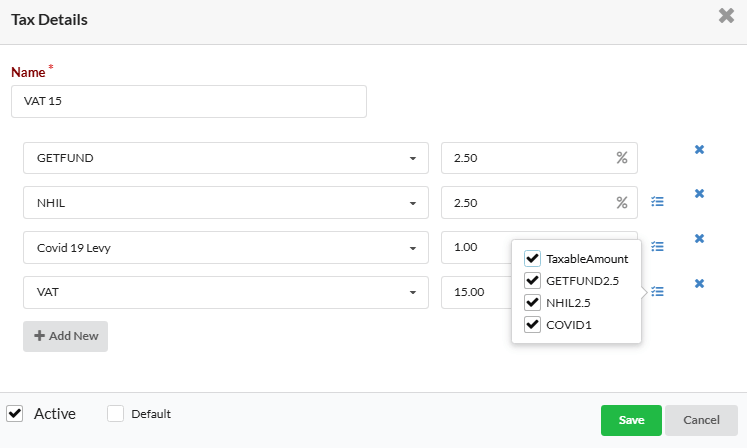
- Go to Settings → Tax Rates.
- Choose Tax Rate Tab.
- Click Add TaxRate.
- Enter Tax Name (e.g., VAT 15%).
- Click Add New.
- Select the Tax Code and enter the Tax Rate (%).
- Click the blue dependency icon and select the required dependencies.
Examples
- Levy on base value only, Select dependency
- Taxable Amount
- VAT on base value + levies, Select dependencies :
- Taxable Amount
- NHIL
- GETFund
- COVID-19 Levy (if applicable)
This dependency mechanism is how Output Books implements Tax on Tax.
2.4. Key configuration rules
- Ensure the tax calculation sequence matches local tax law
- Legal changes must be reflected only in Tax Rates
- Incorrect dependencies may cause:
- Incorrect tax totals
- E-VAT or clearance rejections by the tax authority
Step 3. Tax Template
Tax Templates control how taxes appear on invoices and PDFs. They do not affect tax calculation.
3.1. What Tax Templates control
- Display order of taxes on the invoice.
- Grouping or subtotaling of taxes.
- Customer-facing labels.
3.2. Steps to define display order (Ghana)
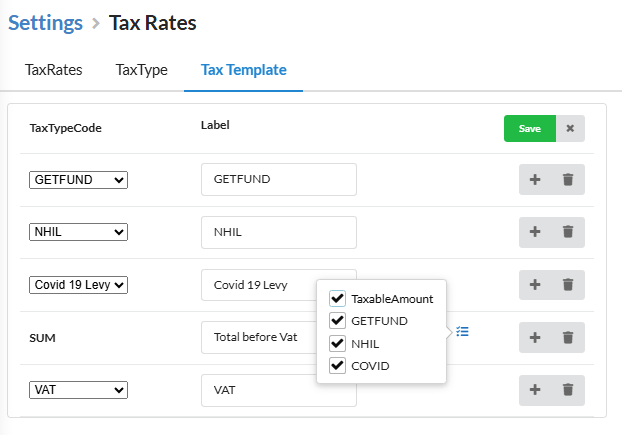
- Go to Settings → Tax Rates → Tax Template
- Click Edit
- Select TaxType Code (e.g., GETFUND)
- Enter customer-facing label
- Click + and repeat for NHIL and COVID-19 Levy
- Click +, select SUM
- Enter label: Total before VAT
- Click the blue icon and enable:
- Taxable Amount
- GETFund
- NHIL
- COVID
- Click +, select VAT, and enter its label
- Click Save
3.3. Sample Invoice
You may reorder these for invoice layout or customer clarity, but this does not modify the tax calculation; the calculation always follows the configuration in the Tax Rates screen.
Step 4. Recommended Setup Checklist
Before issuing live invoices:
- Create all required Tax Types (VAT, NHIL, GETFund, etc.).
- Configure Tax Rates with:
- Correct percentages
- Correct base (taxable value or value plus other taxes)
- Correct dependencies to implement tax on tax as per law.
- Configure Tax Templates to:
- Show each tax on a separate line
- Match local invoice display requirements (for example, separate lines for VAT and each levy).
- Test a few sample invoices and compare with the official tax calculator or GRA examples before going live.


