Create an Invoice
You can open the New Invoice screen in either of these ways:
- Go to Sales → Invoices and click New Invoice (Alt+I).
- Press Alt+I from anywhere in Output Books.
Then follow these steps:
- Check the Invoice No, Invoice Date and Due Date.
- Select the Customer. The GSTIN and addresses fill in from the customer record.
- Check the Place of Supply (India). It decides whether CGST and SGST, or IGST, is charged.
- Search and select each Item, then enter the Qty. Change the Rate, Discount or Tax if needed.
- Add any extra charges, Notes and Terms & Conditions.
- Check the Total, then click Save.
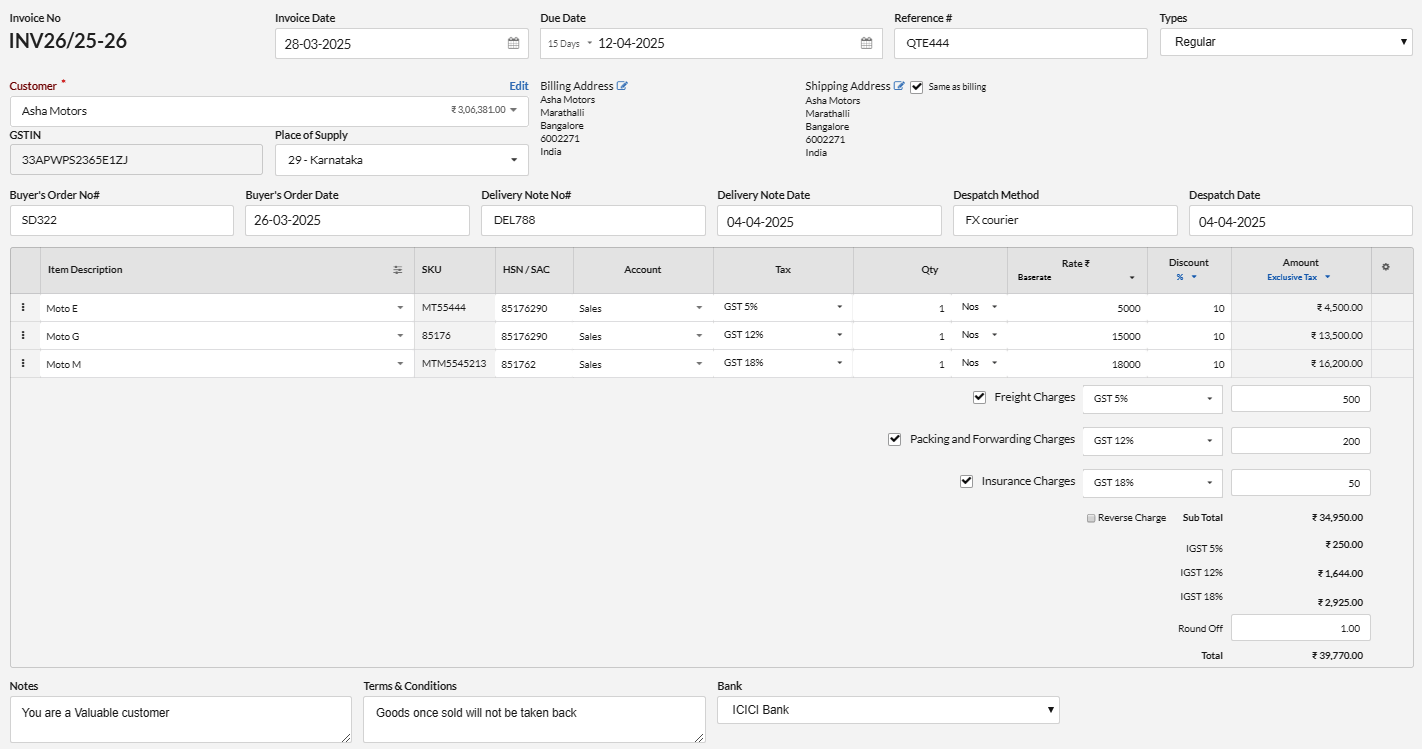
Invoice Details
| Field | Description |
| Invoice No | The next invoice number will be displayed for your convenience. You can define it Automatic or Manual in Settings → Modules. Invoice number should be unique for a financial year. |
| Invoice Date | Date of Invoice issued |
| Due Date | The payment deadline. Choose Credit Limit, None, on Receipt, 7, 15, 30, 45 or 60 Days, or Custom and enter the number of days. You can also pick a date. |
| Reference # | Your Reference number for this transaction. Ex. Quote / Purchase Order Number |
| Type | Type of GST Invoice. Select Regular if the invoice is not for Export/SEZ. Export/SEZ with Payment – Payment of Tax & then collect Refund. Export/SEZ without Tax – Without Payment of Tax by providing bond/LUT. Deemed Exports – Export Invoice but goods will not leave the country. |
| Customer | Select a customer from the Customer dropdown or type the customer name. To create a new customer, enter the name and select Add New Customer from the dropdown.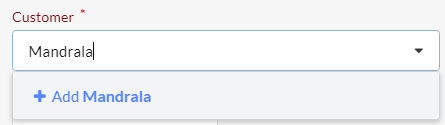 Customer is required field for Invoice. In Retail Invoice, Customer is optional. |
| GSTIN | The customer’s GSTIN will be displayed automatically if it is already saved. Otherwise, you can enter the GSTIN manually. |
| Place of Supply | The state where the goods or services are supplied. It decides CGST and SGST (same state) or IGST (other state). Shown when the billing address is in India. |
| Billing Address | Customer Billing Address for this transaction. |
| Shipping Address | Customer Shipping Address for this transaction. |
| Item | Select the Item from the drop down or type in the Item name or SKU Code. You can also add new item if not exists in Items Master. |
| SKU | Item SKU code (Display only) |
| HSN / SAC | Codes for Tax classification of the item |
| Tax | Select the Tax defined for the item |
| Rate | Standard Rate defined in Item Master will be displayed. If you have Rate Sheet defined for the Customer (or tag)/Currency of the transaction, option to choose with Standard rate.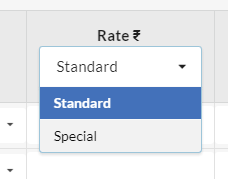 |
| Discount | Discount for Individual Item with option to provide as percentage or flat |
| Amount | For Exclusive Tax, display the taxable value (Rate × Quantity − Discount). Tax is calculated on this amount. For Inclusive Tax, enter the final tax-inclusive amount. The item rate is automatically adjusted based on the entered amount. |
| Freight/ Packing / Insurance Charges | You can enable it in Settings → Sales → Sales Charges, for input in Invoice. |
| Round Off | Based on Settings → General → Round off final total amount, Round Off will be calculated.
|
| Notes | Enter additional notes or a thank-you message to print on the invoice. Click the ellipsis icon or press Alt+I to select saved content. |
| Terms & Conditions | T & C will be printed on the invoice. Set the default content in Settings. |
| Bank | Select a Bank account, to print invoice with Bank account details. (optional) |
| Attachment | Your own invoice or item fields. See Invoice Settings and Custom Fields. |
| Custom fields | You can also add attachments related to the transaction |
Invoice Status
An invoice can have one of the following five statuses:
| Draft | Invoice saved but not finalised. Click Open to finalise it. |
| Open | Invoice finalised and awaiting payment. |
| Paid | Invoice fully paid by the customer. |
| Overdue | Invoice payment is pending past the due date. |
| Cancelled | Invoice cancelled and no longer active. |
GST Return Classification
While filing GST Returns, an Invoice will be classified as below:
| B2B | Sales from registered seller to a registered buyer |
| B2C (Small) | Sales from registered seller to unregistered intra state buyer < 2.5 Lakhs |
| B2C (Large) | Sales from registered seller to unregistered buyer >= 2.5 lakhs & to all interstate buyer irrespective of amount |
| Export Invoice | Sales to countries outside India. When you select a customer outside India by default you can view the following additional fields in Invoice. Based on invoice type (Export with Tax or Without Tax) tax calculations are applied. |
Custom Fields
You can add new custom fields to your invoice by defining in Settings → Custom Fields.
The fields defined in Settings, will be displayed for input in Invoice.
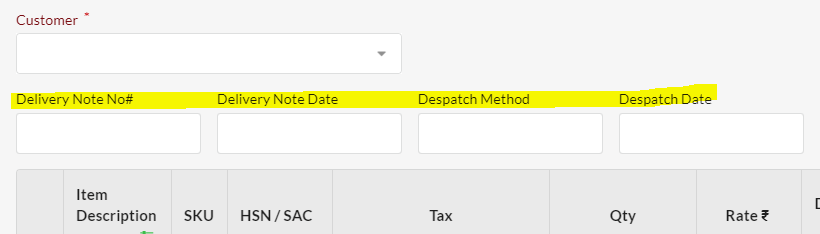
The values provided in custom field will be stored with invoice. In future, even when we remove a
custom field in settings, it still can be viewed in invoice where it was used.
FAQ
- How do I copy or duplicate an invoice ?
- Can I edit or delete an invoice at any time ?
- How do I reuse a deleted invoice number ?
- How do I check an invoice in the Day Book ?
- How do I see only pending invoices ?
- How to enable Reverse charge for my Sales invoice ?
- Can I have a whole invoice discount instead of item ?
- Why Round-off option not visible for me ?
- What is the Account column in Item Grid ?
Go to Sales → Invoices, open the invoice’s action menu and click Copy (Ctrl+Alt+C). A new invoice opens with the same details. Edit it and click Save.
Yes, if your user role allows it. Use Edit or Delete in the invoice’s action menu. The options are hidden for users without permission.
With manual invoice numbering, enter the deleted number in the Invoice No field. Automatic numbering assigns numbers automatically.
Open the Day Book from the Accounts reports. Pick the invoice date and look for the invoice number.
On Sales → Invoices, use the status filter. Choose Open for unpaid invoices or Overdue for invoices past the due date.
Enable Show Reverse Charge from the invoice settings. This option is available only for eligible GST invoices in India when the customer’s GSTIN differs from your company’s.
Yes. Tick Discount Overall in the cog menu, then enter the percentage or amount under the Sub Total. Use Discount Per Item for item-wise discounts.
Turn on Round off final total amount in Settings → Sales Form. Round Off is not shown for export invoices or non-GST invoices.
It sets the account where the sale of that item is recorded. Turn on Show Accounts column in Settings → Sales Form, then tick Account in the invoice cog menu.


