Overview
Output Books can digitally sign your invoices when you export them as PDF. The signature is created with your USB digital signature key, using a small program called the Output Books Digital Signature Agent.
The agent must be running on the computer where the USB key is connected while you export the PDF.
Prerequisites
- A USB digital signature key.
- The drivers and certificates required by your digital signature key, properly installed and configured on your computer.
- The Output Books Digital Signature Agent (downloaded in Step 2 below).
- The USB key and the agent must be on the same computer.
Step-by-Step Instructions
Step1: Enable the Digital Signature option
- Open Output Books.
- Open the invoice you want to export.
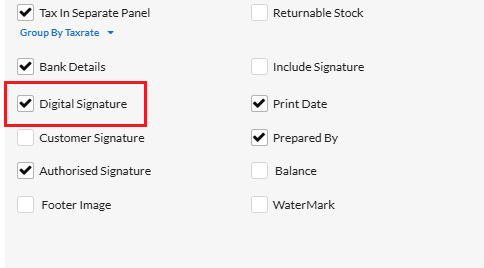
- Open the Print > Settings popup.
- Enable the Digital Signature option.
Step2: Download the Digital Signature Agent
- Download the agent: https://outputbooks.com/release/obsign-agent.zip
- Extract the downloaded ZIP file, if required.
- Find the executable file (
.exe) inside the extracted folder. - Install that exe by Run as Administrator.

Step3: Connect the USB digital signature key
- Plug your USB digital signature key into a free USB port on your computer.
- Make sure the required drivers and certificates are installed and that your computer recognises the key.
Step4: Run the Digital Signature Agent
- Run the agent’s
.exefile on the same computer where the USB key is connected. - Keep the agent running while you export the invoice as PDF.
Step5: Export the invoice as PDF
- Return to the invoice in Output Books.
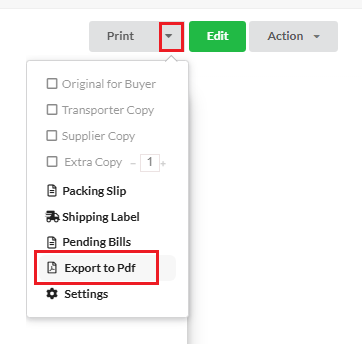
- In Print menu, click “Export to Pdf“
- Complete the PDF export while the Digital Signature Agent is running.
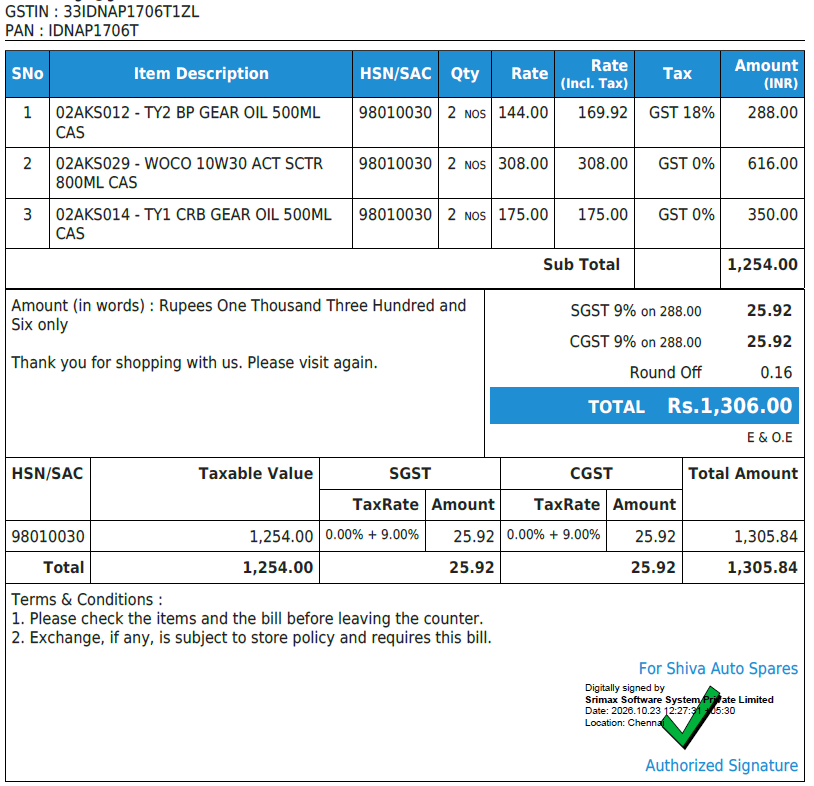
- Open the exported PDF and check that the digital signature has been applied.
Troubleshooting
The Digital Signature option is not visible in Print Settings
- Check that you are using the latest version.
- If the option is still missing, contact Output Books Support.
The USB digital signature key is not detected
- Check that the key is firmly plugged in. Try a different USB port.
- Check that the drivers and certificates for your key are installed and configured correctly.
- Make sure the key is connected to the same computer that runs the agent.
The Digital Signature Agent does not start
- Check that you ran the
.exefile from the extracted folder, not from inside the ZIP file. - Download the ZIP file again, extract it, and try again.
- If it still does not start, contact Output Books Support.
The exported PDF does not appear to contain a digital signature
- Check that Digital Signature was enabled in Print Settings before you exported.
- Check that the agent was running, and the USB key was connected, during the export.
- Export the invoice as PDF again.
- Make sure you exported as PDF. The digital signature is not applied to other options.
Frequently Asked Questions
1) Is the digital signature applied automatically?
No. The Digital Signature Agent must be running, and the USB key connected, while you export the PDF.
2) Which export options support the digital signature?
PDF export only.
3) Can I run the agent on a different computer from the USB key?
No. Run the agent on the same computer where the USB key is connected.
4) Do I need to keep the agent running?
Yes, keep it running while you export the invoice as PDF.
5) Do I need to install drivers or certificates?
Yes. The drivers and certificates for your USB key must be installed and configured on your computer.


