Output Books is GST billing and accounting software that helps businesses manage invoices, purchases, inventory, and financial transactions. Follow this guide to download, install, and configure Output Books on your Windows computer.
Before start installation, make sure the following requirements are available.
System Requirements
Hardware
Processor Generation : 6th generation or newer
Cores : Minimum 4 cores
HDD : 20 GB free space
RAM : 6 GB or greater
SSD : 256GB
Network : Internet connection required
Full administrator Access
Apache >= 2.4.7
PHP >= 5.5.1
MySQL >= 5.6.12
Register and Download Output Books
- Visit the official Output Books website.
- Navigate to the Downloads or On-Premises section.
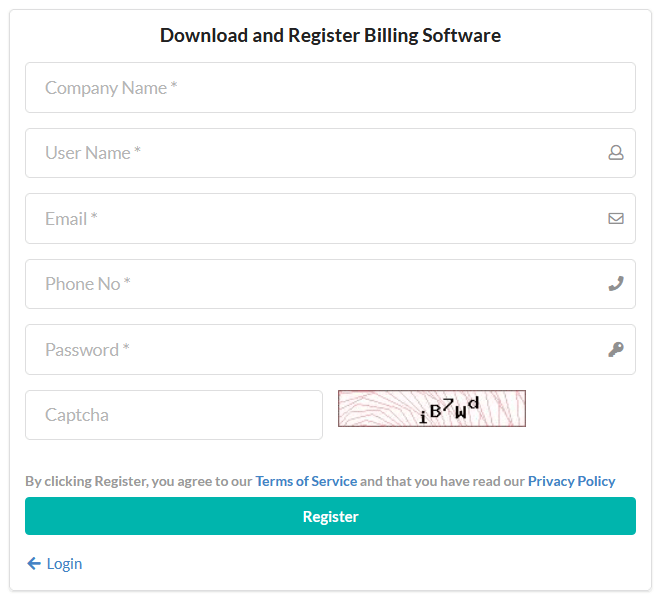
- Register for an Output Books account using the required details.
- Check your registered email for the installation package download link and license information.
- Download the Windows Standalone Server Installer.
Installation Steps
Extract the downloaded ZIP file, open the extracted folder, and run OutputBooksServerManager.exe to start the Output Books Server Manager.
Note: By default, C drive will be the storage folder.
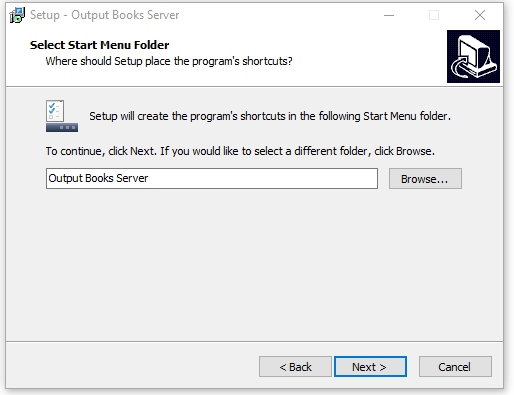
In general, D drive is preferred for storage.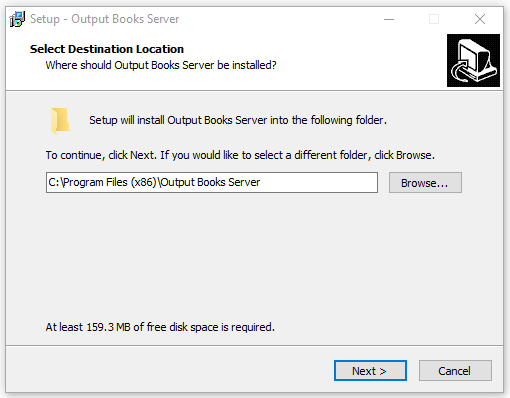 Select the program shortcut to be displayed in start menu folder.
You can click Browse option to change it to a different folder.
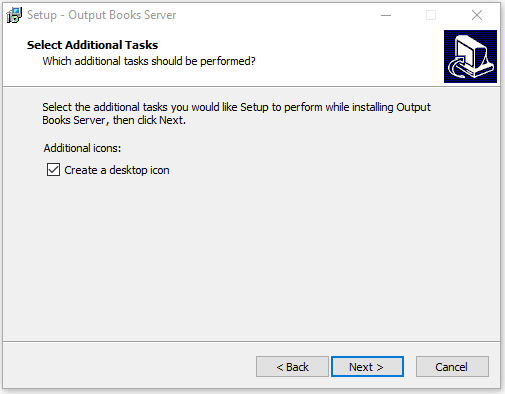
 Click Next to continue and optionally create a desktop shortcut for Output Books for quick access.
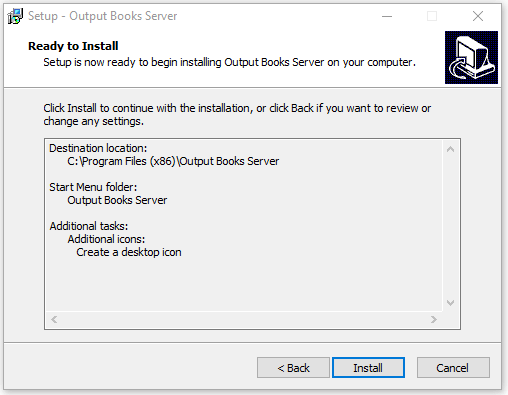
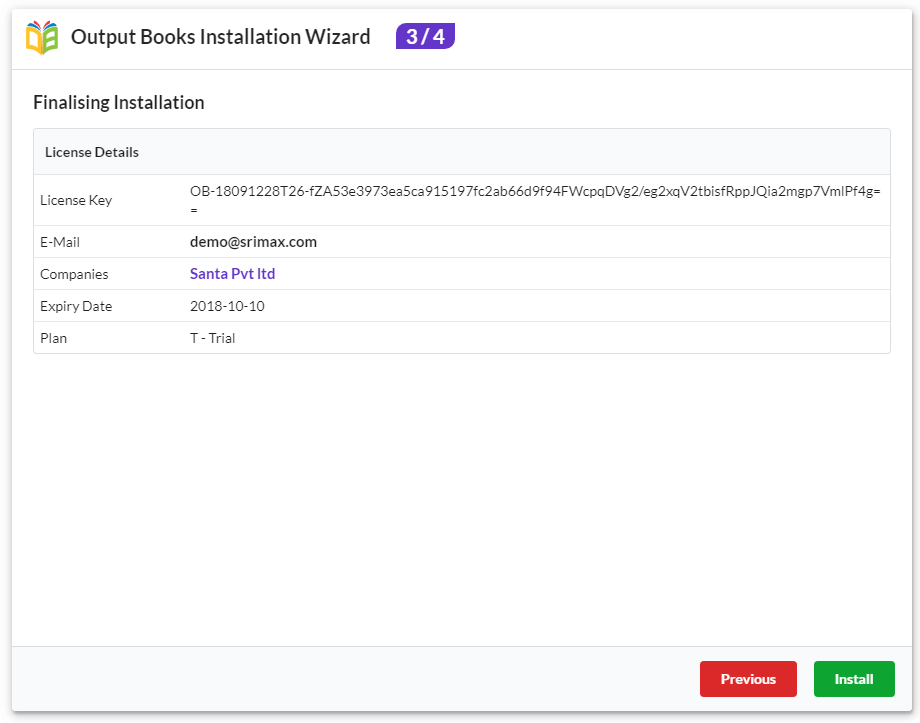
 Then, check all the settings made in the previous steps and click Install.
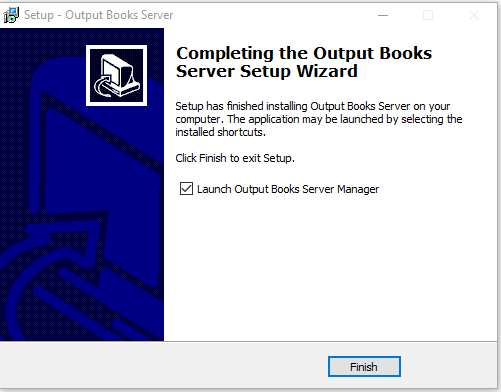
 After the process of installation, click Finish to complete installation.
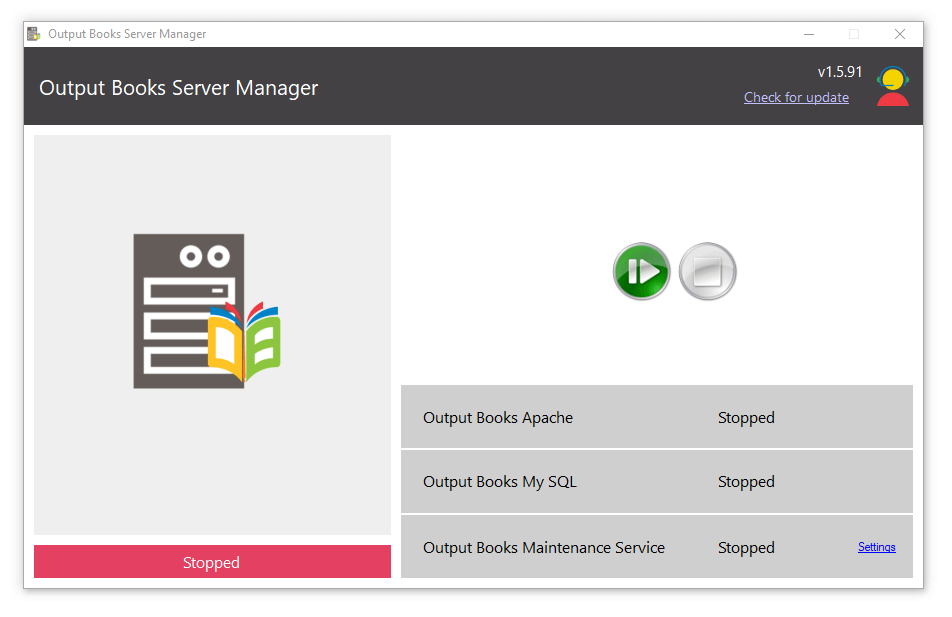
Start Services
Click the Play icon to start the services. The current Output Books version number appears in the top-right corner of the page.
Then click on the local host link in which Output Books is running.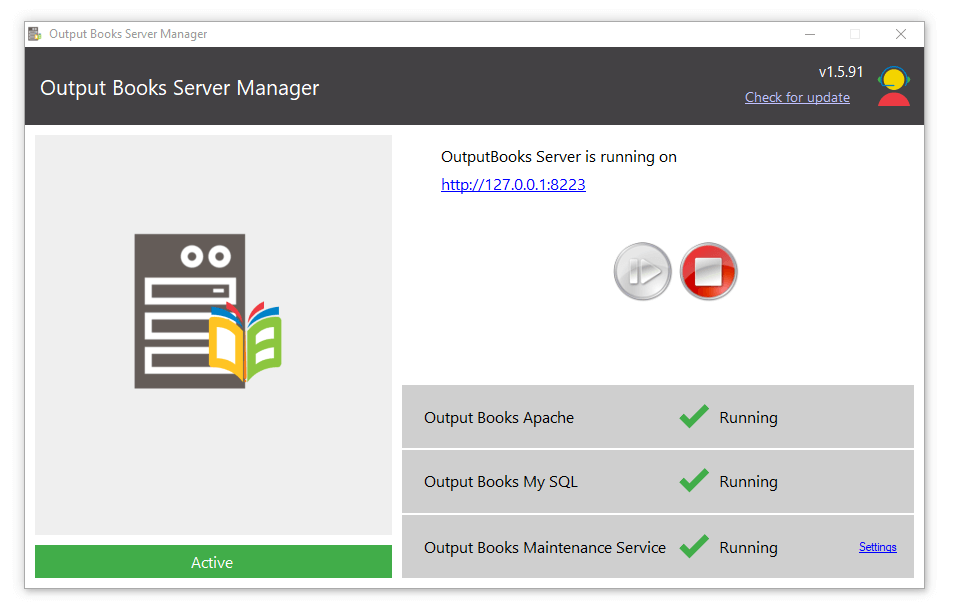
Info
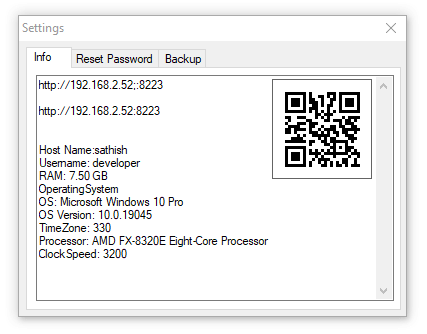
Go to Settings > Info to view the server and system information for your Output Books installation.
- Server Information: View the Server URL and LAN URL to access Output Books locally or from other devices on the same network.
- System Information: Check your computer details, including the host name, username, RAM, operating system, processor, and clock speed.
- Mobile Access: Scan the displayed QR code using your mobile device to connect to Output Books over the same network.
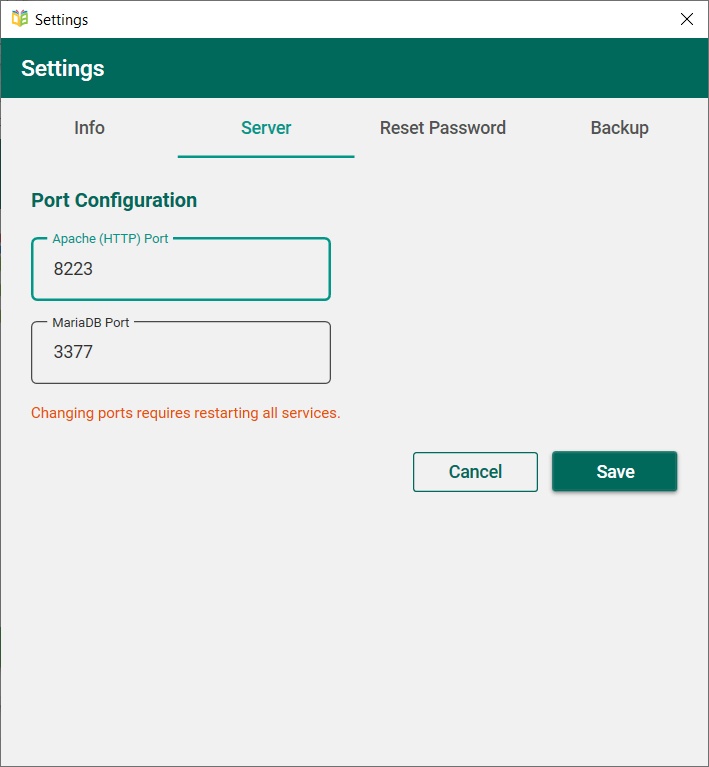
- Apache (HTTP) Port: Set the port used to access Output Books through a web browser. The default port is 8223.
- MariaDB Port: Set the port used for database connections. The default port is 3377.
- Navigate to the “Reset Password” tab.
- Provide your registered email address and new password.
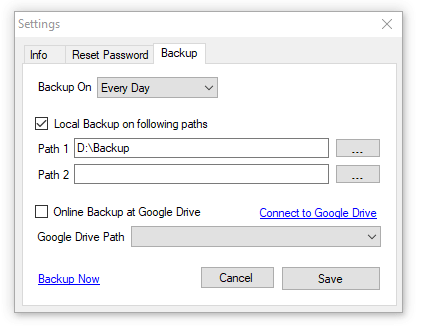
- In Output Books Server Manager, Click Settings at the right bottom.
- Click “Back Up” tab
- Choose the local path/paths in which the backup is to be done.
- You can select maximum two paths for storing the backup.

Server
Go to Settings > Server to view or configure the server ports used by Output Books.
Click Save to apply the changes. Changing the ports requires restarting all services for the new settings to take effect.
Reset Password
To reset your password, follow these steps within the “Settings” window:
DB backup
Finalizing Installation
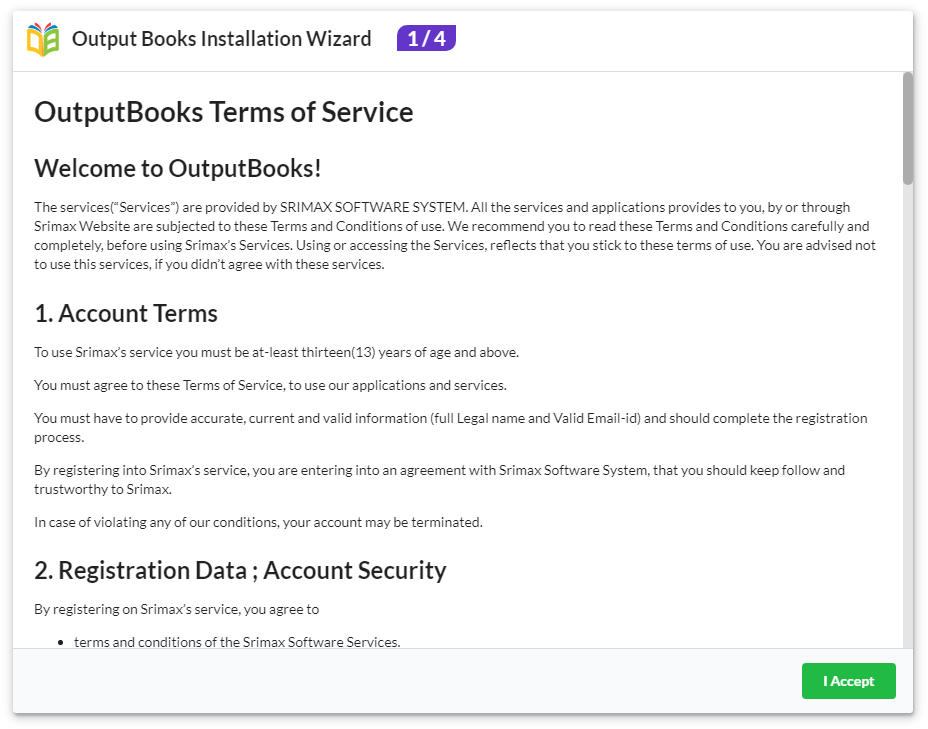
On completion of installation, you will be prompted to Output Books Installation Wizard.
Read and agree to the terms and conditions.
 In the next wizard, provide the license key, email and create a password for your account.
After providing the license key, the company name will appear automatically.
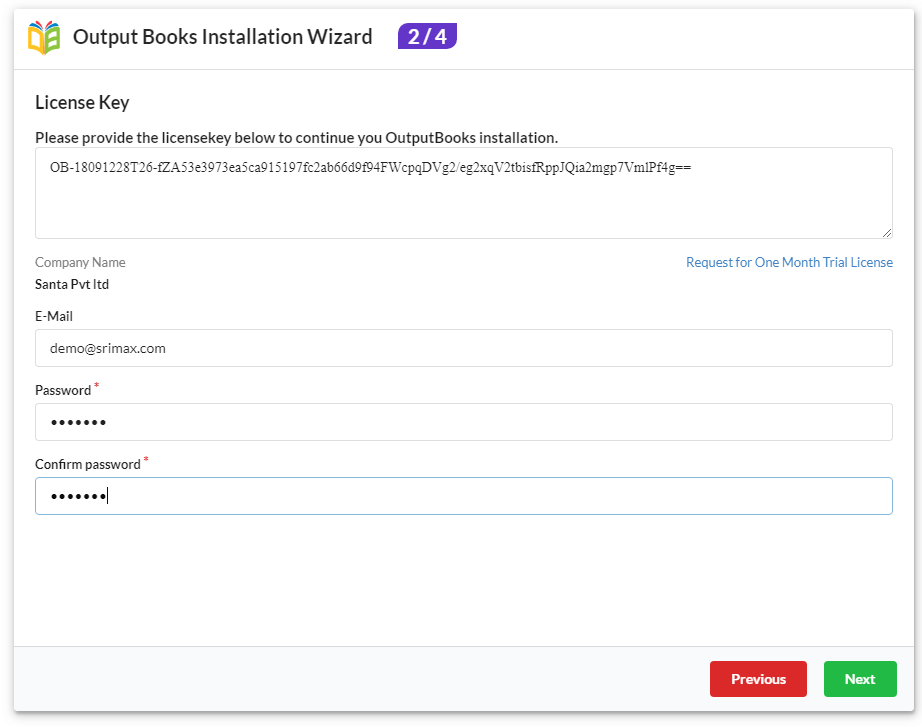 Verify the details provided and if you want to change, click on Previous. If all details are verified, click on Install to start installation.
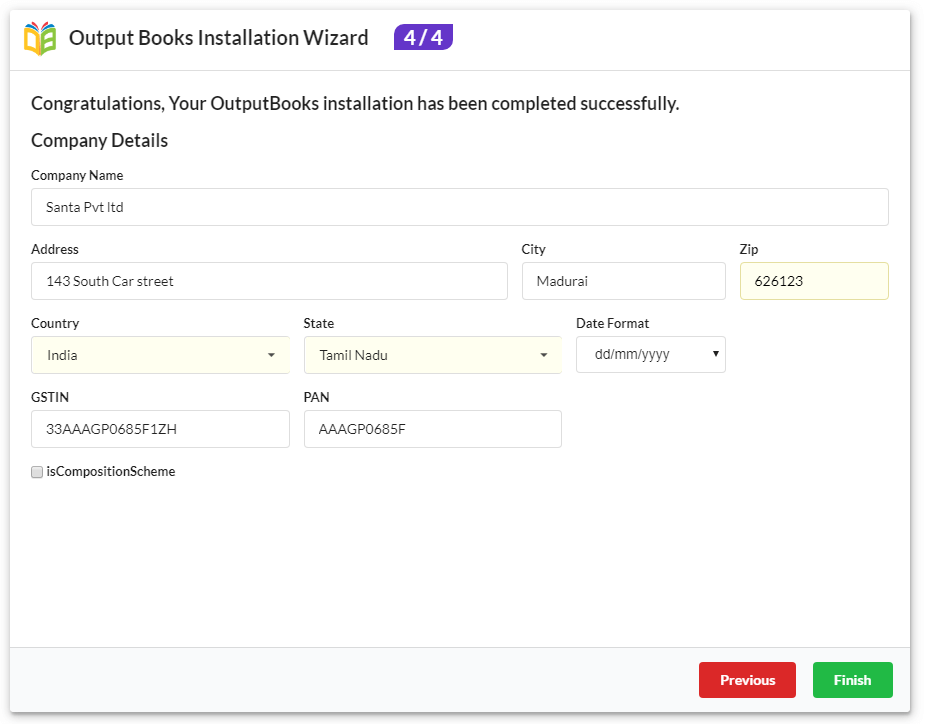
 After completion of installation, you will be getting the congratulations screen.
There, provide the entire details of the company in the respective fields and click Finish.
 Now, you have successfully completed the installation.
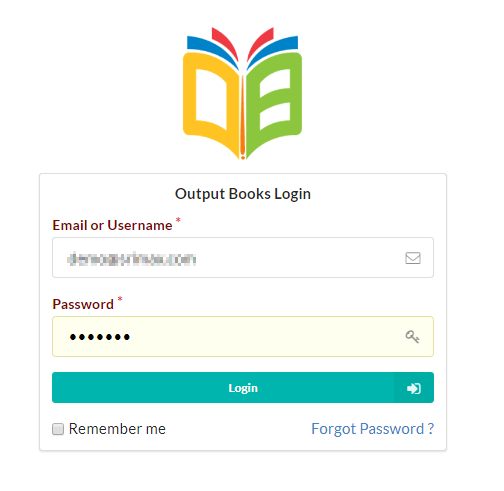
Provide the email and password in the Login page and enjoy using our Smart Accounting software.


