The Output Books Product Enquiry plugin lets customers enquire about products on your WooCommerce store. It adds an Enquire Now button to supported product pages.
Customers can submit their contact details, a message, and an optional file. WordPress saves each enquiry. You can also connect the plugin to Output Books CRM to send enquiries to your sales team.
1. Install the Plugin
- Log in to your WordPress admin panel.
- Go to Plugins → Add New Plugin.
- Click Upload Plugin.
- Select the Output Books Product Enquiry .zip file.
- Click Install Now.
- After installation, click Activate Plugin.
The plugin is now ready to configure.
2. Configure the Plugin
After activation, open WooCommerce → Output Books Product Enquiry.
2.1. Connect to Output Books
First, configure the connection settings.
- Set Mode to Live to send enquiries to Output Books.
- Keep the mode Disabled if you only want to collect enquiries in WordPress.
- Enter your Output Books Server URL.
- Enter the CRM Web Form Public Key provided by Output Books.
- Click Test Connection to check the connection settings.
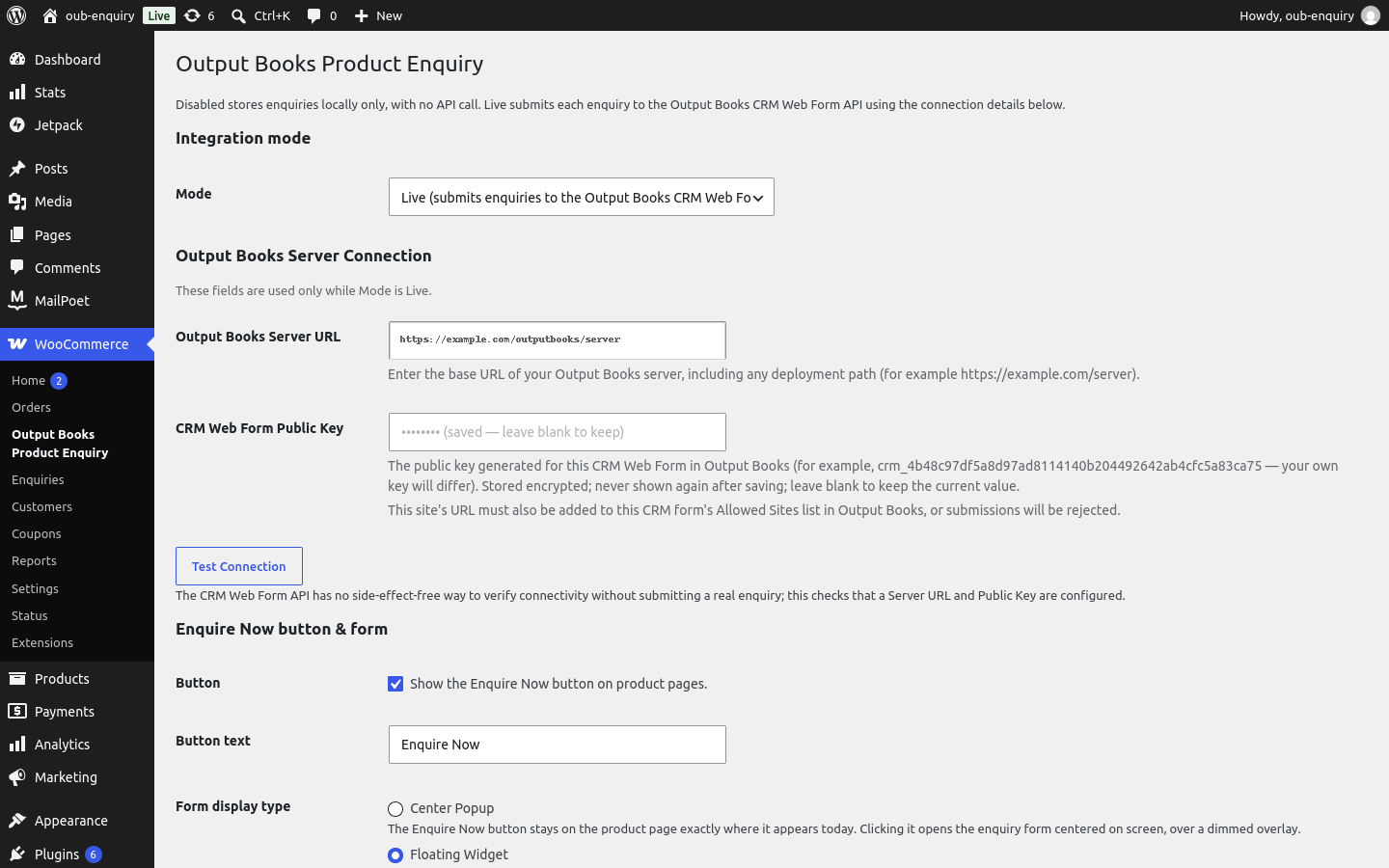
Important: Add your website URL to the CRM form's Allowed Sites list in Output Books. Otherwise, the CRM may reject submissions.
2.2. Set Up the Enquire Now Button
Choose how the enquiry button appears on your website.
- Enable or disable the button: Control whether customers can see the button.
- Button label: Change the text displayed on the button.
- Center Popup: Opens the enquiry form in the center of the screen with a dimmed background.
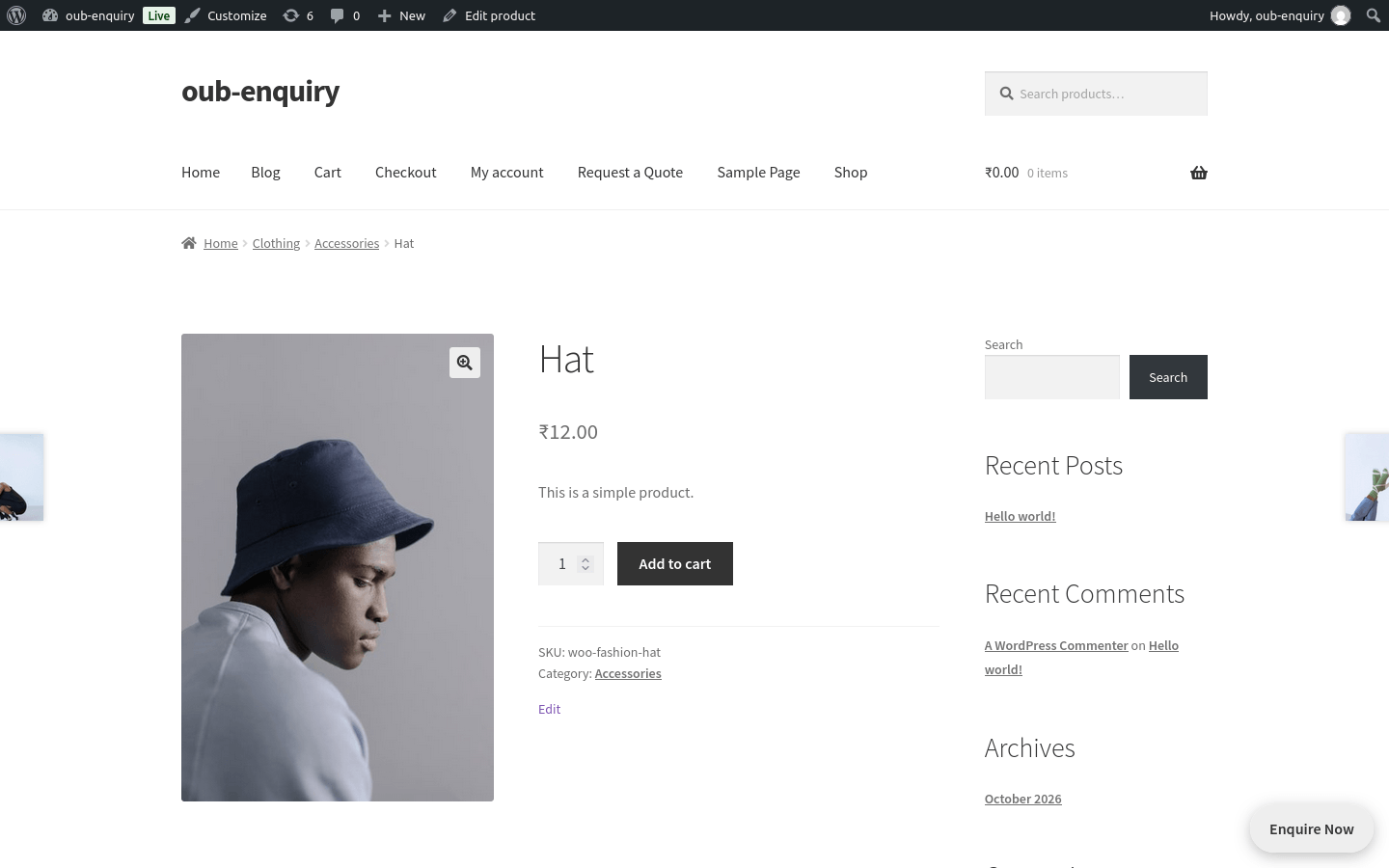
- Floating Widget: Displays a button near the bottom-right corner. Customers can click it to open the enquiry form.
Choose the display style that best suits your website.
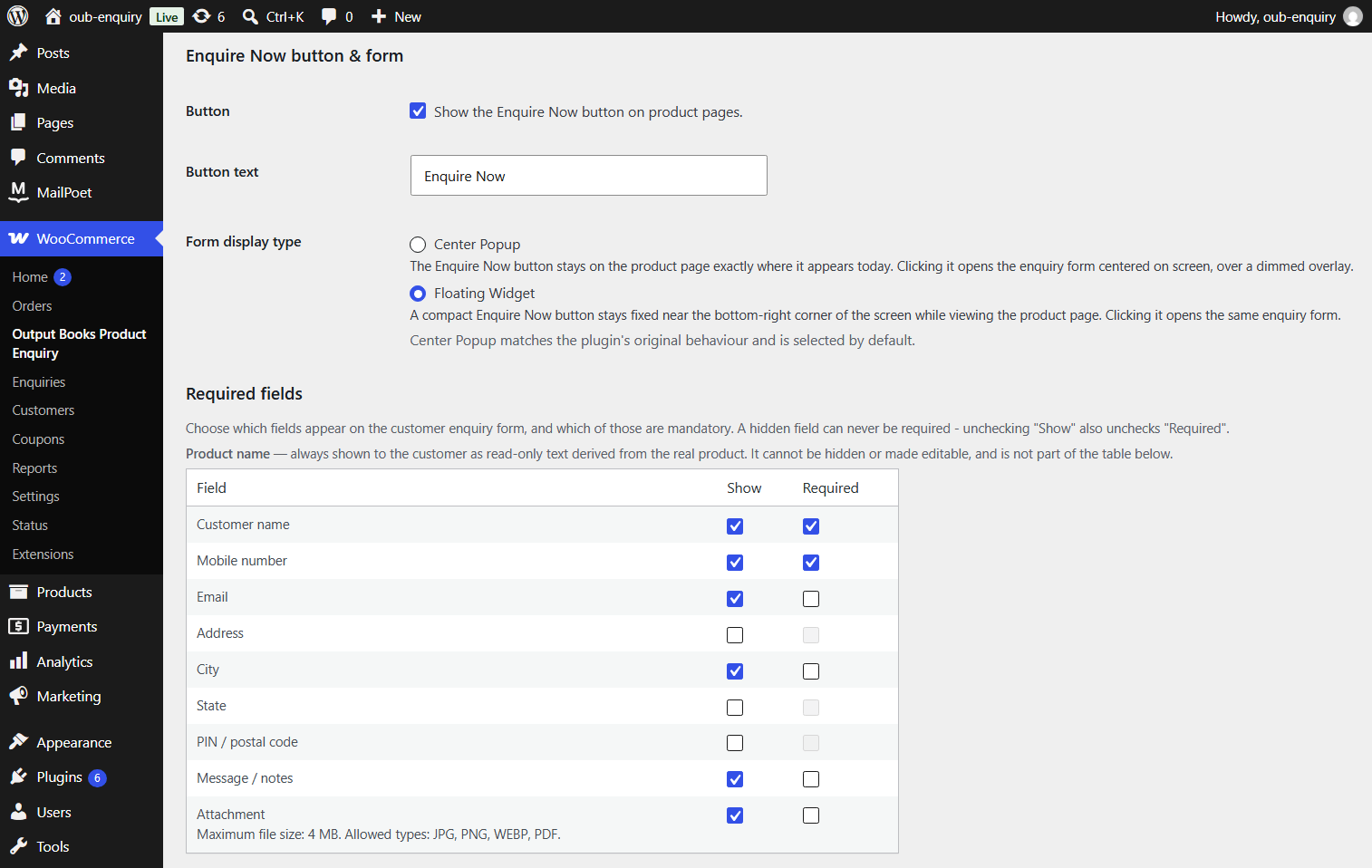
2.3. Configure Required Fields
Use the Show / Required table to control the fields displayed in the enquiry form.
- Enable Show to display a field.
- Enable Required to make a field mandatory.
- Hide fields that you do not need.
A hidden field cannot be marked as required.
Note: The product name always appears in the form. The plugin gets it directly from the WooCommerce product.
3. How Customers Submit Enquiries
On every supported product page, customers see the Enquire Now button (shown here in Floating Widget mode, fixed near the bottom-right corner).
Clicking it opens the enquiry form. The customer fills in the visible fields, optionally attaches a file (JPG, PNG, WEBP, or PDF, up to 4 MB), and submits.
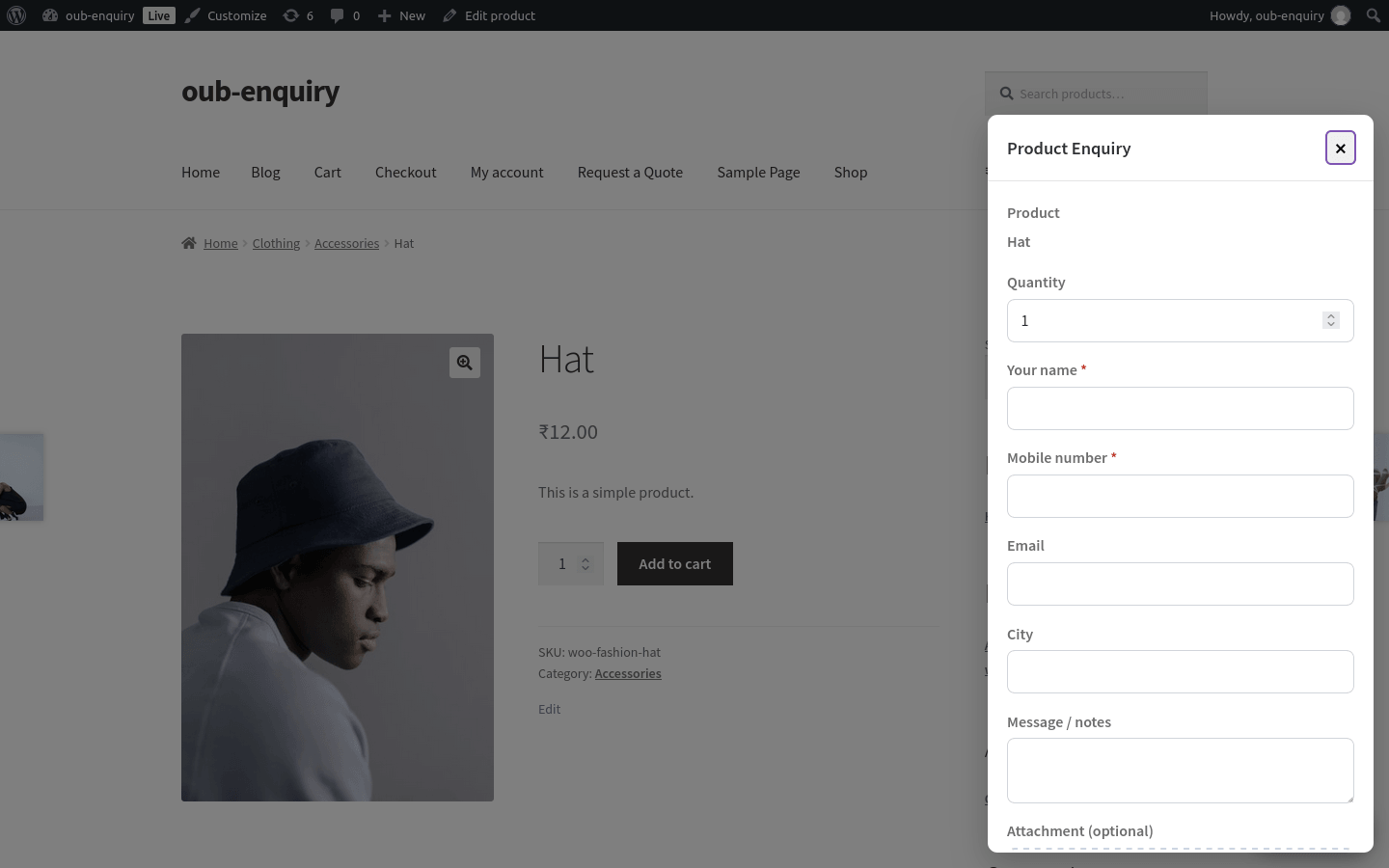
What happens next:
- The enquiry is saved immediately, even before it reaches Output Books.
- In Live mode, it’s submitted to the Output Books CRM Web Form right away.
- The customer sees a confirmation message once it’s received.
Note: The product name, SKU, price, and currency are always taken directly from the product — never typed by the customer.
4. Manage Product Enquiries
You can review submitted enquiries from your WordPress admin panel.
- Go to WooCommerce → Enquiries.
- Find the enquiry you want to review.
- Check its status and product details.
- Click View to see the full enquiry.
The page displays the following statuses:
- Pending: The enquiry is saved locally but has not yet been sent.
- Success: Output Books has accepted the enquiry.
- Failed: The submission failed or Output Books rejected it. You can retry it.
- Needs Review: The result is unclear, such as after a timeout. Review the result before retrying to avoid duplicate enquiries.
The enquiry details include contact information, attachments, and the CRM Lead ID when available.
5. Important Notes
- The Enquire Now button only appears on simple products that can be purchased — not on variable, grouped, or external/affiliate products.
- The CRM Web Form Public Key is encrypted and never shown again after saving; leaving it blank when saving keeps the current value.
- By default, enquiry data is kept when the plugin is uninstalled, unless Delete all stored enquiries and settings when this plugin is uninstalled is turned on in the settings page’s Diagnostics & data section.
FAQ
Can I collect enquiries without connecting to Output Books?
Yes. Set the plugin mode to Disabled. The plugin will save enquiries in WordPress without sending them to Output Books.
Where can I view submitted enquiries?
Go to WooCommerce → Enquiries in your WordPress admin panel. You can view enquiry details and check their statuses.
Can customers attach files to an enquiry?
Yes. Customers can attach JPG, PNG, WEBP, or PDF files up to 4 MB.
Why is an enquiry rejected by Output Books?
Check your Output Books Server URL and CRM Web Form Public Key. Also, make sure your website URL is included in the CRM form’s Allowed Sites list.
Can I hide fields in the enquiry form?
Yes. Use the Show / Required table in the plugin settings. Hidden fields cannot be marked as required.


