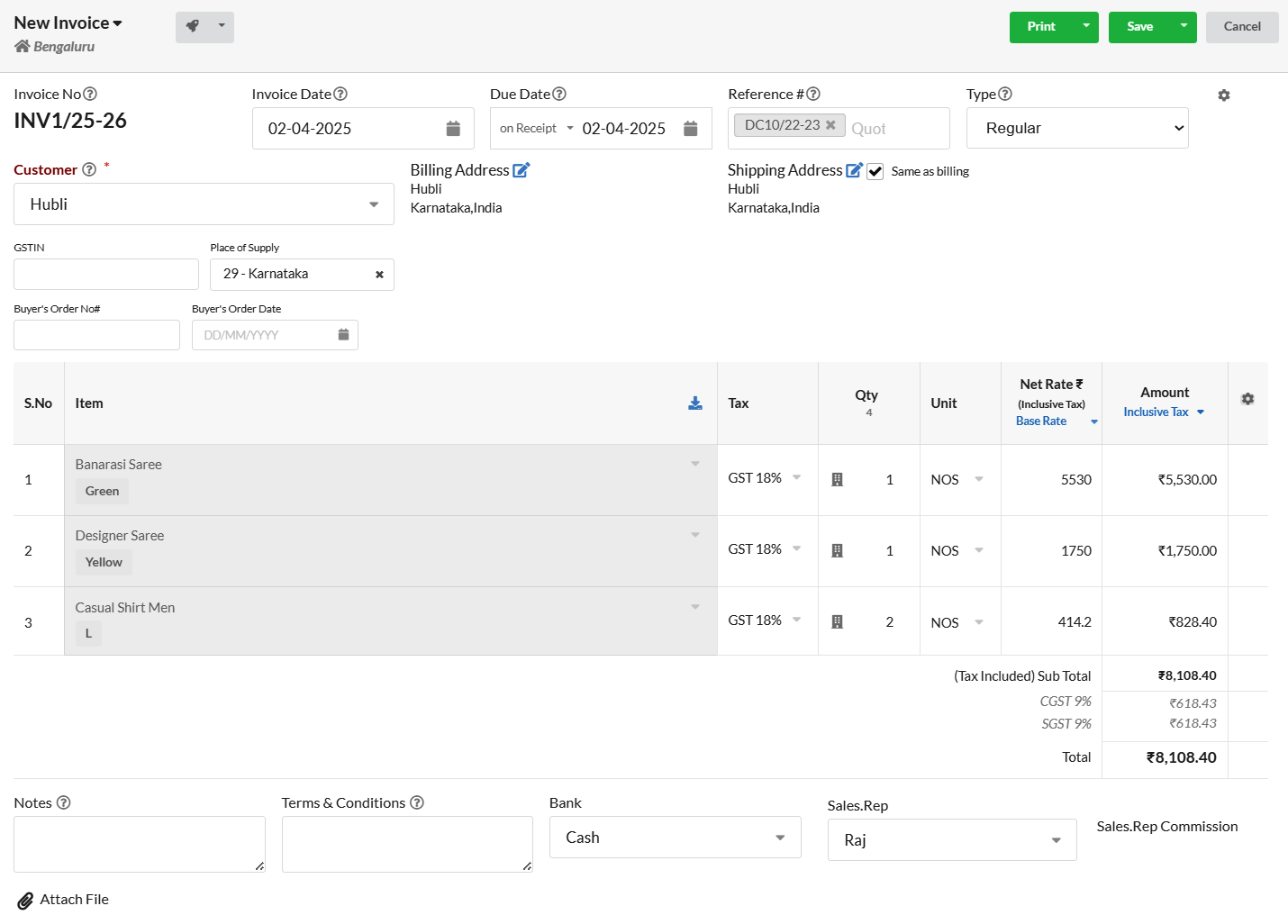
The Counter Delivery Feature is designed to enhance efficiency in managing queues at counters, providing a seamless and fast billing process. It is a valuable tool for businesses that handle customer transactions at physical locations, such as retail stores, service centers, or any environment with a counter-based service model.
The primary purpose of this feature is to streamline the counter workflow, ensuring prompt service to customers while maintaining an organized queue. It aims to reduce wait times, improve staff productivity, and enhance the overall customer experience.
Steps to access Counter Delivery in Output Books
- In Settings > Modules, ensure that the Delivery Challan option is switched to the ON position.
- Go to Sales > Delivery Challan
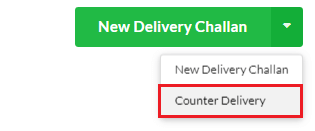
- Click on the dropdown menu located within the New Delivery Challan and choose Counter Delivery

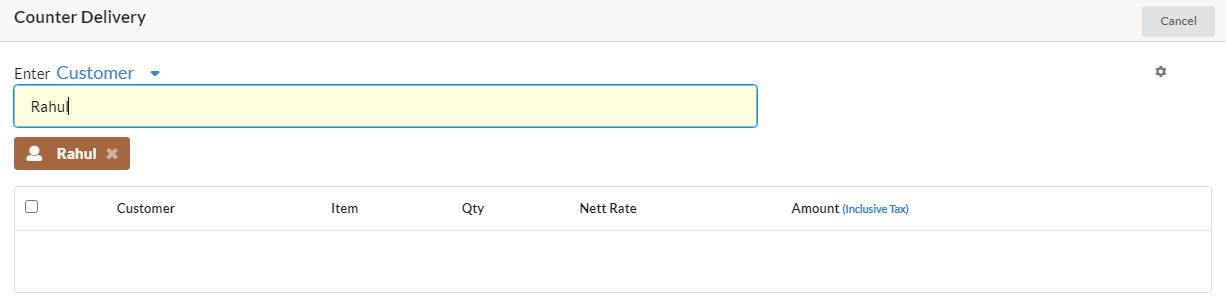
Entering Customer and Item Details
- Select Customer and press Enter.
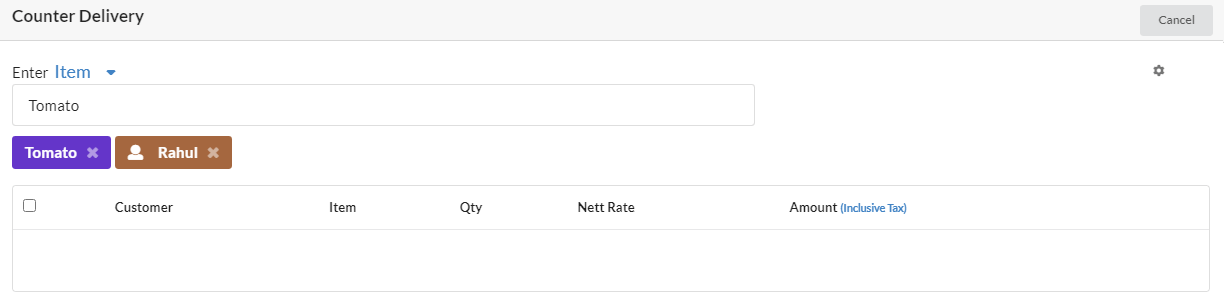
- Proceed to Select the Item and press Enter
- Followed by enter the Quantity and press Enter and Rate.
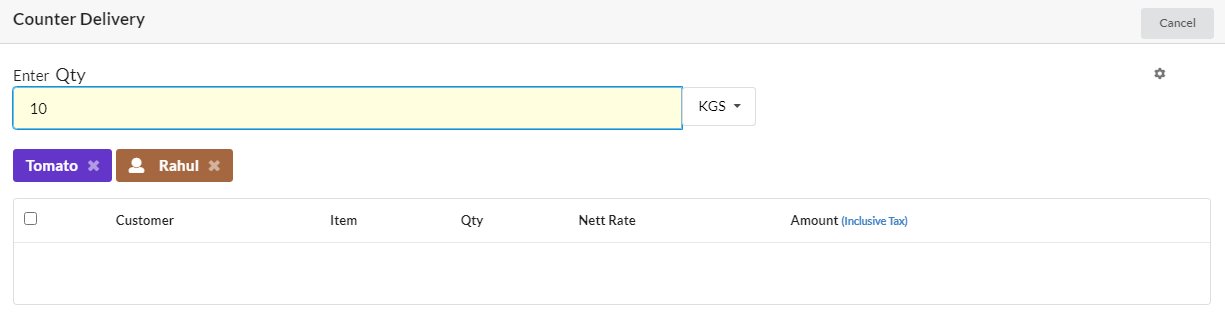
- Then enter Rate and Press Enter
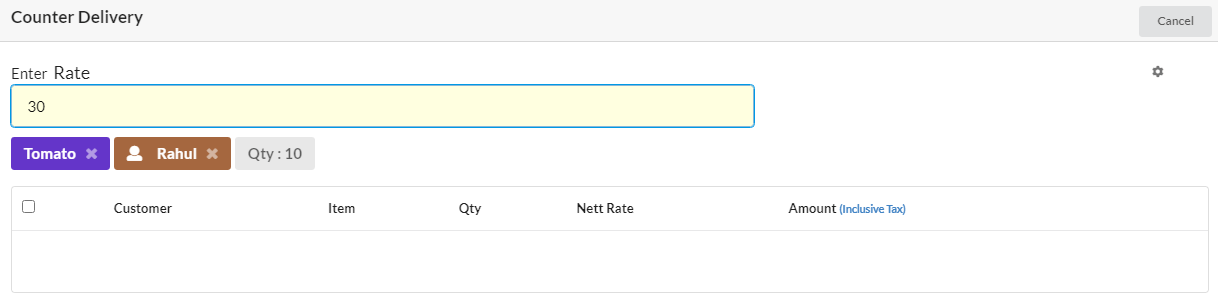
- Please note that if the item master already specifies the Rate, it will populate automatically.
- Once you enter the Rate, the system will automatically creates a delivery challan if the “Auto Save to Delivery” feature is enabled.
- Repeat this process to input multiple deliveries for various customers.
- Each item will be saved in its respective delivery challan corresponding to the customer.
Creating Invoice
After recording all deliveries, converting a delivery into a Cash or Credit invoice is a simple process that requires just a few clicks.
- Tick the checkbox adjacent to the customer’s name.
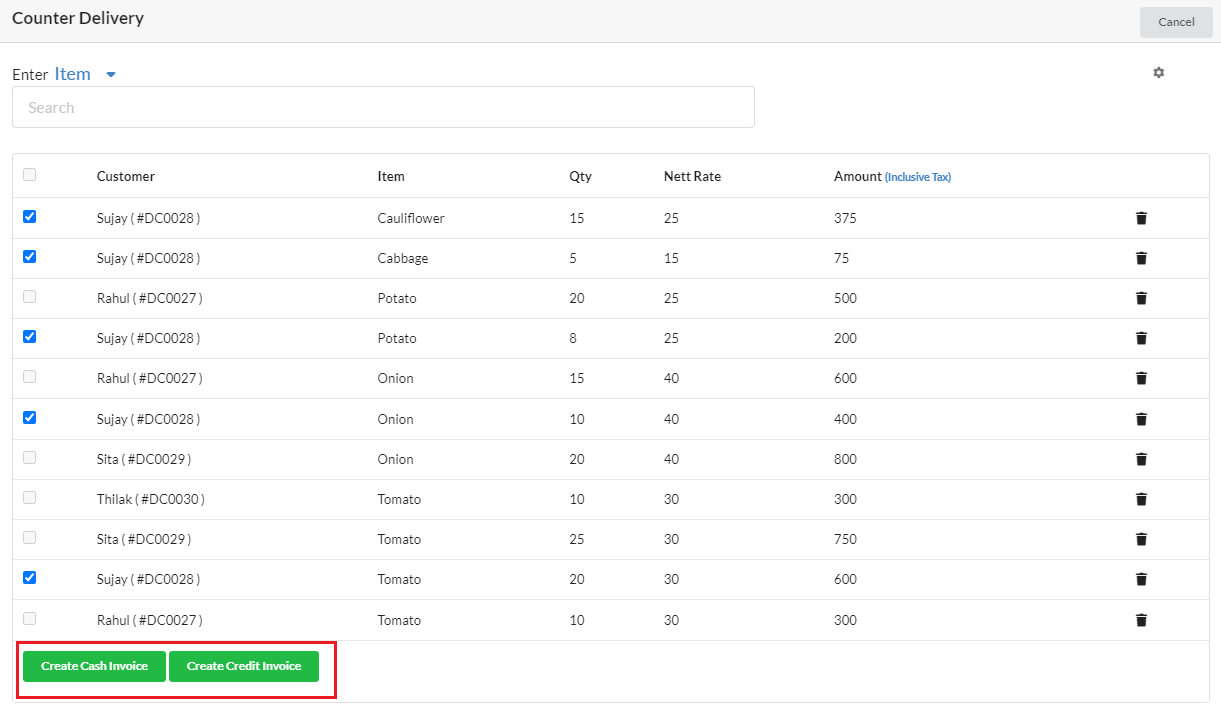
- This action will automatically select all the entries recorded for that specific customer.
- Proceed to create a Cash or Credit Invoice for the selected delivery entries