The Hospital Management Module in Output Books runs the daily work of a clinic or hospital: patient registration, OP (outpatient) visits, prescriptions, pharmacy billing, IP (inpatient) admissions, bed management, discharge billing and reports. It uses the same customers, items, invoices, receipts and stock you already have in Output Books, so nothing is kept twice.
This guide is for the front desk, doctors, nurses, pharmacy staff, billing staff and the administrator. Words in bold are the exact names of buttons, tabs and screens you will see.
1. What the Hospital Module Does
- Patients – register a patient once and find them again by Patient ID, name or mobile number.
- OP (outpatient) visits – register a visit, take vitals, record the consultation and write a prescription.
- Pharmacy – bill medicines from a prescription or as a counter sale, with batch and expiry handled for you.
- IP (inpatient) admissions – admit a patient to a bed, post charges, record ward care and medicines given.
- Discharge – prepare the final bill, collect payment and print the discharge summary and patient statement.
- Safety checks – allergy and medical-condition warnings when a medicine is prescribed and when it is dispensed.
- Reports – income, collections, registers, occupancy, follow-ups and clinical searches.
OP and IP work happen side by side, so each has its own colour:
| Colour | Means |
|---|---|
| Blue | OP – Outpatient visit |
| Violet | IP – Inpatient admission |
| Teal / Grey | Pharmacy and counter sales (no visit) |
2. Turn On the Hospital Module (Administrator)
- Go to All Settings → Modules and switch on Hospital Management. The screen refreshes.
- Hospital now appears in the left menu, just after Dashboard.
- Open Hospital. The first time, click Activate Hospital Management. This prepares the module, creates the four Hospital roles and fills the starting lists.
- The Desk shows a Setup readiness list. Each item that is not done yet opens the right Setup page when you click it.
Important: If you see “Hospital database setup is pending”, the module is still being updated. Open Hospital again as an Administrator, or contact support.
Set up before the first patient:
- At least one Doctor.
- At least one OP Consultation Fee (the consultation charge).
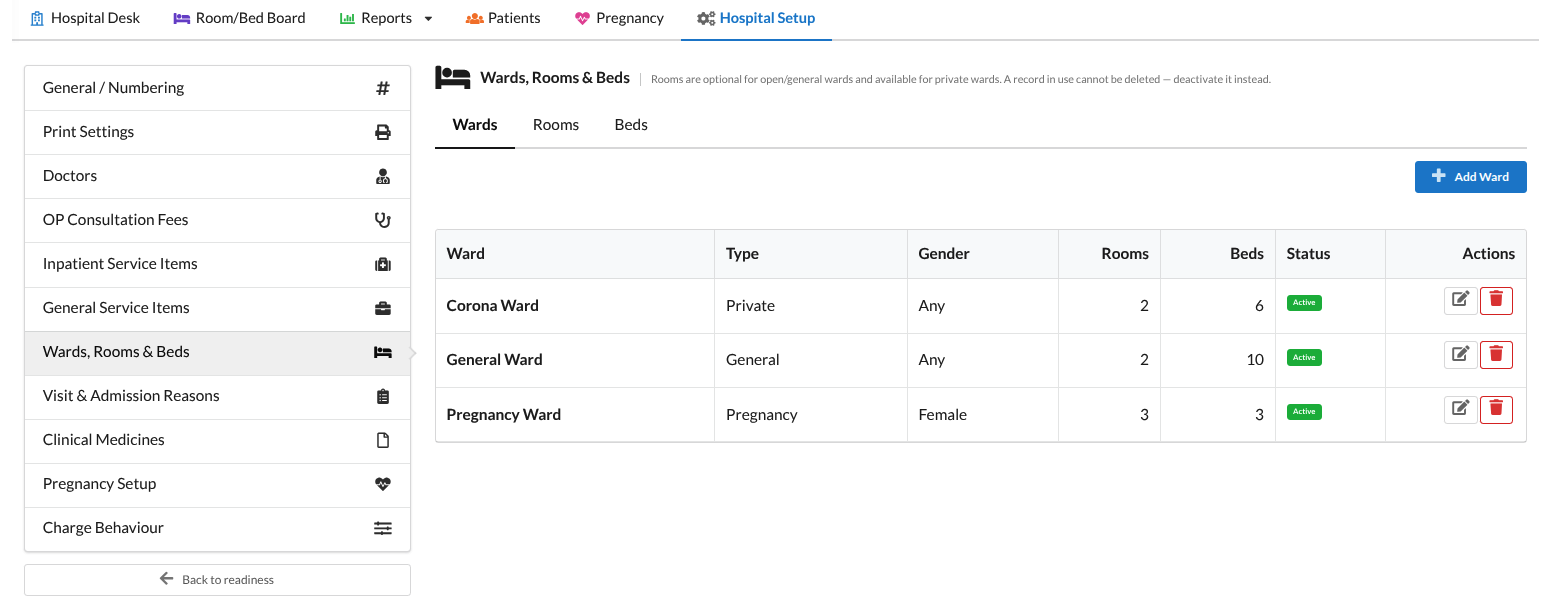
- At least one Ward with a Bed, and an Inpatient Service Item for the bed charge.
- Your Visit & Admission Reasons (a few starting reasons are created for you).
Everything else – print settings, medicines, charge rules – can be done later.
3. Hospital Setup
Open Hospital Setup from the Hospital menu. Each item on the left is one part of the setup
| Setup page | What you set here |
|---|---|
| General / Numbering | How Patient, Visit and Prescription numbers look (prefix and digits), for example PAT-1, OP-1. |
| Print Settings | Paper size (A4 or A5) and letter-pad mode for the Prescription, Discharge Summary and Patient Statement. |
| Doctors | Your doctors. Click the tick in the Default column to choose the doctor picked automatically on new visits. |
| OP Consultation Fees | Consultation charges: name, description and rate. |
| Inpatient Service Items | Charges for inpatients, such as bed charges, nursing and procedures. |
| General Service Items | Charges that can be used for both OP and IP, such as dressing or ECG. |
| Wards, Rooms & Beds | Your wards, room numbers and beds. Each bed has its own bed-charge item. |
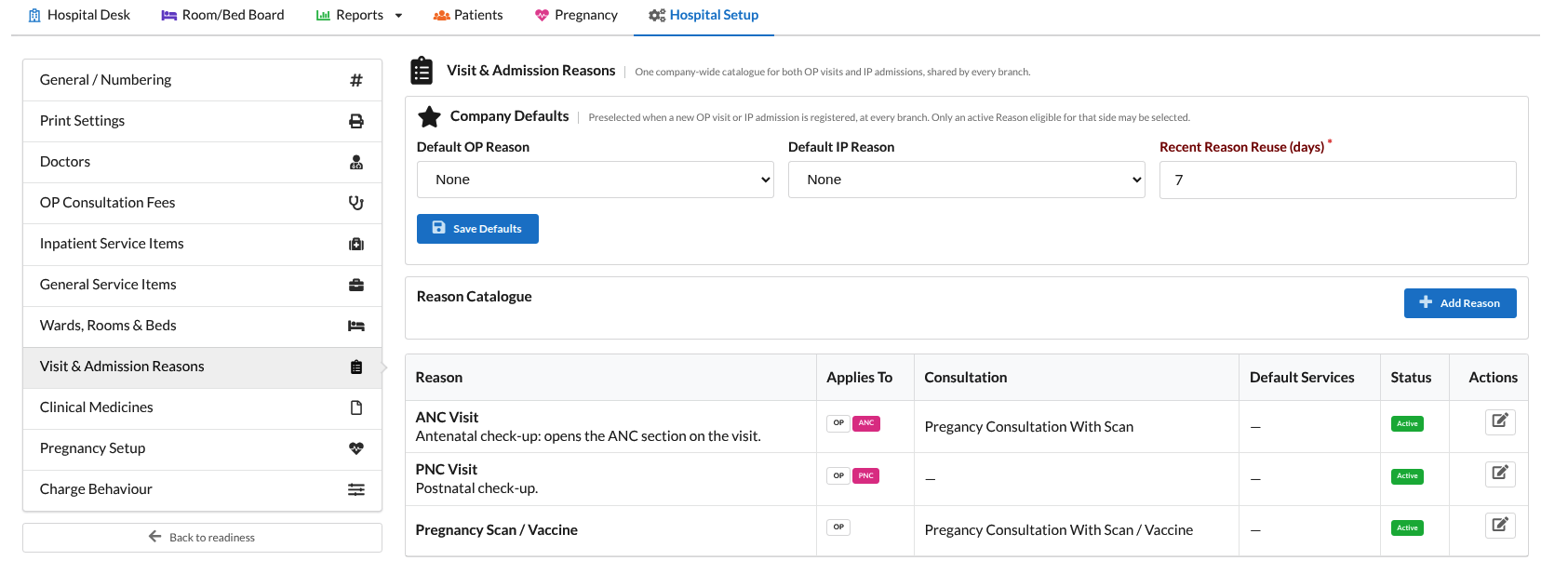
| Visit & Admission Reasons | Why patients come (Fever, Review, Surgery …): the fee for an OP reason, default services for an IP reason, and which clinical fields the doctor fills. |
| Clinical Medicines | Your medicine list for doctors, their ingredients, and medical conditions — used for allergy and safety checks. |
| Charge Behaviour | How a service is charged: by quantity (Qty × Rate) or as a single amount, and whether the amount can be changed. |
| Medication Rounds | Ward dose times (Morning, Afternoon, Night, Bedtime) and when a dose counts as late. |
| Roles check | Warns you if a role has a Hospital right but is missing the matching billing or receipt right. |
Visit & Admission Reasons
A reason is chosen on every visit and admission. It saves time because it brings its own settings:
- Applies To — OP, IP or both.
- Consultation fee for OP — a normal fee, always free, or free for a follow-up within a set number of days.
- Default services for IP — added to the patient’s bill automatically when they are admitted with this reason.
- Clinical fields — which fields appear (for example Duration of complaint, Examination, Diagnosis), who fills them (desk, doctor or both) and when they are required.
- Shortcuts and templates — short codes that expand into text (for example “nad” → “No abnormality detected”), and templates that fill several fields at once.
A reason that is no longer used is made inactive. Old visits keep the reason they were saved with.
Clinical Medicines, Ingredients and Conditions
These lists power the safety checks. You only need to add what your hospital uses.
- Clinical Medicine — a medicine as the doctor thinks of it, with strength and form: “Amoxicillin 500 mg Capsule”. You can give it a short code, a default direction (1-0-1) and default days, a dosage form and a usual route.
- Ingredient — what the medicine contains, such as Amoxicillin. Ingredients can sit in a group, such as Penicillins.
- Item mapping — link your stock items (brands) to a Clinical Medicine, so a doctor can prescribe either the brand or the general medicine.
- Conditions — medical conditions such as Kidney disease, Asthma or G6PD deficiency. On an ingredient or medicine you can mark a condition as Caution (warn) or Contraindicated (block).
Tip: Medicines and ingredients can be exported and imported as a spreadsheet, so a long list can be entered quickly.
4. Users and roles
Each user has one role. When the Hospital module is activated, four ready-made roles are added. The administrator can change their permissions in Settings → Roles.
| Role | What they can do |
|---|---|
| Hospital – Doctor | Sees all clinical records. Writes consultations, prescriptions and IP medicine orders, and can stop orders and resolve alerts. Cannot bill or take money. |
| Hospital – Nurse | Sees all clinical records. Records vitals, notes, intake/output and doses given, and adds allergies. Cannot prescribe. |
| Hospital – Front Desk | Registers patients, OP visits and admissions, posts charges, takes advances and payments, and discharges. Can record vitals, but sees no other clinical details. |
| Hospital – Pharmacist | Works from the Pharmacy queue: bills prescriptions and counter sales. Sees the prescription and its safety warnings. |
| Administrator | Can do everything, including Hospital Setup. |
Behind the roles are five Hospital permissions: Hospital Clinical, Hospital Desk & Billing, Hospital Pharmacy, Hospital Setup and Hospital Reports. Each one has the levels View, Add, Edit and Delete.
Tip: Reports are not given to any role by default. Give Hospital Reports to managers who need them.
Set up a doctor’s login
- Add the doctor in Hospital Setup → Doctors.
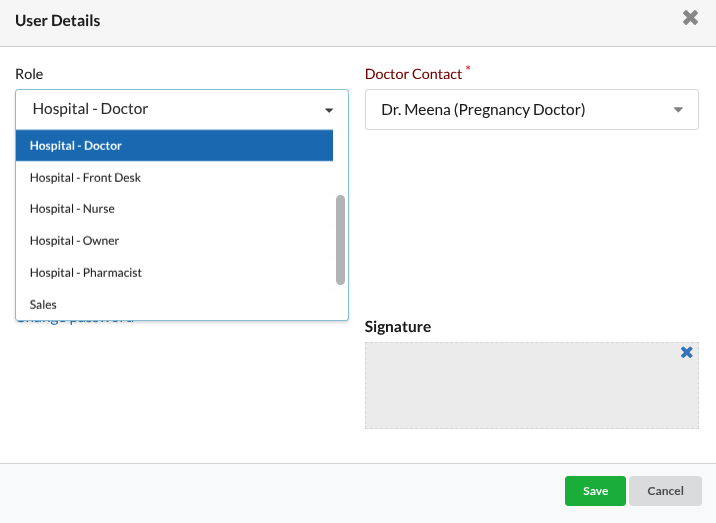
- In Settings → Users, add a user with the Hospital – Doctor role and select that doctor.
- When the doctor signs in, Hospital opens on My Consultations, showing only their own patients.
Staff without clinical rights do not see clinical details anywhere. The information is hidden by the server, not just by the screen.
5. The Hospital Desk
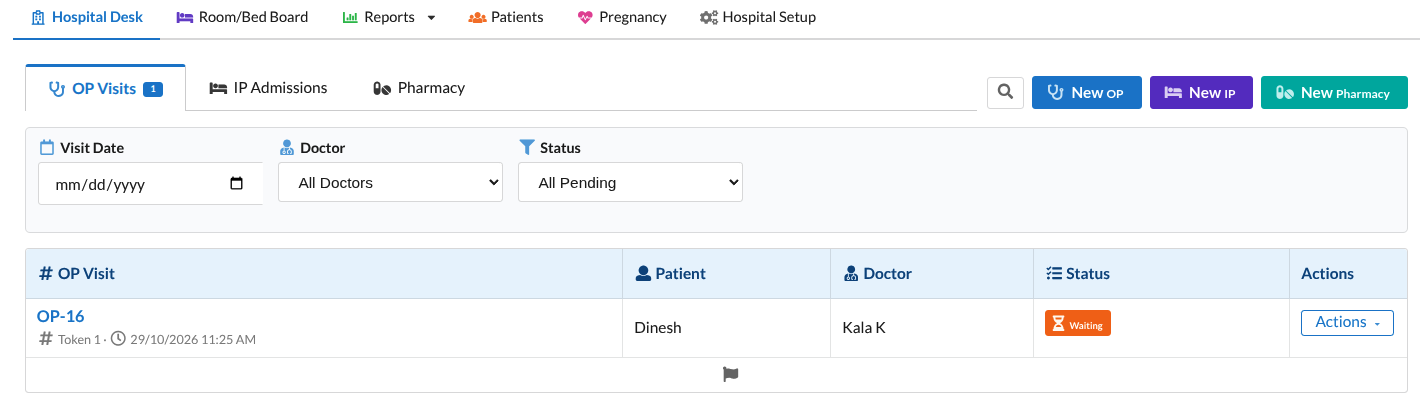
The Desk is the home screen for the front desk. It has three parts:
- Patient search (top left) — type a Patient ID, name or mobile number. The results show each patient’s ID, mobile, last visit, and whether they are admitted now.
- New OP (blue), New IP (violet) and New Pharmacy (teal) buttons (top right).
- Three tabs: OP Encounters, IP Admissions and Pharmacy. Each one has date, doctor and status filters.
| Tab | What you see | What you can do |
|---|---|---|
| OP Encounters | Today’s OP visits with token, patient, doctor and status (Waiting, In consultation, Completed, Cancelled). | Open Visit, Start Consultation, Bill |
| IP Admissions | Admitted patients with their ward / room / bed, the date admitted and the balance. | Open Folio, Receive Advance, print Discharge Summary / Patient Statement |
| Pharmacy | Prescriptions sent from OP and IP that are waiting for billing, and counter sales. | Bill opens Pharmacy billing with the prescription loaded |
Tip: Type # followed by a number (for example #25) to jump straight to that Patient ID.
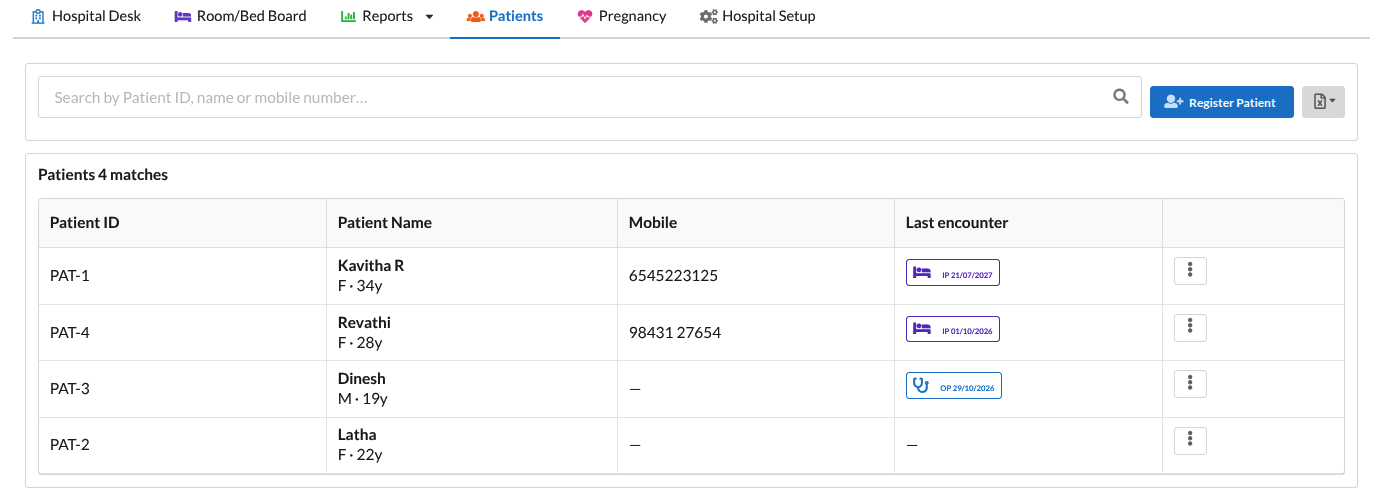
6. Patients
Register a new patient
- Click Register Patient (from the Desk search or the Patients screen).
- Enter the Patient Name. If the name is already registered, the screen tells you the existing Patient ID so you do not create a duplicate.
- Enter Sex, Age or Date of Birth, Blood Group and the Mobile number.
- Add the address and an Emergency Contact if you have them.
- Click Save Patient. The Patient ID (for example PAT-25) is given when you save.
Tip: If you only know the age, type the age. The system works out an estimated date of birth and marks it as estimated.
Find and view a patient
Open Patients, and search by Patient ID, name or mobile. The patient’s page shows their details, alerts, and history: visits, prescriptions, admissions and bills. Doctors see the clinical history; the front desk sees visits and bills.
Edit a patient
Open the patient and click Edit Patient. A patient who already has visits or bills cannot be deleted.
7. Allergies and patient alerts
Alerts are shown in a red banner at the top of every patient screen: OP visit, IP folio, pharmacy billing and the patient page. Use them for anything staff must know before treating the patient.
Add an allergy or alert
- On the patient banner, click Add Allergy.
- Type a short Title, for example “Penicillin allergy”.
- If it is a medicine allergy, search and select the medicine, ingredient or ingredient group in Allergic Ingredients/Medicines. This lets the system check prescriptions automatically.
- Add the Reaction if known (for example rash or breathing difficulty) and save.
Important: An allergy typed as text only is shown to everyone, but the system cannot check medicines against it. Link it to a medicine or ingredient whenever you can.
No known allergies
If the patient has no allergies, click No Known Allergies. The banner then shows “No known allergies confirmed”, and the system records who confirmed it and when. This is different from “not asked yet”. Adding an allergy later clears it.
Medical conditions
Click Add Condition for conditions such as kidney disease or asthma. They switch on the Caution and Contraindicated checks for medicines.
Resolve an alert
Alerts are never deleted. When an alert no longer applies, click Resolve, type the reason and click Confirm. It stays in the patient’s history.
Tip: An allergy entered as text can later be linked to a medicine or ingredient from the banner, so it starts being checked.
8. OP visit, step by step
Front desk: register the visit
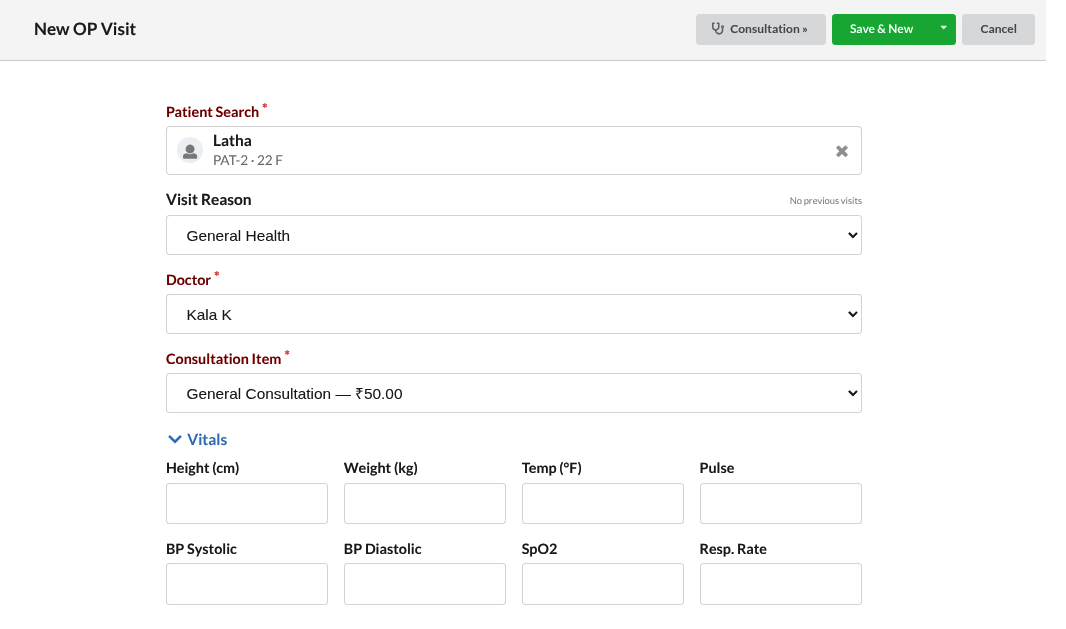
- Click New OP on the Desk.
- Search and select the patient (or register a new one). If the patient already has an open visit, that visit opens instead of a new one.
- Check the Visit Reason. The system suggests one — the reason from a visit in the last 7 days, or your default reason. You can change it.
- Fill any fields the reason asks for at the desk, such as Duration of complaint.
- Check the Doctor. The default doctor is selected for you.
- The Consultation fee comes from the reason (or is free for an eligible follow-up).
- Optionally record vitals (weight, BP, pulse, temperature).
- Save. The patient gets a token and appears as Waiting in the doctor’s queue.
Doctor: the consultation
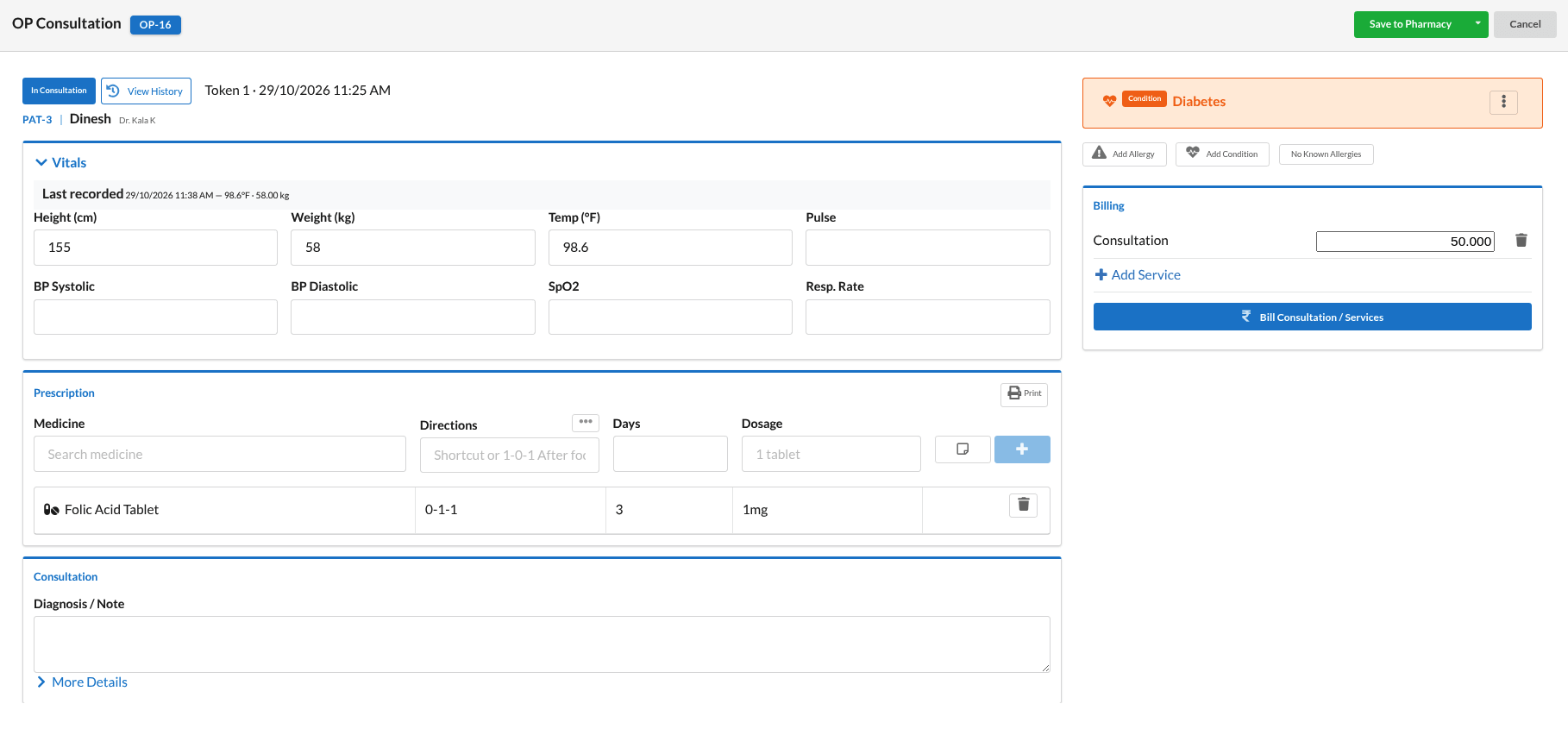
- Open the visit from My Consultations (or Start Consultation on the Desk). The status becomes In consultation.
- Read the patient banner first — allergies and alerts are shown at the top.
- Record vitals if needed, then the clinical fields: complaint, examination, diagnosis, advice.
- Write the prescription (see section 9).
- Set the Follow-up Date if the patient should come back.
- Click Save to save and keep working, or Save to Pharmacy to finish and send the prescription to the pharmacy queue.
Tip:  In the clinical fields, type a shortcut code and press Space, Tab or Enter to expand it. Apply Template fills several empty fields at once and asks before replacing anything you have typed.

Tip:  Keyboard: Ctrl+S saves and Esc closes a popup.
Changing or cancelling a visit
- A completed visit is read-only. Changes made afterwards are recorded in the change history (section 17).
- A visit can be cancelled only before it is billed. If it already has a bill or medicines were given, cancel those first.
- Extra charges for the visit (dressing, injection fee …) are added with Add Service on the visit.
9. Prescriptions and safety checks
Writing a prescription
- In Search medicine, type the medicine name or its short code. The list shows your stock items (with stock at this branch) and your Clinical Medicines.
- Pick one. Default direction and days fill in if they are set for that medicine.
- Set Directions (for example 1-0-1 AF, 0-0-1, HS or SOS), Days and Qty. The quantity is worked out from the directions and days where possible.
- For injections and similar medicines, choose the route (IV, IM, SC …) with one click.
- Add the line, and repeat for each medicine.
When a warning appears
| Warning | What it means | What to do |
|---|---|---|
| Allergy match (red, blocks saving) | The medicine contains something the patient is allergic to. | Change the medicine, or, if it is truly needed, type a reason and click Prescribe anyway. The reason is recorded. |
| Contraindicated (blocks saving) | The medicine should not be used with one of the patient’s conditions. | Change the medicine, or type an override reason. |
| Caution (yellow, does not block) | Use carefully with one of the patient’s conditions. | Read it and continue if appropriate. |
| Allergy check incomplete | The medicine is typed as free text or not linked to a Clinical Medicine, so it could not be checked. | Check manually, and ask the administrator to map the item. |
Pharmacy runs the same checks again when dispensing. If the doctor already accepted a warning with a reason, the pharmacy is not stopped by it again.
Print the prescription
Use Print on the visit. It shows the patient, doctor, visit number, alerts and every medicine with directions, days and quantity.
10. Pharmacy
Bill a prescription
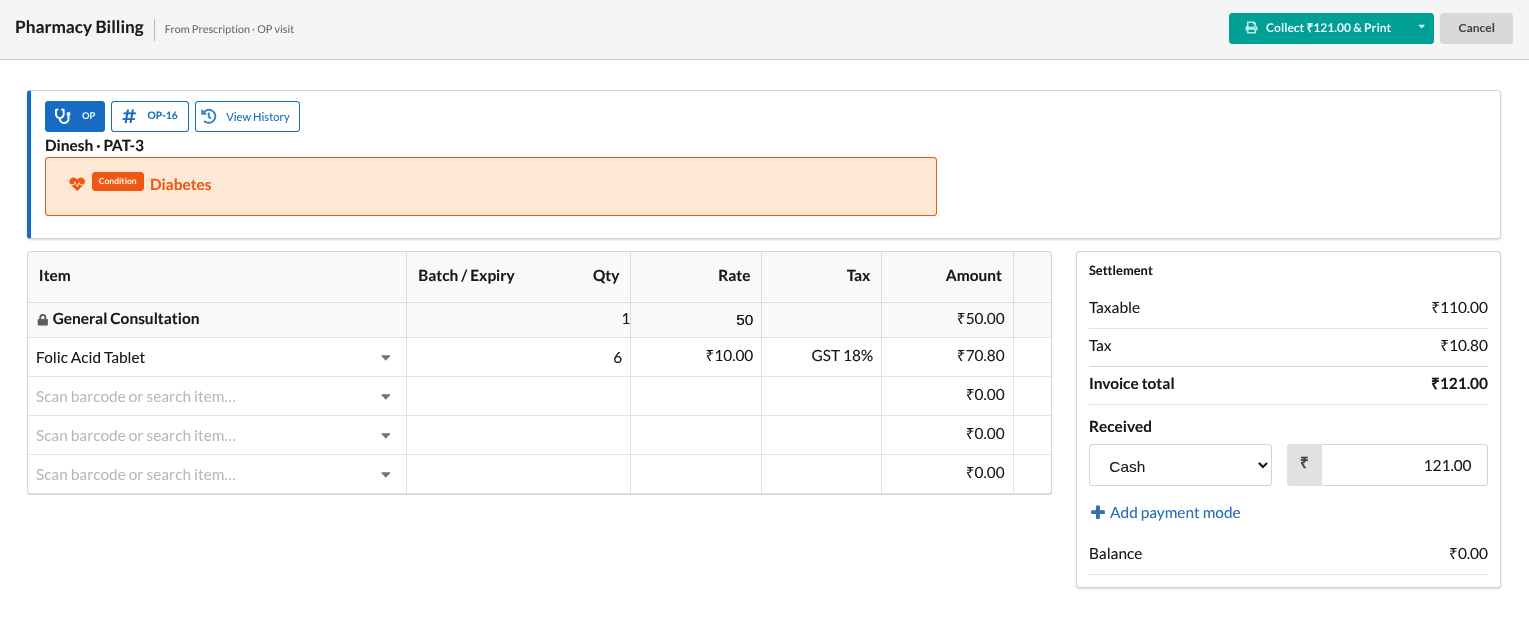
- Open the Pharmacy tab on the Desk (or the Pharmacy screen) and click Bill on the prescription.
- The bill opens with the medicines (and the unbilled consultation fee, for an OP visit) already filled in.
- Batches are chosen for you: the earliest expiry first. Expired batches are never offered.
- If one batch is not enough, the quantity is split across batches — you confirm the split.
- If the doctor prescribed a general medicine, an available brand is suggested. Brands are never mixed without your confirmation.
- Collect the payment and save. Stock is reduced only when the bill is saved.
Important: If there is not enough stock, the bill is refused and shows how much is available. Change the quantity, or dispense what is available. The rest stays open on the prescription.
Counter sale (no prescription)
Click New Pharmacy on the Desk. It is a normal sales bill, with no visit needed.
Medicines for an admitted patient
Open the patient’s folio and click Pharmacy. When saving, choose Add to Final Bill (paid at discharge) or Collect Now (paid today). Each pharmacy bill is a normal invoice. On the folio, all of them are shown together as one Pharmacy line.
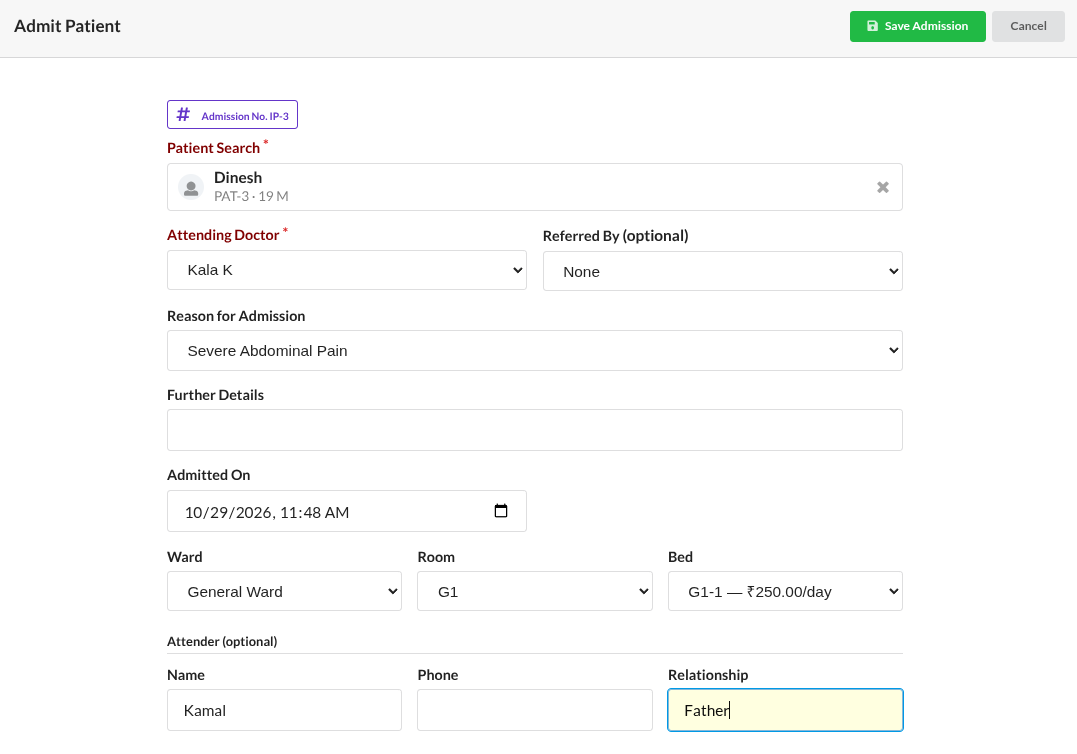
11. Admitting a patient (IP)
- Click New IP on the Desk.
- Select the patient.
- Check the Attending Doctor (and Referred By if any).
- The Admitted On time is the current time. You can change it, but not to a future time.
- Choose the Admission Reason. Its default services are shown with their rates.
- Add any Further Details.
- Choose the Ward, Room and Bed. Only free beds are offered.
- Click Save Admission. The folio opens. The reason’s default services are already added to the bill.
Tip: Advances and extra services are added on the folio after saving — not on the admission screen.
12. Room/Bed Board
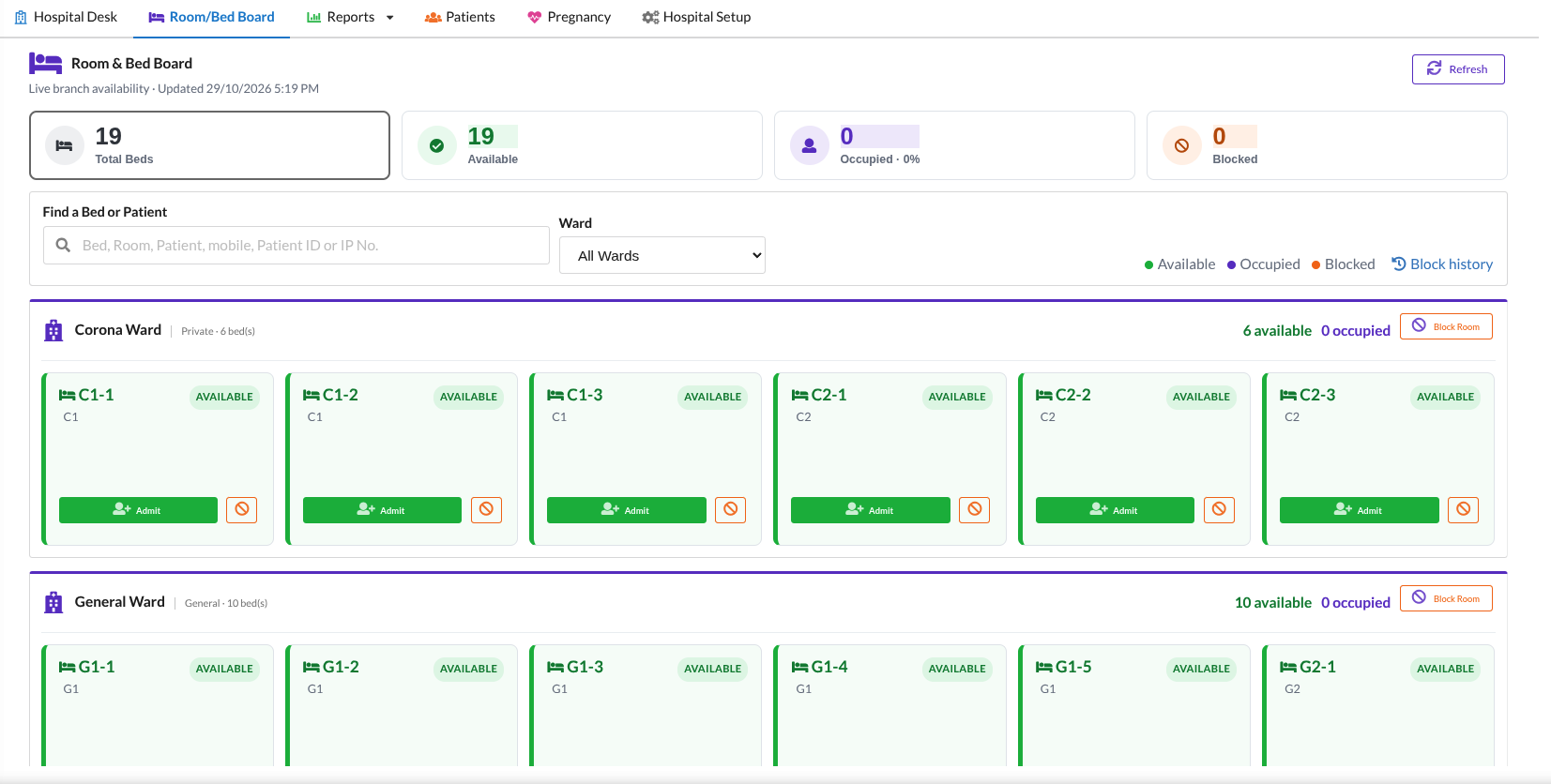
Room/Bed Board shows every ward, room and bed with its state:
| State | Means |
|---|---|
| Available | Free to use. Click Admit on the bed to admit a patient straight into it. |
| Occupied | A patient is in this bed. Click it to open their folio. |
| Blocked | Not usable for a period — maintenance, cleaning or another reason, shown with an end time. |
Block a room or bed
- To block a whole room, click Block Room on the ward. To block one bed, click the block icon (Block this Bed) on a free bed.
- Enter the reason, the start time and, if known, the end time. Leave the end blank to keep it blocked until you release it.
- Click Save Block. To end it early, click Release Room or Release Bed.
A bed that has a patient in it cannot be blocked. Blocks are never deleted; Block History keeps every one.
13. The IP folio
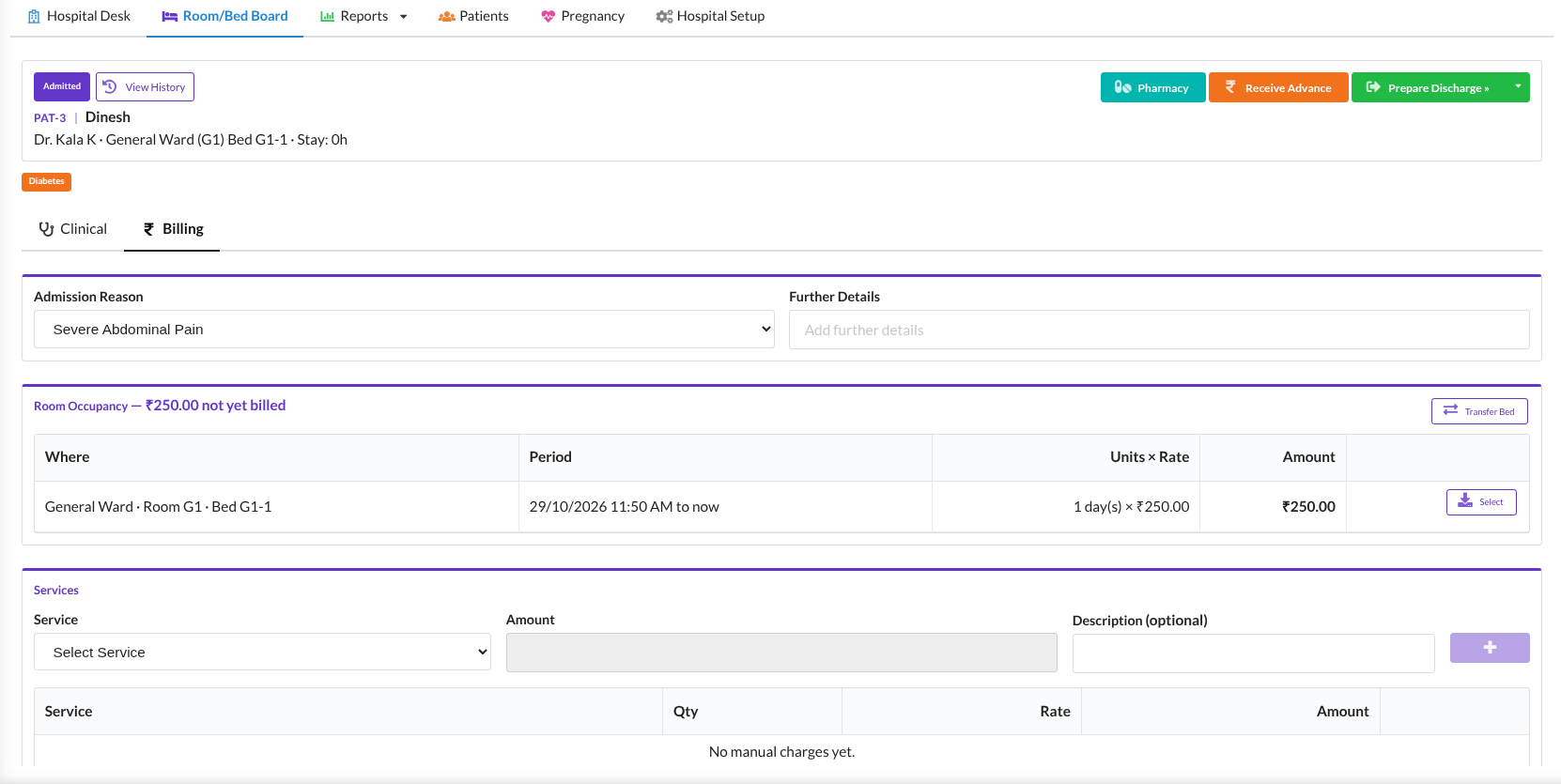
The folio is the patient’s page during the stay. It has two tabs: Clinical for doctors and nurses, and Billing for the desk. Each person sees only the tab their role allows.
Billing tab
- Admission reason, ward / room / bed, and how long the patient has stayed.
- Services — add charges with Add Service. Depending on the service, you enter Qty (and see Qty × Rate) or just an amount.
- Pharmacy — every pharmacy bill for the stay, shown as one line with amount, paid and due.
- Advances & receipts — click Receive Advance to take money during the stay.
- Transfer Bed — move the patient to another bed. The move is listed under Bed History.
- Cancel Admission — only possible while nothing has been billed or paid.
Tip: Room and bed charges are added as a service by the desk. They are not calculated automatically, so remember to add them.
Clinical tab
Everything the care team records, saved with one button at the bottom: Save Clinical Record.
- Admission Assessment — complaint, history and examination when admitted (doctor).
- Medication orders & doses — see below.
- Vitals and Notes — nursing notes and Doctor Progress notes, shown in a timeline.
- Intake / Output — fluids in and out, with 24-hour totals.
- Discharge Details — written by the doctor before discharge (see section 14).
Medicine orders and giving doses
- The doctor adds an order: medicine, dose, Frequency (1-0-1, BD, TDS, Q6H, STAT, SOS …), days and route. Click Add Order.
- The dose times for today appear as small chips under each order.
- When a dose is given, the nurse clicks its chip and clicks Given now. Use Different time… if it was given at another time, or Not given… with a reason (withheld, refused, omitted).
- For SOS medicines, click Give and fill in Given for (why it was given).
- For an infusion, click Start infusion, then Complete with the volume actually infused. It is added to Intake automatically.
| Chip Colour | Means |
|---|---|
| Green | Given on time |
| Orange | Given late |
| Grey | Not given (with a reason) |
| Blue outline | Due now |
| Red outline | Overdue |
| Red | Missed |
| Blue | Infusion running |
- A dose entered by mistake is marked Entered in error with a reason. It is never deleted.
- Only the doctor can stop an order, and a reason is required.
- Allergy and condition checks run again before a dose is given.
- The red “N due” marker on the Clinical tab shows how many doses are due.
- Giving a dose does not bill anything. Medicines are billed through Pharmacy.
14. Discharge and the final bill
Doctor: discharge details
In the folio’s Clinical tab, open Discharge Details and fill in Final Diagnosis, Hospital Course / Treatment Given, Condition at Discharge, Discharge Type (Normal, LAMA, Death …), Medicines on Discharge and the follow-up advice. Save.
Front desk: settle and discharge
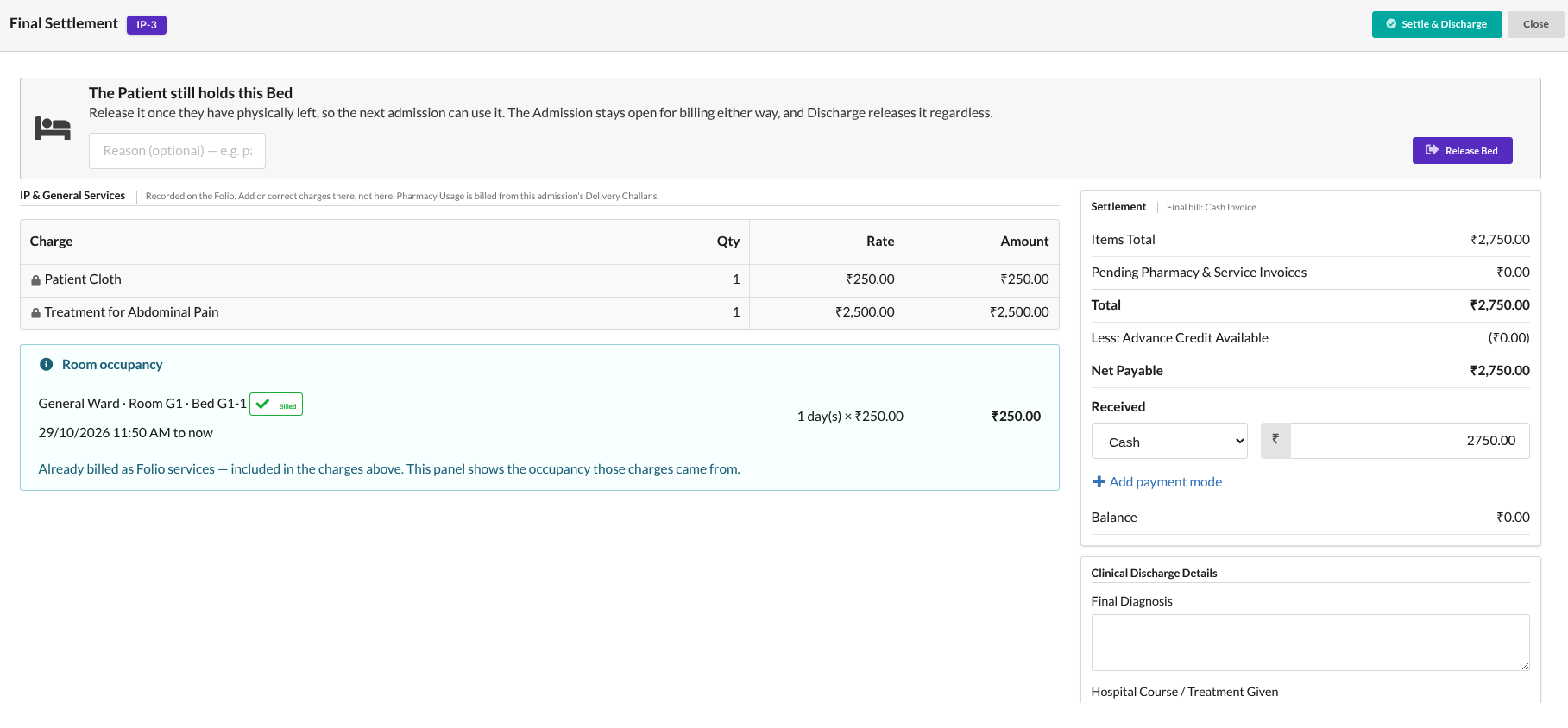
- Make sure every service is added on the folio. Then click Prepare Discharge.
- The settlement screen shows the bill for services, ready to check. Nothing can be typed or changed here — corrections are made on the folio.
- The screen shows three amounts: Items Total (this bill), Pending Pharmacy Bills and Less Advances. Net Payable = Items Total + Pharmacy due − Advances.
- Collect the full Net Payable and save. The patient is discharged.
- Print the Discharge Summary and the Patient Statement.
Important: In this version, discharge needs the full Net Payable to be paid. If the advances are more than the bill, the extra stays as patient credit and can be refunded from Receipts.
The bed is freed as soon as Prepare Discharge is opened, so the next patient does not have to wait for billing.
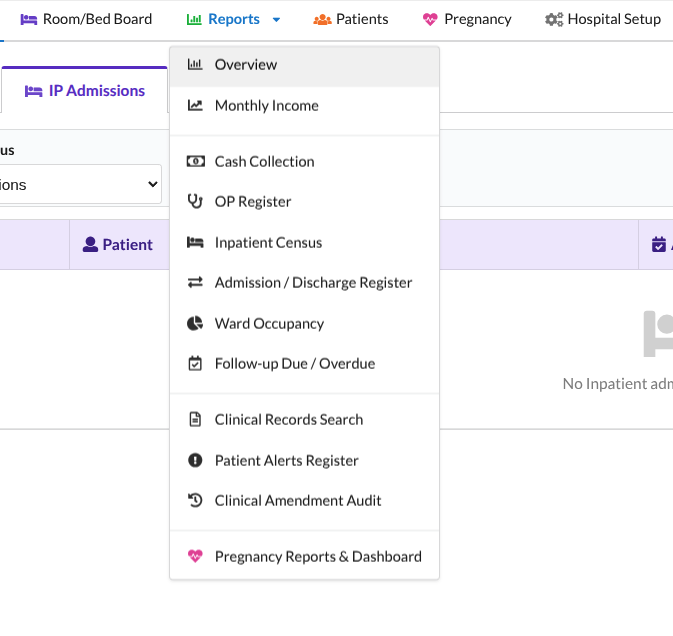
15. Reports
Open Reports from the Hospital menu. You need the Hospital Reports permission.
| Report | Shows |
|---|---|
| Overview | A summary of today’s activity. |
| Monthly Income | Hospital income by month. |
| Cash Collection | Money collected, by payment mode. |
| OP Register | All OP visits for a period, by doctor. |
| Inpatient Census | Patients admitted right now. |
| Admission / Discharge Register | Admissions, discharges and cancellations for a period. |
| Ward Occupancy | Beds in use and free, by ward. |
| Follow-up Due / Overdue | Patients who should come back, and those who have missed their date. |
| Clinical Records Search | Search by complaint, diagnosis, medicine, allergy or reason. |
| Patient Alerts Register | Patients with allergies and other alerts. |
| Clinical Amendment Audit | Changes made to clinical records after a visit was completed. |
Sales, stock, tax and accounts reports continue to come from the normal Output Books reports.
16. Printing
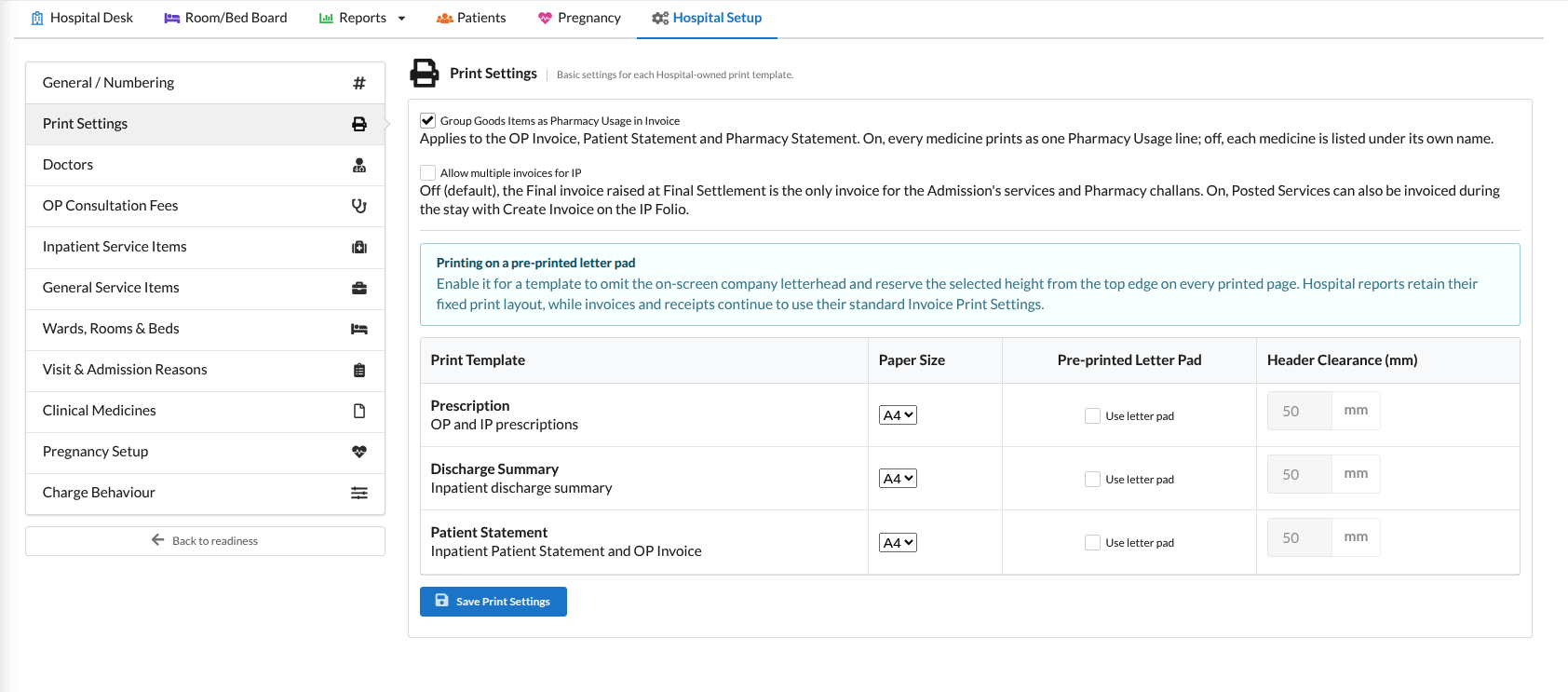
In Hospital Setup → Print Settings, choose the settings for each print — Prescription, Discharge Summary and Patient Statement:
- Paper size — A4 or A5.
- Letter pad — if you print on pre-printed hospital paper, switch this on. The company header is not printed again, and the space you set at the top of the page (50 mm by default) is left empty.
Invoices and receipts print exactly as they do elsewhere in OutputBooks.
17. Nothing is lost: change history
- When a completed visit or an admission’s clinical details are changed, the old and new values are saved, with who changed them and when.
- Open the change history from the visit or folio, or see all changes in the Clinical Amendment Audit report.
- Doses, notes and alerts are never deleted. Mistakes are marked Entered in error or Resolved, with a reason.
- Bills and receipts follow the normal Output Books edit and cancel rules.
18. Common Questions
I cannot see the Hospital menu.
The Hospital Management module must be switched on in All Settings → Modules, and your role needs at least one Hospital permission. Ask your administrator.
The New OP button is disabled.
Setup is not complete. Open the Setup readiness list on the Desk and finish the missing items, such as adding a doctor or a consultation fee.
The visit will not save — it says the reason’s consultation item is not valid.
The fee item linked to that reason is inactive or has no rate. Fix it in Hospital Setup → OP Consultation Fees, or choose another reason.
Why can’t I register a second OP visit for the same patient today?
A patient can have only one open OP visit. Open the existing visit instead.
A prescription is blocked by an allergy warning.
The medicine matches the patient’s recorded allergy. Choose another medicine, or — if it is truly needed — type the reason and use Prescribe anyway.
Pharmacy says there is not enough stock.
The screen shows how much is available. Bill the available quantity or change the quantity. The rest stays open on the prescription.
I cannot cancel an admission.
An admission can only be cancelled while nothing has been billed or paid. Reverse the pharmacy bills and advances first.
Discharge will not save.
The full Net Payable must be collected. Also check the folio: a service whose item was deleted or made inactive must be corrected there first.
A dose was recorded by mistake.
Open the order’s history and mark the record Entered in error with a reason. You can then record it correctly.
The front desk cannot see the diagnosis or prescription.
This is by design. Only clinical roles see clinical details. The pharmacy sees the prescription and its safety warnings.
A staff member’s new permissions are not working.
Permission changes apply the next time they open Hospital. Ask them to refresh the page or sign in again.


