1. What the Pregnancy Module Does
The Pregnancy module keeps all pregnancy records in one place. It covers care from the first antenatal (ANC) visit to postnatal (PNC) care.
The front desk registers OP visits. Nurses record patient vitals, and doctors update pregnancy details during the same visit.
A typical pregnancy goes through these stages:
- Register the mother and enter family details.
- Record pregnancy details using the LMP or scan date.
- Schedule and record ANC visits.
- Add investigations, scans, vaccines and care factors.
- Record delivery details and newborn information.
- Schedule and record PNC visits.
- Complete the pregnancy record after care ends.
Words used on the screens
| Term | Meaning |
|---|---|
| GA | Gestational age: how many weeks and days pregnant, worked out from the LMP or the accepted scan date. |
| EDD | Expected date of delivery. |
| Care level | How closely the pregnancy needs watching: Routine Care, Extra Care or High Care. |
| Care Factor | A reason for extra care, such as anaemia or a previous caesarean. Some are added automatically; the Doctor can add others. |
| Attention signs | Warning signs noted at a visit, such as bleeding or reduced fetal movements. |
| Obstetric score | Gravida, Para, Living and Abortions: the mother’s pregnancy history in numbers. |
2. Who Can Do What?
What each user sees depends on their Hospital role. An Administrator can change what each role may do.
| Role | What they can do with pregnancy records |
|---|---|
| Doctor | Reviews pregnancy records, updates clinical details and plans patient care. |
| Nurse | Records patient vitals, pregnancy details and visit information. |
| Front Desk | Registers patients and creates OP visits. |
| Owner | Pregnancy Reports and the Monthly Dashboard only. The Owner sees names and Patient IDs, never mobile numbers or Aadhaar. |
| Administrator | Everything above, plus Pregnancy Setup and the Deleted Records page. |
3. Setting Up the Pregnancy Module
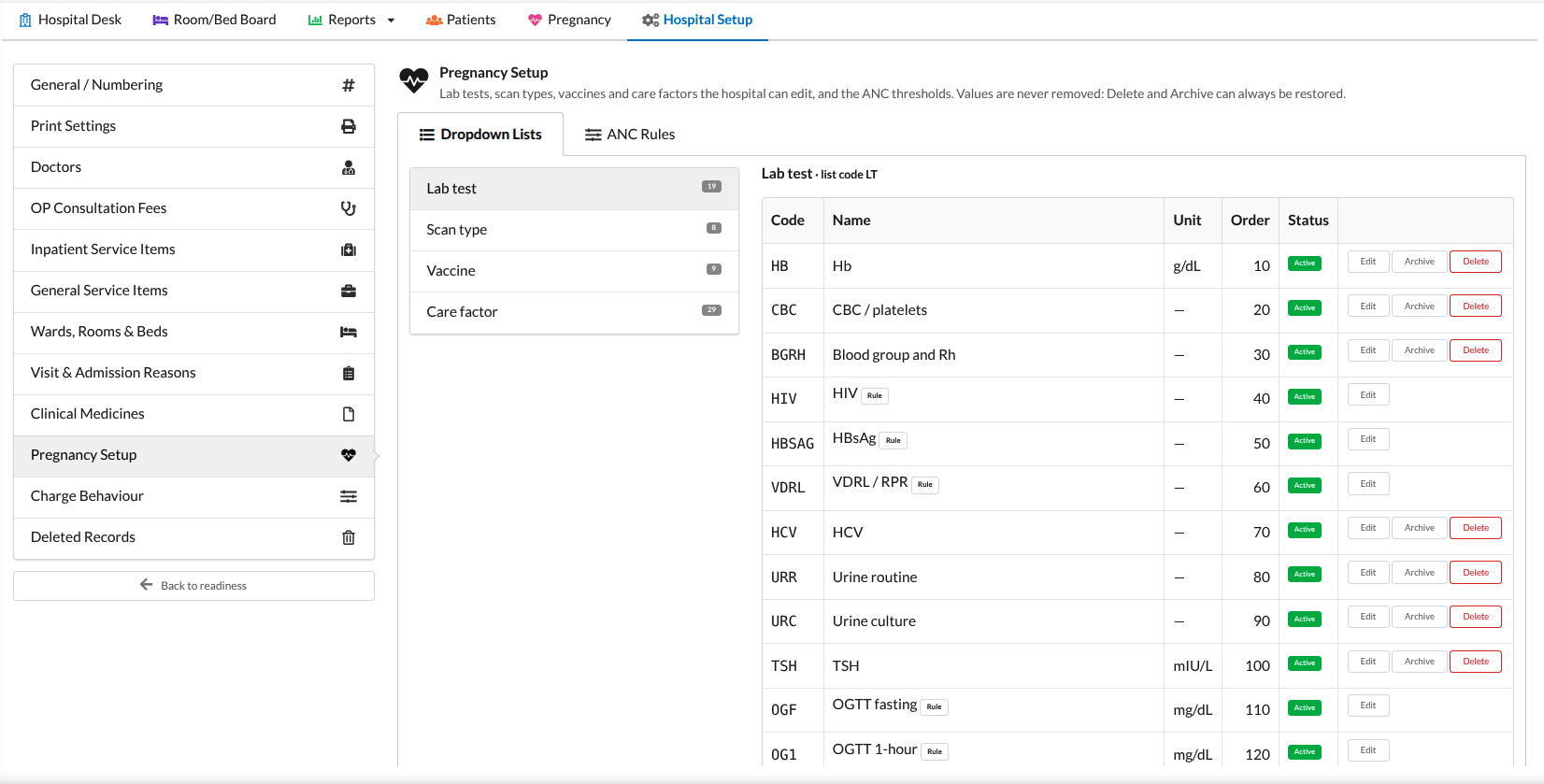
Do this once before the first pregnancy is recorded. Open Hospital Setup → Pregnancy Setup.
Dropdown Lists
Four lists can be changed to suit your hospital: Lab tests (each with its unit), Scan types, Vaccines and Care factors. All other dropdowns (such as marital status or mode of delivery) are standard and cannot be edited.
- Add a value with a short code and a name. The code is permanent; the name can be changed at any time.
- Archive a value you no longer use. It disappears from new entries but still shows on old records.
- Delete asks for a reason. Nothing is removed: tick Show deleted to see deleted values and Restore them.
ANC Rules
ANC Rules are the limits the system uses to flag readings automatically: Blood pressure, Haemoglobin, Blood sugar, Automatic care factors and Delivery (for example, the blood loss that counts as PPH). You can also choose whether temperature is entered in °F or °C.
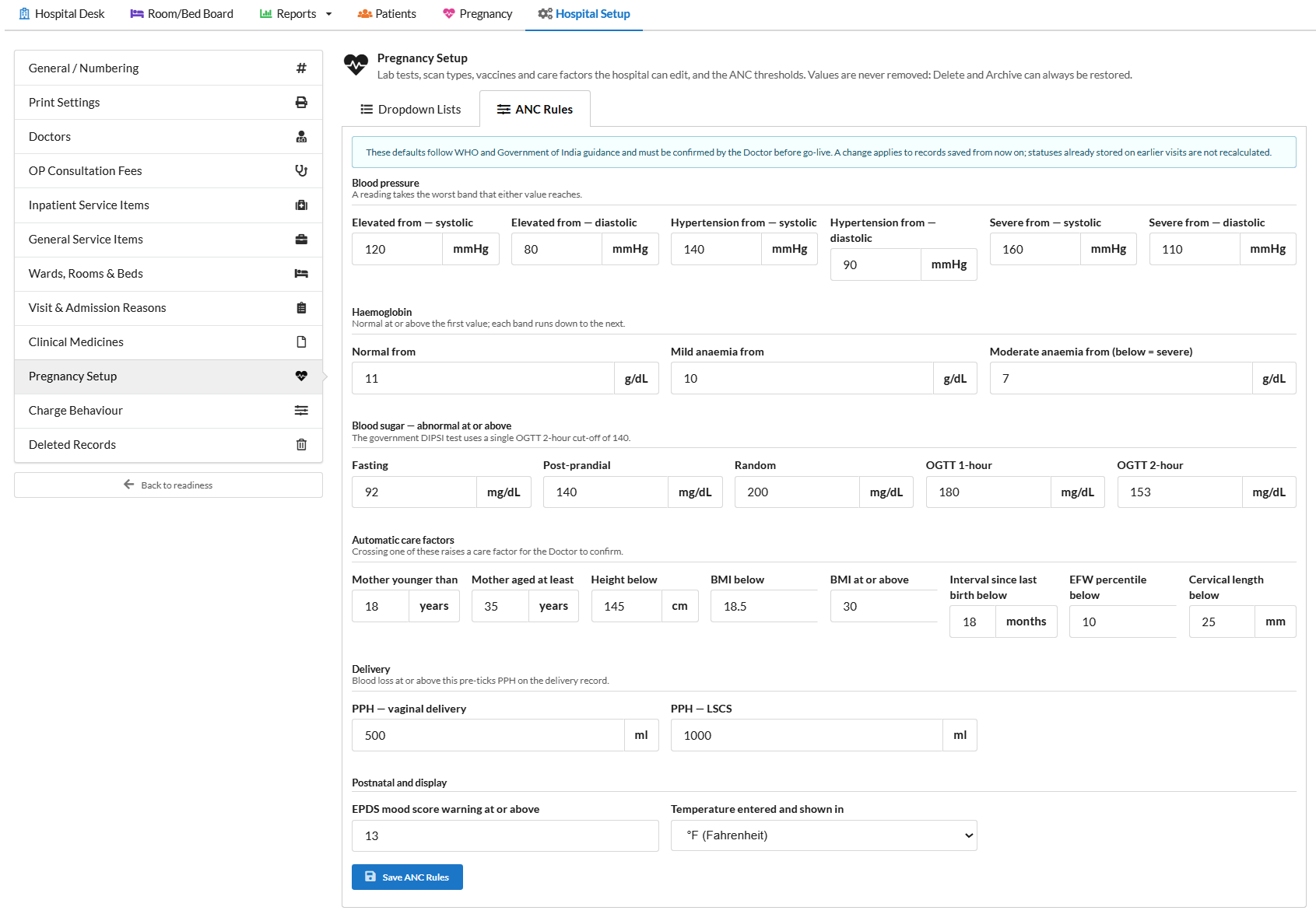
Note: The defaults follow WHO and Government of India guidance, but the Doctor must confirm them before you go live. A change applies to records saved from then on; earlier visits are not recalculated.
Visit Reasons
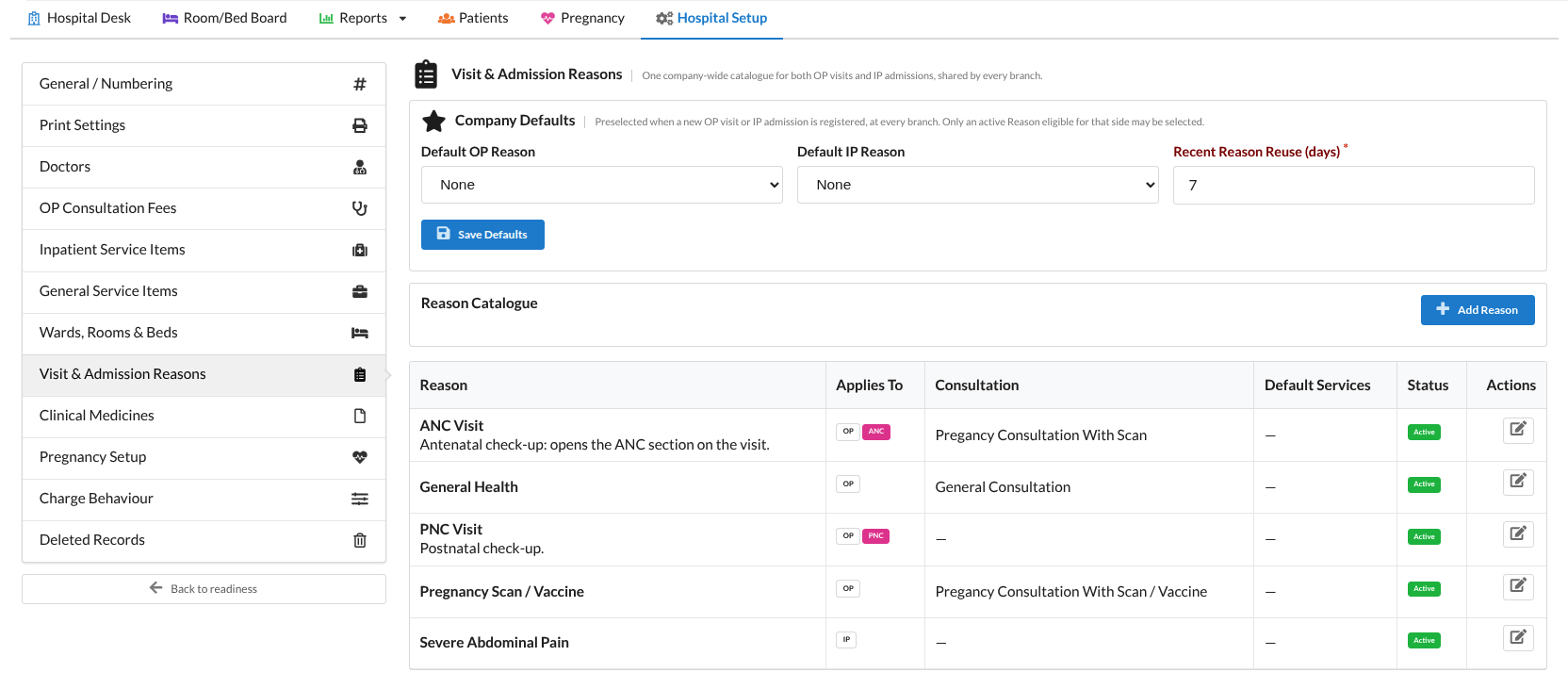
Under Hospital Setup → Visit & Admission Reasons, check that the reasons ANC Visit and PNC Visit exist and are active. The ANC and PNC sections appear on an OP visit only when it has one of these reasons.
4. Registering the Mother
Register the patient as usual from Patients → Register Patient (or edit an existing patient), then open the Mother & Family section.
| Field | What to enter |
|---|---|
| Registration Date | Leave blank for today. Set it only when entering an old paper record. |
| Marital Status, Age at Marriage, Consanguineous Marriage, Education | The mother’s details. |
| Husband’s Name, Age, Occupation, Blood Group | Her husband’s details. |
| RCH Registration, RCH ID, PICME ID | Government registration numbers. Choose Registered, Pending or Not registered. |
| Aadhaar Number | Stored encrypted. Screens and prints show only the last four digits. |
| Consent | Tick when the patient consents to her data being stored and used for her care. |
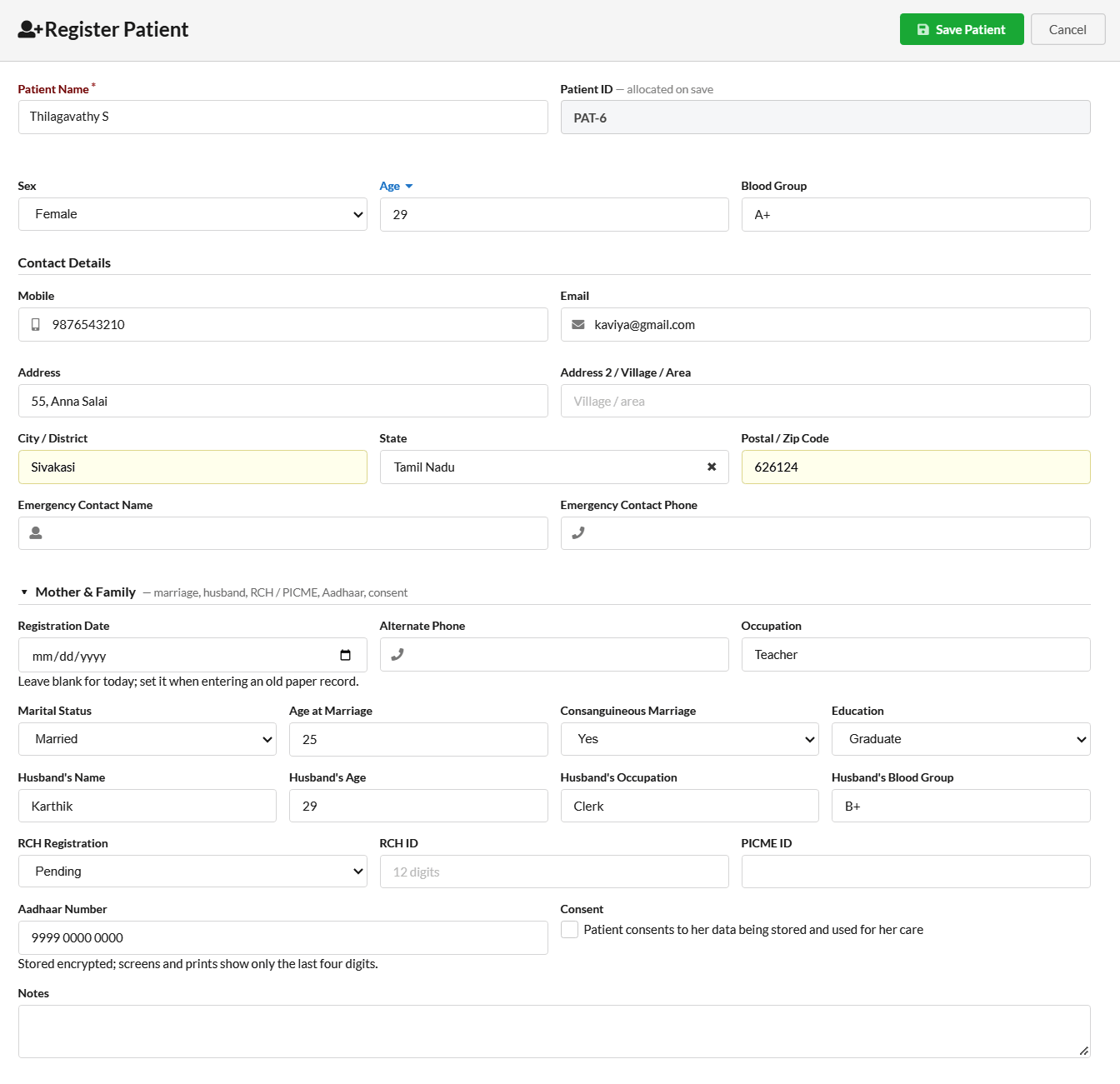
Note: Only users with the Aadhaar reveal right (normally the Doctor) can click Reveal to see the full number. Every reveal is recorded.
5. Recording a Pregnancy
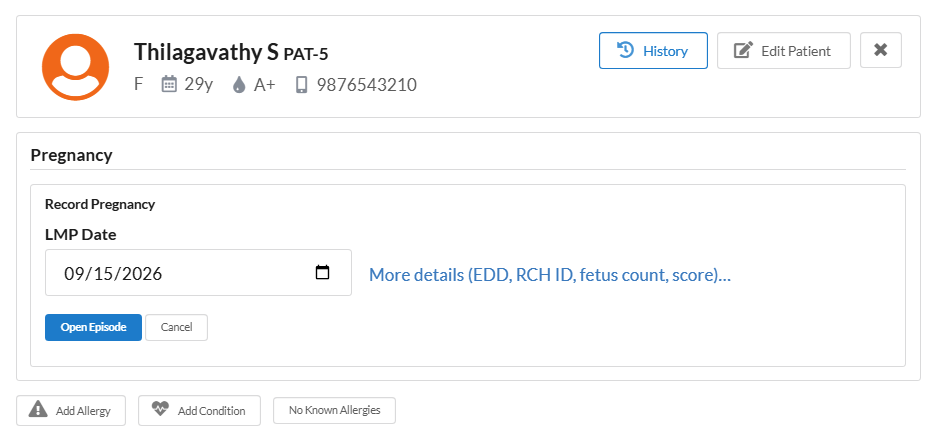
You can create a pregnancy record from the patient’s profile or OP visit.
- Click Record Pregnancy.
- Enter the Last Menstrual Period (LMP). If the LMP is unknown, select a dating method such as Dating Scan, NT Scan, Other Scan or IVF Transfer Date. Then enter the EDD.
- Open More Details to enter the fetus count, RCH ID and obstetric score (if required).
- Click Open Episode to create the pregnancy record.
The pregnancy banner displays the Gestational Age (GA), Expected Date of Delivery (EDD) and care level on every visit.
Updating Pregnancy Dates
To correct the pregnancy dates, click Update Dating on the pregnancy banner. Enter the reason for the change. The system saves the update in the dating history.
Note: If the patient's age is outside the usual range for a pregnancy, the system warns you to check her date of birth. You can still choose Open anyway.
6. ANC Visits
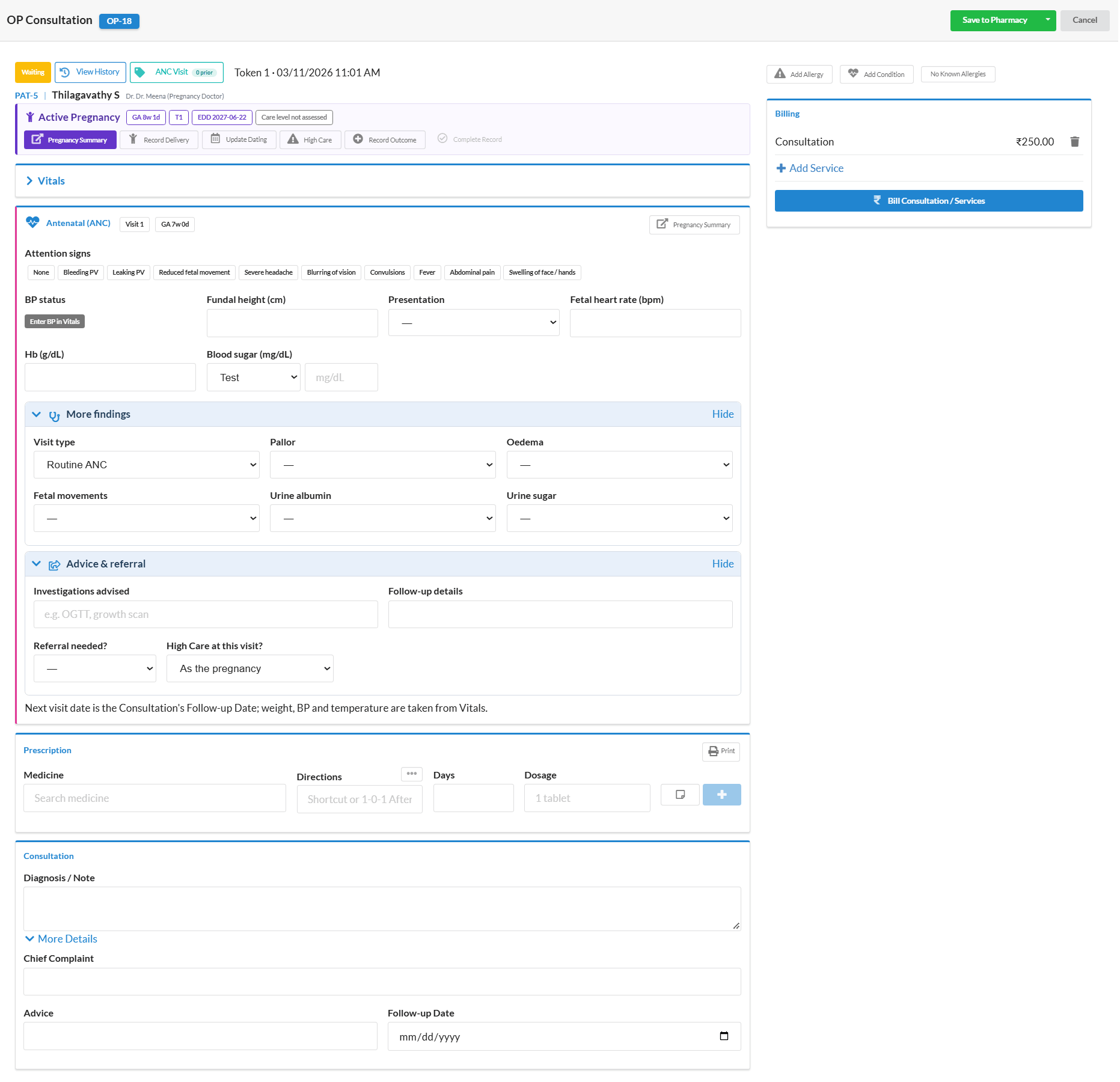
- Front Desk: register an OP visit for the mother with the reason ANC Visit.
- Nurse: record the vitals as usual. Weight, BP and temperature are shared with the ANC section.
- Doctor: open the visit. The Antenatal (ANC) section shows the visit number, GA and weight gain.
- Fill in the findings: fundal height, presentation, fetal heart rate, Hb, blood sugar, pallor, oedema, fetal movements and urine tests.
- Tick any Attention signs, add Investigations advised, and set a referral if one is needed.
- Set the Follow-up Date in the Consultation section, prescribe as usual, and save.
When the visit is saved, the system works out the BP, Hb and sugar status from the ANC Rules, adds automatic care factors where a rule applies, and updates the care level.
Note: If no pregnancy is recorded for the patient yet, the ANC section asks you to use Record Pregnancy first.
7. The Pregnancy Summary
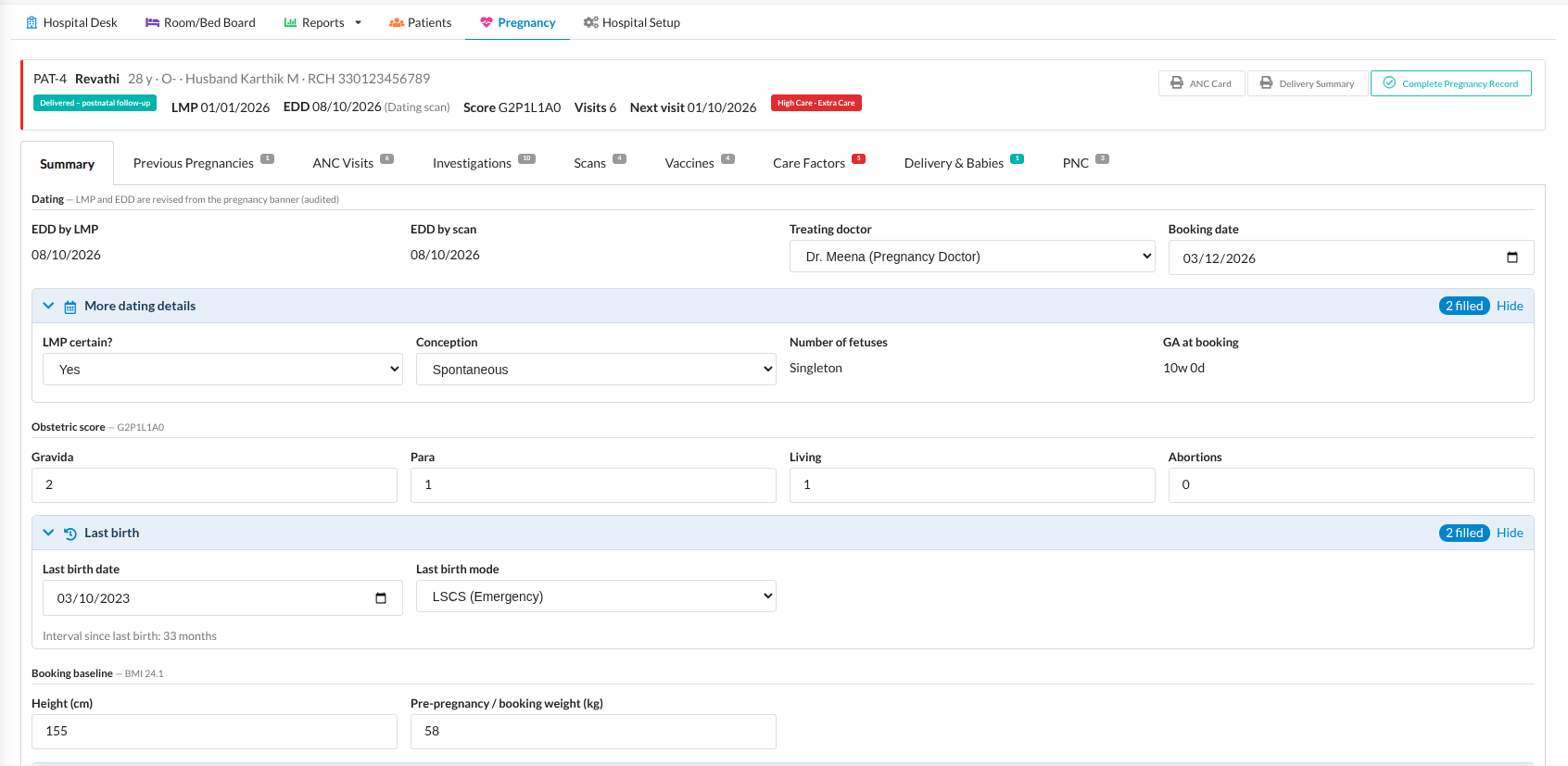
The Pregnancy Summary displays all details of a mother’s pregnancy in one place.
Open it from the pregnancy banner or the Pregnancy page.
The summary header displays the LMP, EDD, obstetric score, total visits and next visit date. You can also access the ANC Card, Delivery Summary and Complete Pregnancy Record options.
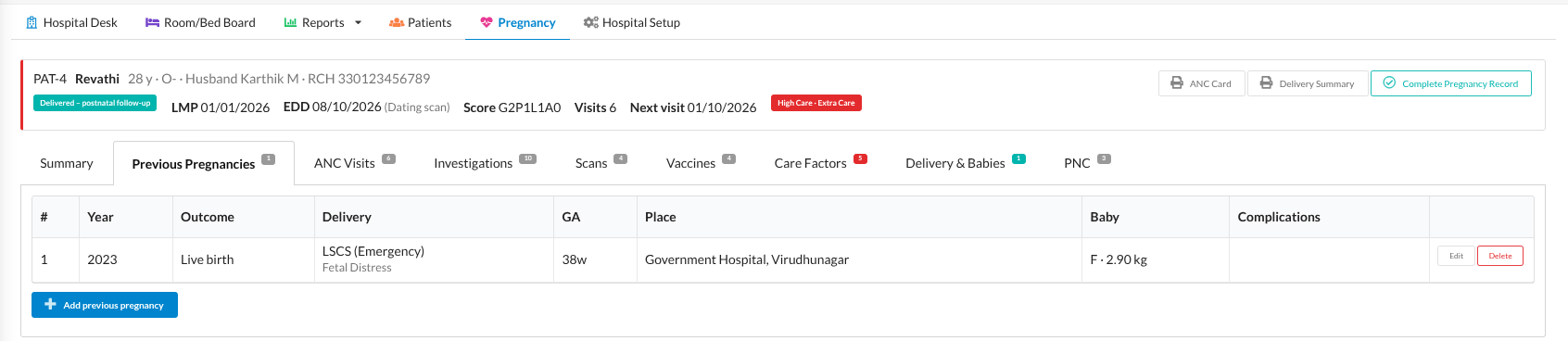
Pregnancy Summary Tabs
- Summary: View pregnancy dates, doctor details, medical history, family history and birth plan.
- Previous Pregnancies: View details of earlier pregnancies, delivery types and baby information.
- ANC Visits: View antenatal visits, readings, attention signs, advice and follow-up dates.
- Investigations: Add lab test results and upload reports in PDF, JPG or PNG format.
- Scans: Record scan details and findings for each fetus. You can also accept a scan date as the pregnancy EDD.
- Vaccines: Track vaccine doses, due dates, batch details and vaccination status.
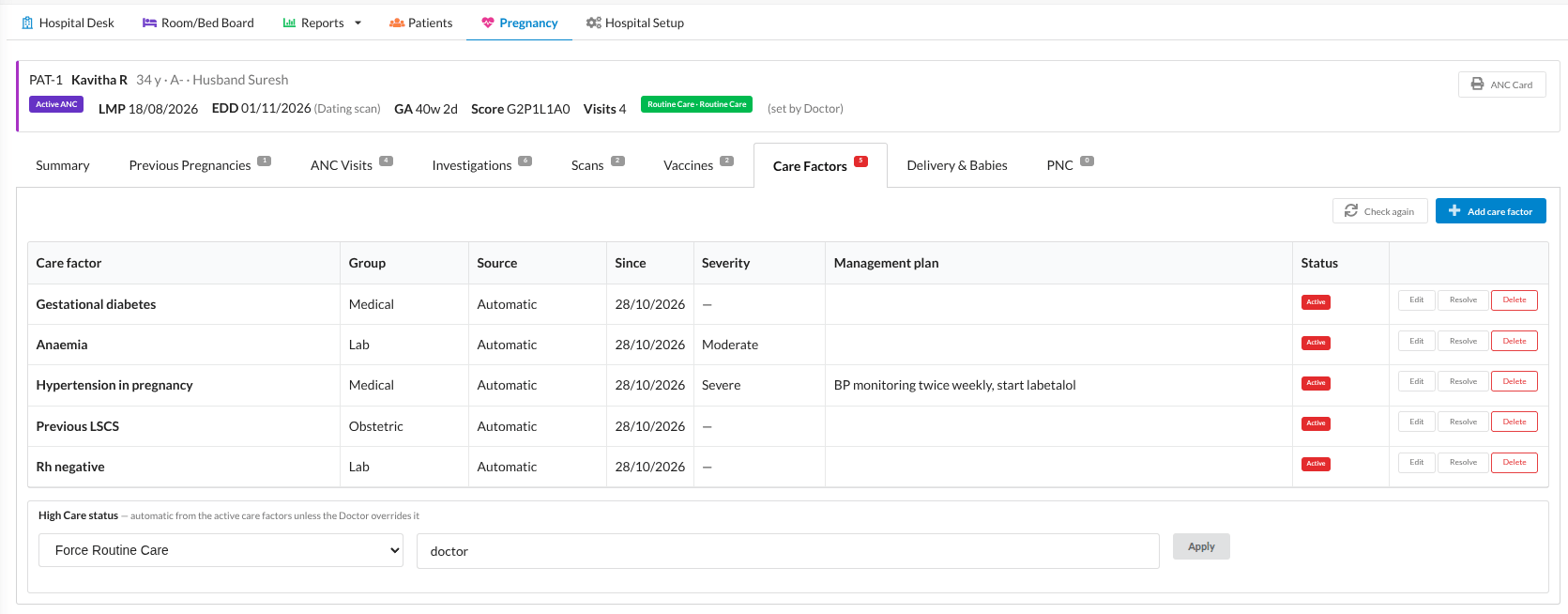
- Care Factors: View pregnancy risk factors, severity, management plans and current status.
- Delivery & Babies: Record delivery details and newborn information.
- PNC: Manage postnatal visits and mother and baby health records.
Care Level and High Care
The system calculates the care level based on active care factors. Doctors can also change the care level manually by selecting Force High Care or Force Routine Care.
Enter a reason when changing the level. Select Automatic to return to the system-calculated care level.
8. Recording the Delivery
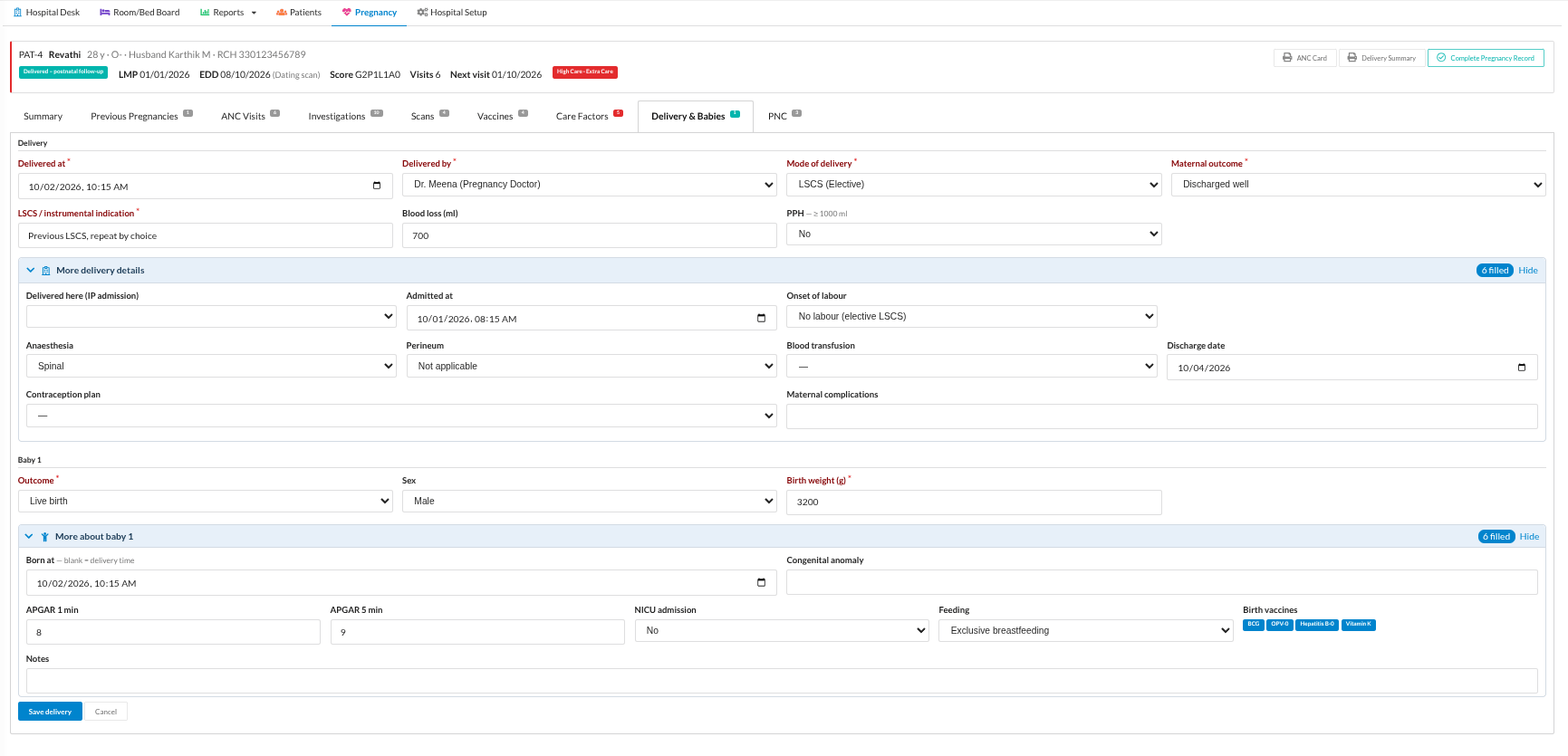
- Open the Pregnancy Summary and go to Delivery & Babies (or click Record Delivery on the banner).
- Enter where and when she delivered, the mode of delivery, who delivered her, anaesthesia, perineum, blood loss, PPH or transfusion, and the mother’s outcome.
- Enter one row for each baby: time of birth, sex, birth weight, APGAR at 1 and 5 minutes, NICU, feeding, birth vaccines and any anomaly.
- Save. The pregnancy now shows as Delivered and stays open for postnatal care.
Print the Delivery Summary from the Pregnancy Summary header.
9. PNC Visits
- Front Desk: register an OP visit with the reason PNC Visit.
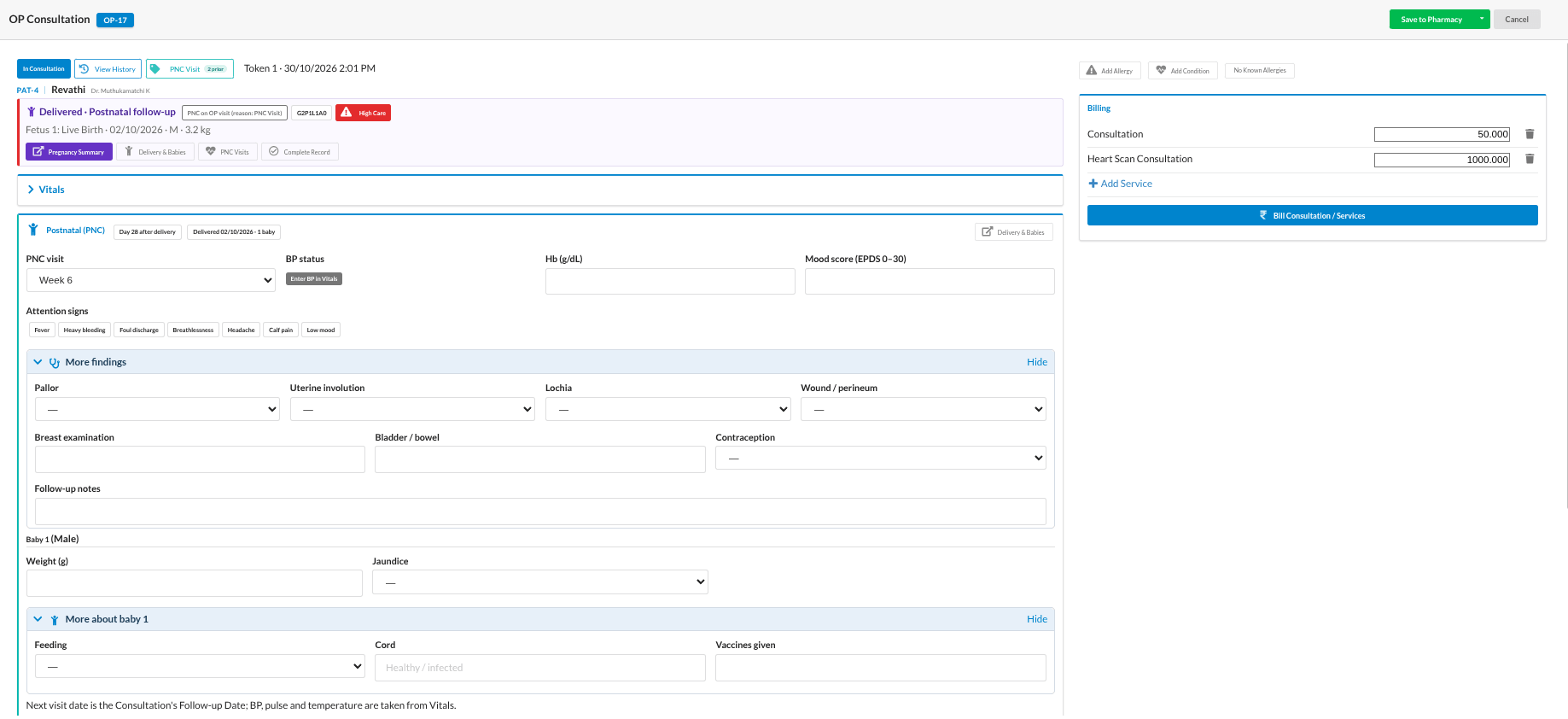
- Doctor: the Postnatal (PNC) section shows the day after delivery.
- Record the mother’s checks: BP, Hb, mood score (EPDS), attention signs, uterine involution, lochia, wound or perineum, breast and bladder or bowel checks, and contraception.
- Record each baby’s weight, jaundice, feeding and cord, then save.
A high mood score shows Screen positive — review mood. The warning level is set in ANC Rules.
10. Completing the Pregnancy Record
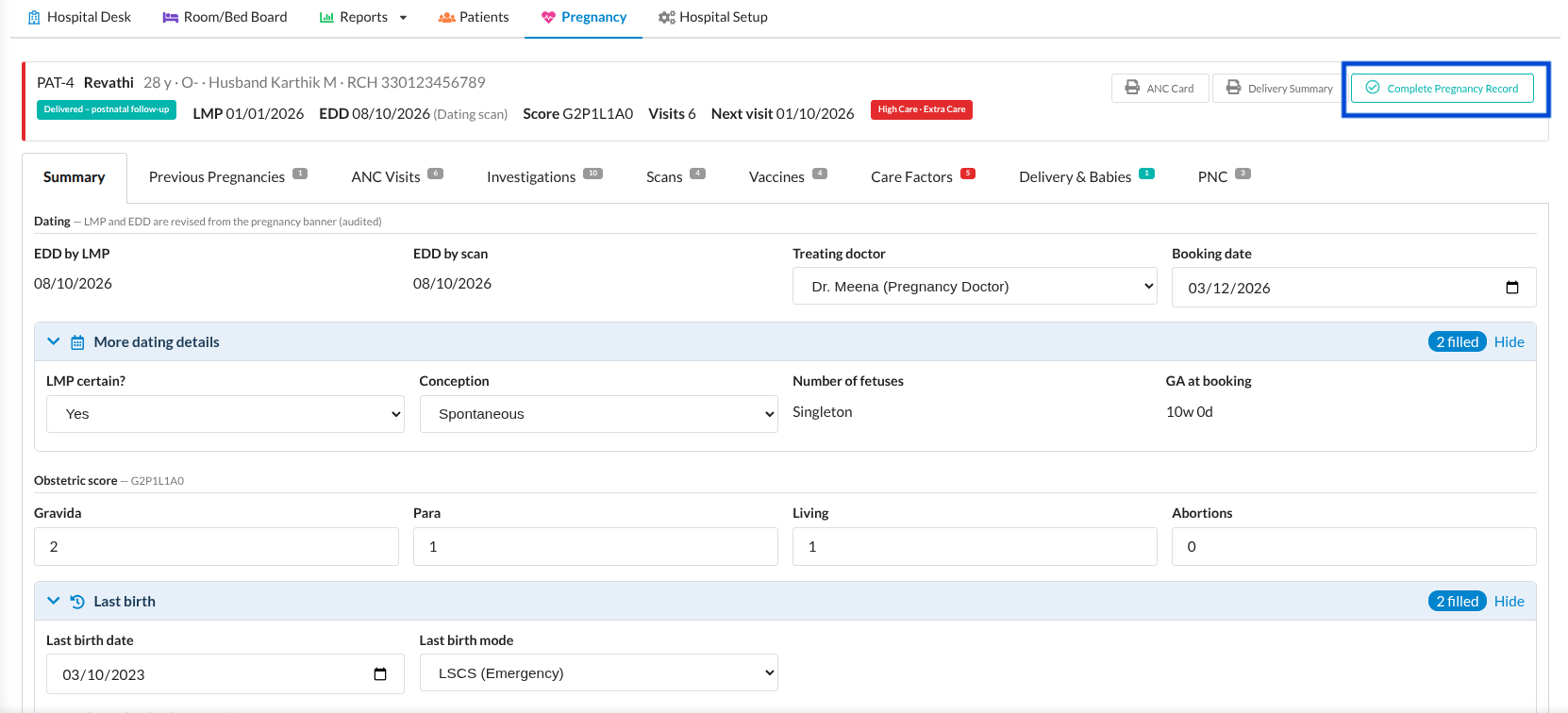
When care has ended, click Complete Pregnancy Record on the Pregnancy Summary header and confirm. The record becomes read-only: nothing can be added, edited or deleted afterwards. A pregnancy that ended without a delivery (for example a miscarriage or a transfer) is closed with Record Outcome first.
11. The Pregnancy page (follow-up lists)
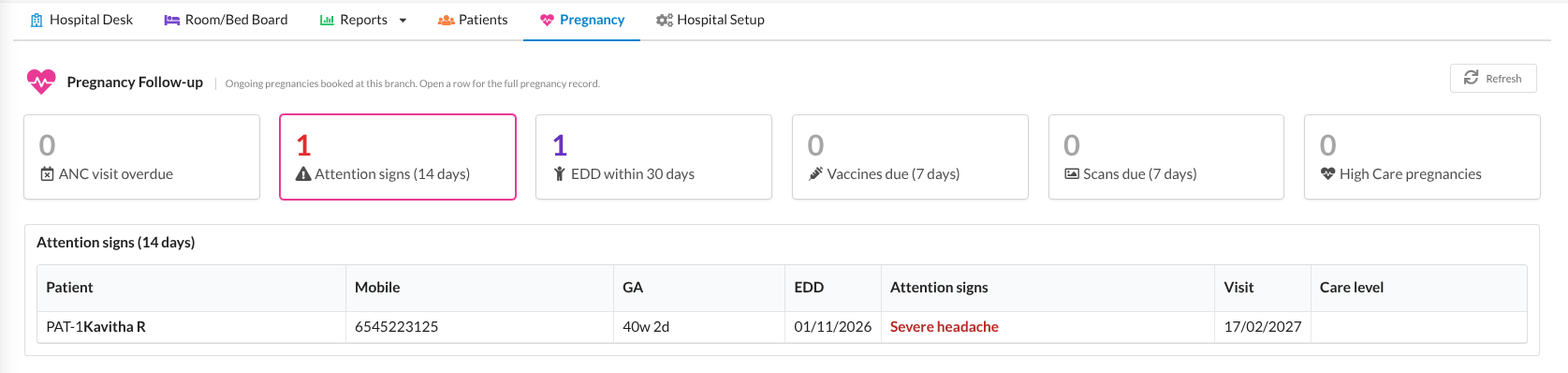
Click Pregnancy in the Hospital menu to see every ongoing pregnancy booked at your branch, grouped into lists:
| List | Shows |
|---|---|
| ANC visit overdue | Mothers whose follow-up date has passed without a visit. |
| Attention signs (14 days) | Mothers with attention signs recorded in the last 14 days. |
| EDD within 30 days | Mothers due to deliver in the next 30 days, or already past their EDD. |
| Vaccines due (7 days) | Vaccine doses due in the next 7 days, or overdue. |
| Scans due (7 days) | Follow-up scans due in the next 7 days, or overdue, that no later scan has answered. |
| High Care pregnancies | Every pregnancy currently at High Care. |
Click a row to open that mother’s Pregnancy Summary, and use Refresh to update the counts.
12. Pregnancy Reports
Open Reports → Pregnancy Reports. Each report can be printed or saved as a PDF with Print / PDF.
| Report | Use it for |
|---|---|
| Monthly Dashboard | The month at a glance: new registrations, active ANC at month end, ANC visits, deliveries, High Care and follow-up adherence. |
| ANC Register | All ongoing pregnancies, filtered by Doctor and care level. |
| High Care Register | Ongoing High Care pregnancies with their care factors. |
| Due & Overdue | Visits, vaccines and scans that are due or overdue. |
| Doctor-wise Review | Each Doctor’s ANC work over a date range. |
| Deliveries | Deliveries in a date range, by mode and outcome. |
| Newborn Summary | Babies born in a date range, with birth weight and APGAR. |
| Lab & Anaemia Summary | Investigation results and anaemia over a date range. |
| RCH Status | Mothers whose RCH registration is pending or missing. |
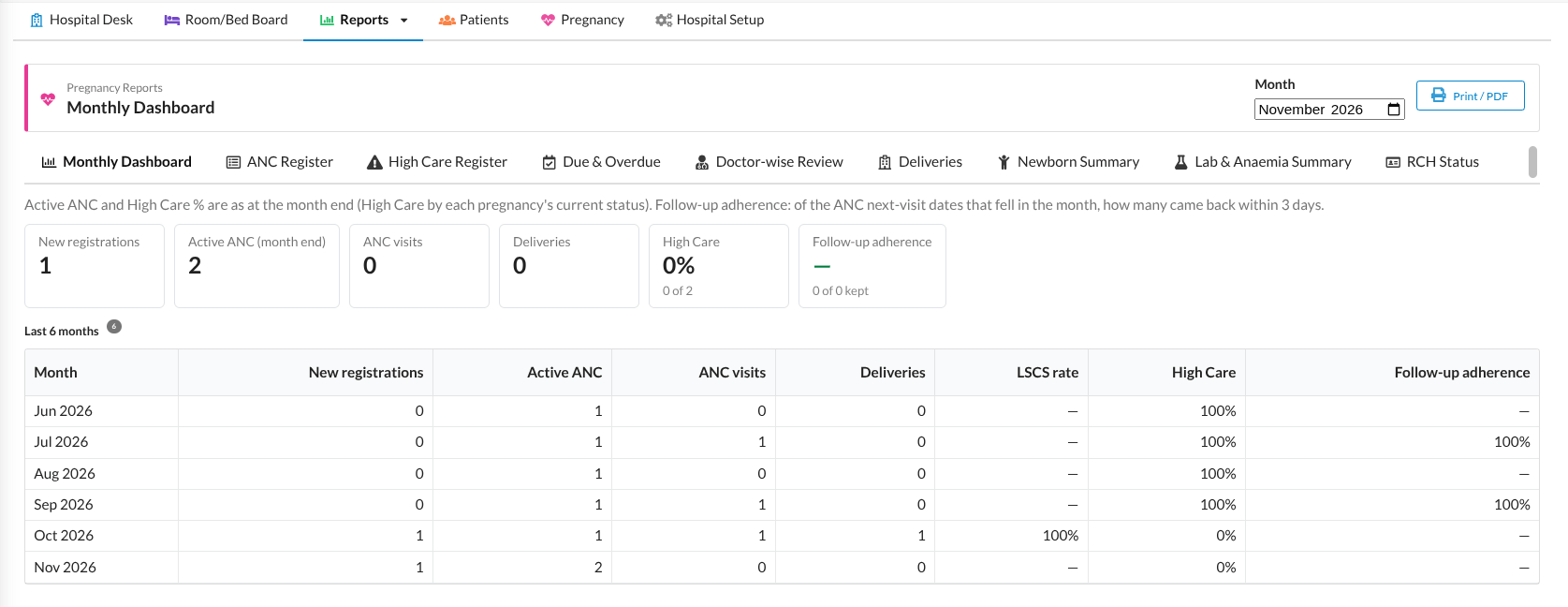
Note: The Owner role sees the reports in Owner view: names and Patient IDs only, and some lists as counts.
13. Prints
- ANC Card: the mother’s pregnancy at a glance, with dating, history, visits, investigations, scans and vaccinations. Print it from the Pregnancy Summary header.
- Delivery Summary: the delivery and the babies, for the mother to take home.
14. Deleting and Restoring
Nothing in the pregnancy module, or anywhere else in Hospital, is ever removed for good. Delete always asks for a reason, hides the record from normal screens, reports and counts, and keeps it with the name of the user who deleted it.
- An entry on the Pregnancy Summary (an investigation, scan, vaccine, care factor, previous pregnancy, delivery or PNC visit) is deleted from its own tab.
- A delivery cannot be deleted while it has PNC visits; delete the PNC visits first.
- A completed pregnancy record cannot be changed or restored.
Deleted Records page (Administrator)
Open Hospital Setup → Deleted Records. The page lists every deleted record with who deleted it, when and why. You can filter by patient or record name, area, type, the user who deleted it, status (Deleted or Restored) and date.
- Find the record and click Restore.
- Enter the reason for restoring it (required).
- The record comes back exactly as it was, and the row shows a green Restored label with who restored it, when and why.
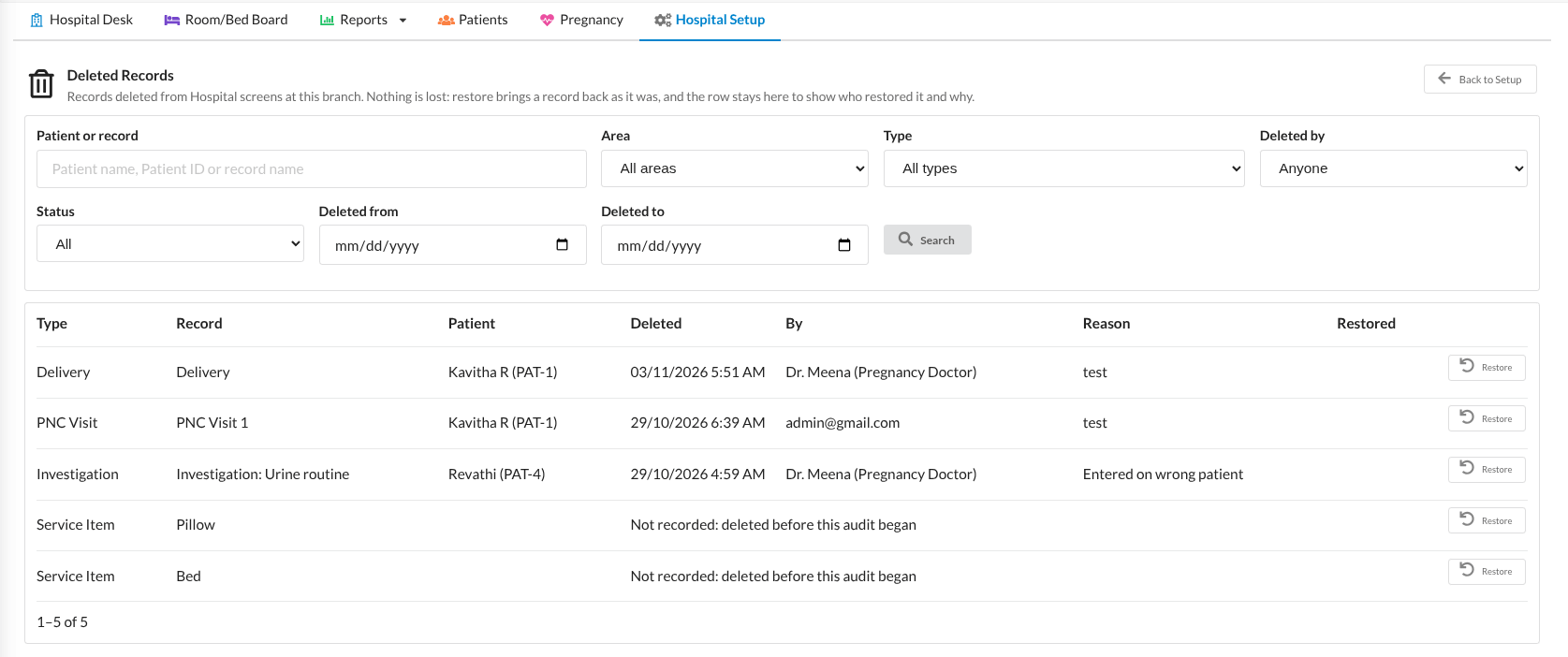
Note: Restore is refused when something has taken the record's place, for example a newer delivery for the same pregnancy. The message tells you what to do first.
15. Common Questions
| Question | Answer |
|---|---|
| The ANC section is missing on the OP visit. | The visit must have the reason ANC Visit (or PNC Visit for the PNC section), and the patient must have a recorded pregnancy. |
| The GA looks wrong. | Check the LMP or the accepted scan on the Summary tab. Correct it with Update Dating on the banner and give a reason. |
| A mother shows High Care but should not. | Open Care Factors. Resolve any factor that no longer applies, or use Force Routine Care with a reason. |
| I cannot see the PNC section after delivery. | Record the delivery on the Delivery & Babies tab first; PNC details are saved against it. |
| A Front Desk user cannot see clinical details. | This is by design. Clinical details are visible only to roles with Clinical View, such as the Doctor and the Nurse. |
| I deleted something by mistake. | Ask an Administrator to restore it from Hospital Setup → Deleted Records. |


