You can manage products and services under Manage → Items in Output Books. Create item records, maintain sales and purchase rates, track inventory, organize products by category and brand, and manage item details for billing and accounting.
List Items
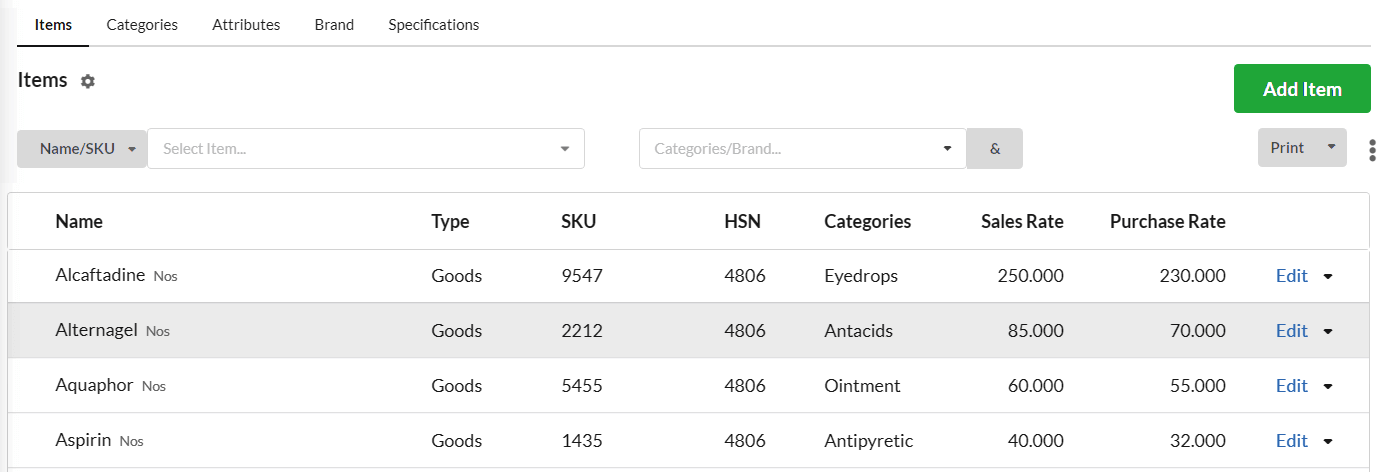
The Items page displays the products and services available for sales and purchase transactions. You can view item details such as item name, type, SKU code, HSN/SAC code, sales rate, purchase rate, and other available columns.
Add Items
To add a new item:
- Go to Manage → Items.
- Click on Add Items button on the top right corner.
- Enter the required item details.
- Click Save.
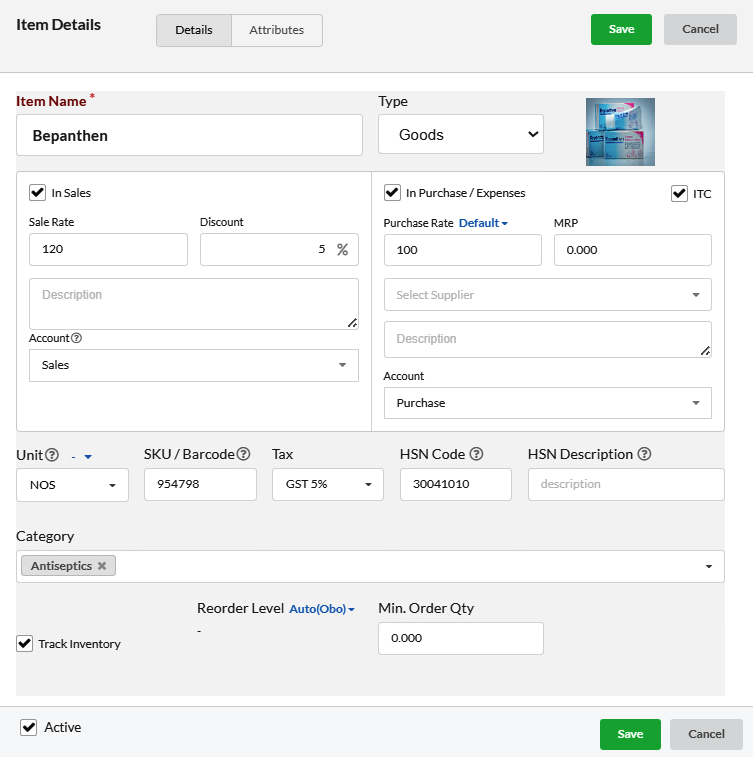
| Fields | Details |
|---|---|
| Item Name | Provide the name of the item to be added. Required. |
| Type | Choose the category Goods or services for the item to be added. Required. |
| In Sales | Enable this option to classify items under the Sales category. Enter the sales rate and discount, then select the appropriate Sales Account from the Chart of Accounts or use the default account. |
| In Purchase | Enable this option to include items in the Purchase list. Enter the purchase rate, select Input Tax Credit (if applicable), and choose the Purchase Account from the Chart of Accounts or use the default account. |
| Units | Select the unit of measurement for the item which is to be displayed in invoices and quotes |
| SKU Code | Provide the Stock Identification Code to identify the product. |
| Tax | Choose the Tax Rate for the item. |
| HSN Code / SAC Code | For Goods category, provide the HSN code. For Services category, provide the SAC code. |
| Category | Choose the Category under which the Item is to be included. |
| Track Inventory | Enable this option to manage the availability of stock for production, sales and delivery and services of a business effectively |
| Reorder Level | Quantity at which to buy more. Choose Auto(Obo) or Manual for Goods. Shown when Track Inventory is on. |
| Min. Order Qty | Specify the minimum quantity that can be ordered for this item. |
| Opening Stock | Enter the opening quantity of stock for the particular item here |
| Opening Stock Rate/Unit | The unit rate for the opening stock for the particular item can be given here. |
| Active | Enable this option to include the item in transactions or Invoicing. |
Add Item Categories, Attributes and Brands
Open the Settings icon on the Items page and enable the Categories/Attributes option. Once enabled, you can create item categories and attributes, then assign them to the relevant items for better inventory organization and management.
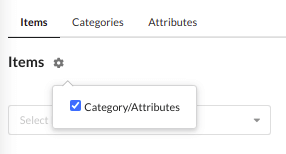
Alternatively, Go to Settings → Modules and enable the Item Categories & Attributes option.
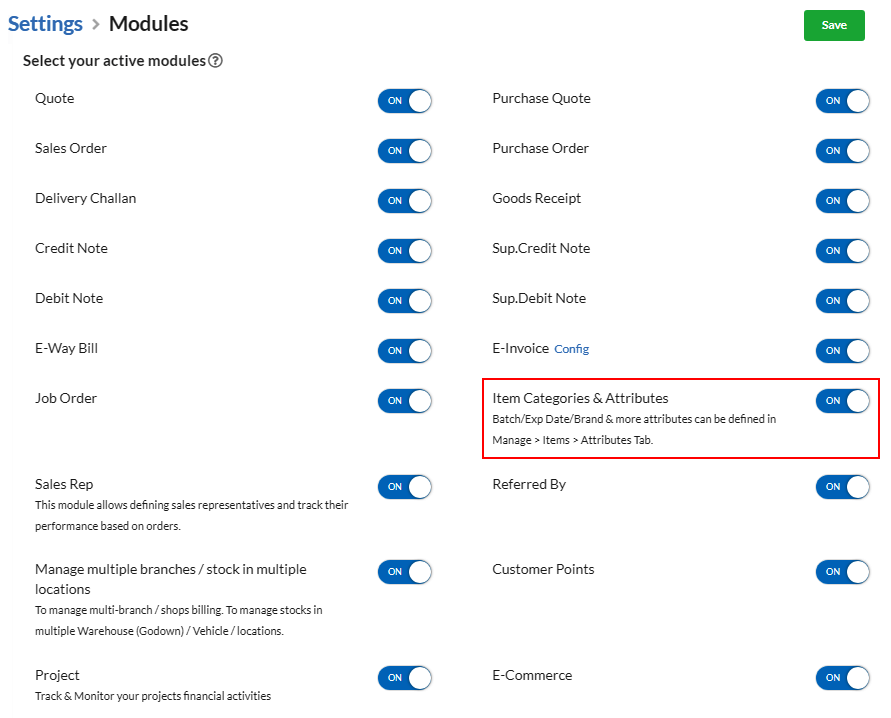
Then go to Manage → Items → Category/Attribute → New Category/Attribute and add category/attribute respectively.
Click here to know more on Item Categories & Attributes.
Filter Items & Item Categories
To Filter Items:
Click on the Select Item drop-down & choose the item which you want to filter out from the list of items.
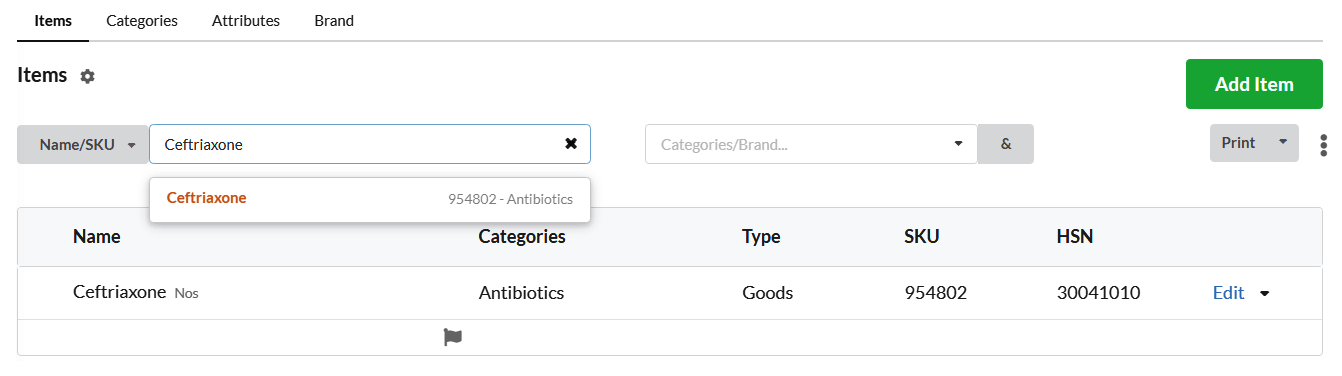
To Filter Item Categories:
Click on the Categories drop-down & choose the item category you wish to filter. All the items under the chosen category alone will be displayed.
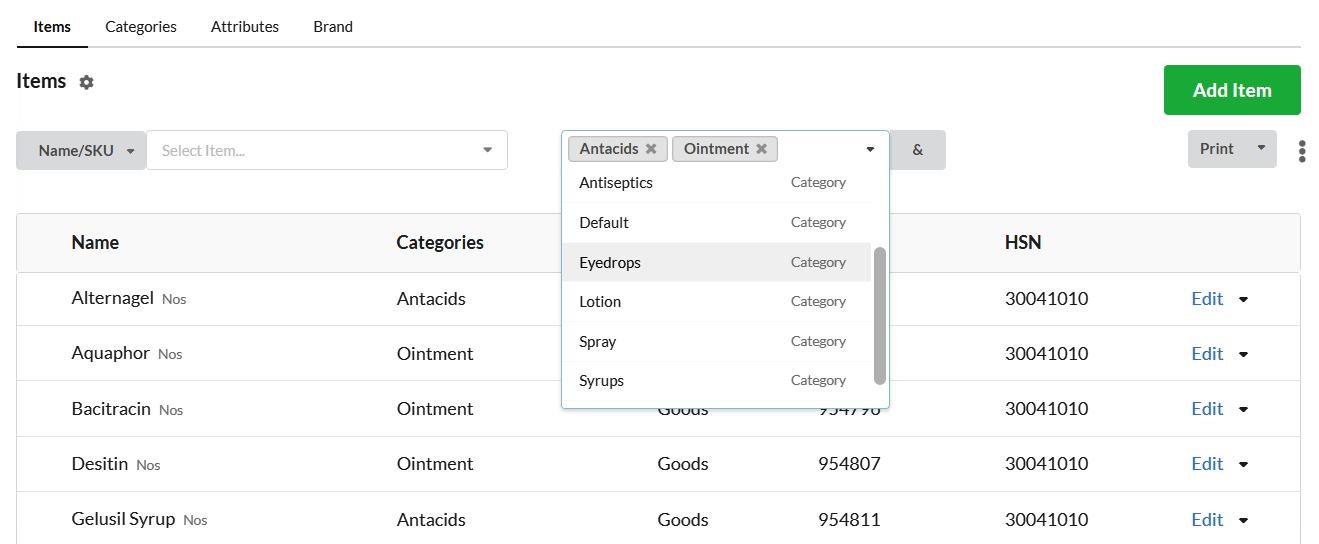
You can choose multiple item categories & filter.
How to Edit an Item?
To edit an item, hit on the Edit option stuck with each item.
Do the necessary changes and hit save.
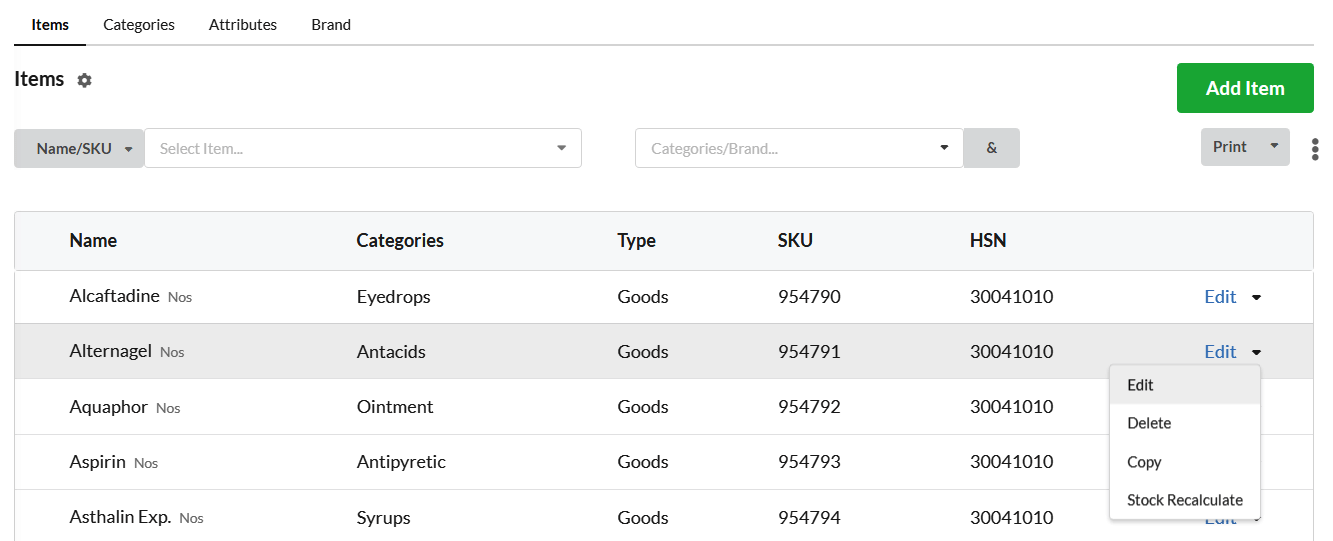
How to Delete/Archive Items ?
Click on the Delete option associated with each item.
Note: The items that are used in transactions can’t be deleted.You will be displayed with a alert pop-up like this:
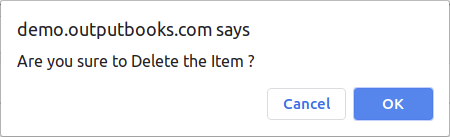
Deleted items will be stored as Archived items. You can view the archived items by enabling the Show Archived option present under the three dots(vertical) icon.
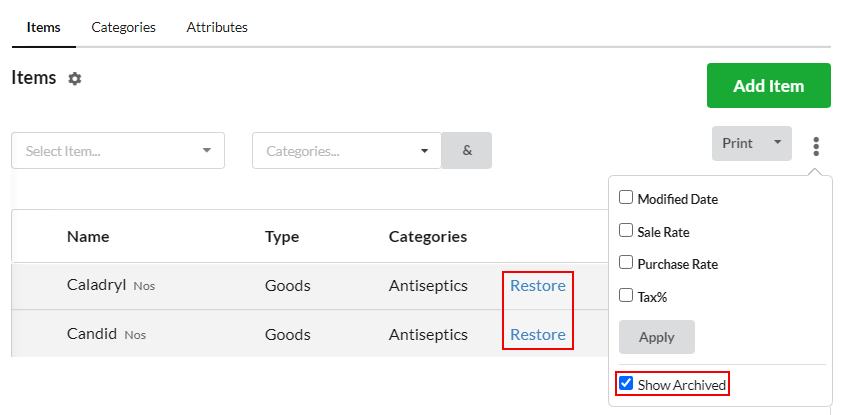
To restore deleted/archived items back into Items list, click on the Restore present near each of the archived item.
How to permanently delete unused Items from Item master?
The items that are not used in any transaction can be deleted permanently from Output Books.
To delete the unused items, click on the Select Item drop-down and click Unused Items.
- Click the Select Item drop-down and click Unused Items.
- Tick the items to delete. Use the check box in the first column to select all.
- Click the trash icon at the top right.
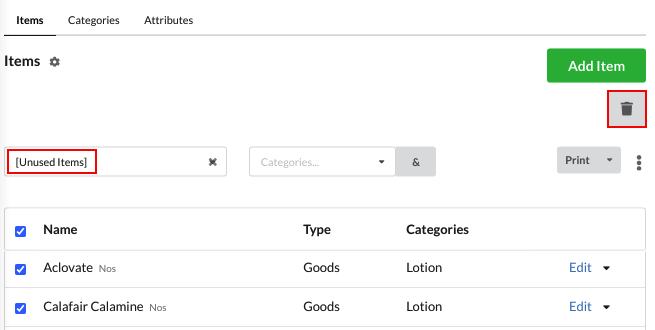
From there, choose the items that are to be permanently deleted and click on the Delete icon present at the top right of the Items window.
Export/Import Items
Use the drop-down arrow next to the Print button at the top right of the Items list. It has Export, Import and Print Barcode.
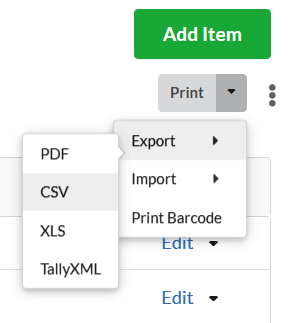
Export CSV – Click Export CSV to download all items and their details in a CSV file.
Export PDF – Export all items and their details to a PDF file for easy sharing and record-keeping.
Import CSV – Download the sample CSV file, enter your stock item details, and import it into Output Books to add items in bulk.
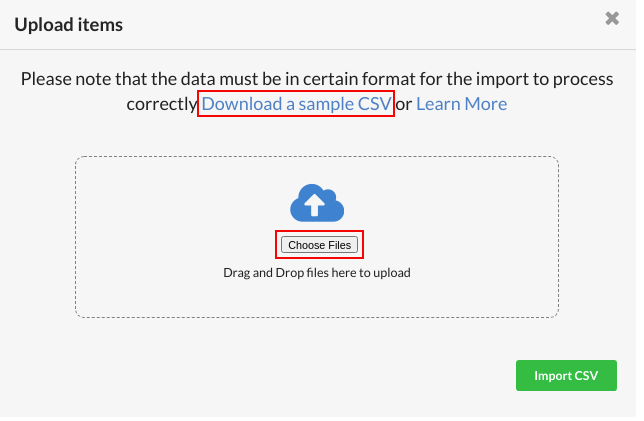
Import from Tally – Directly import Items from your Tally environment into Output Books with ease.
Import from Tally XML – You can download your Items list as XML file from tally & import it directly in Output Books.
Print Barcode
Select Print Barcode from the drop-down next to the Print button. Alternatively, click Save & Print BCR when adding or editing an item. Click here to know how to print barcode for Items.
Additional Options
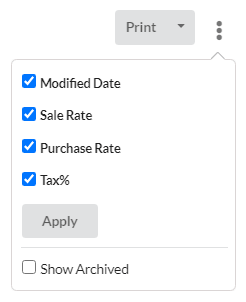
Click the three-dot options icon at the top right of the Items list. Tick the columns you want and click Apply. The Show Items choices at the bottom of the panel filter the list.
- Type, SKU, HSN, Category – columns shown by default.
- Tax%, Purchase Rate, Modified Date, Stock, MRP, Brand, Print Name – extra columns you can turn on. Your item custom fields are listed too.
- Sale Rate – shows the rate With Tax or Without Tax.
- Show Items Archived – includes archived items so you can restore them.
- Show Items Inactive – includes inactive items.
- Show Items Out of stock – includes items with no stock.
- Track Inventory – shows items that have Track Inventory on.
- Show Items Hide in Ecom – shown when the E-Commerce module is on.