Record and manage Export Scroll and Export Script transactions in Output Books. Learn how to enter incentive amounts in invoices, create scrolls, record payments, and use or sell export scripts.
What Are Export Scroll and Script?
When you export goods, the government gives you incentives such as Duty Drawback, IGST Refund and RoDTEP. A Scroll and a Script are the two ways these reach you.
Scroll – Customs does not pay you invoice by invoice. It groups many shipping bills together and approves them under one scroll number. For example, if five invoices earn Rs. 10,000 of Duty Drawback, Customs sends the Rs. 10,000 to your bank as one scroll.
Script – RoDTEP is not paid in cash. You get an electronic credit called a script (also spelled scrip). For example, with a Rs. 2,750 script you can pay Rs. 2,750 of customs duty on your imports, or sell the script to another importer.
| Comparison | Scroll | Script |
|---|---|---|
| Which incentives | Duty Drawback, IGST Refund | RoDTEP |
| What you get | Money in your bank | An electronic credit |
| How you use it | Record the bank receipt | Use it for customs duty, or sell it |
How the Export Incentive Process Works
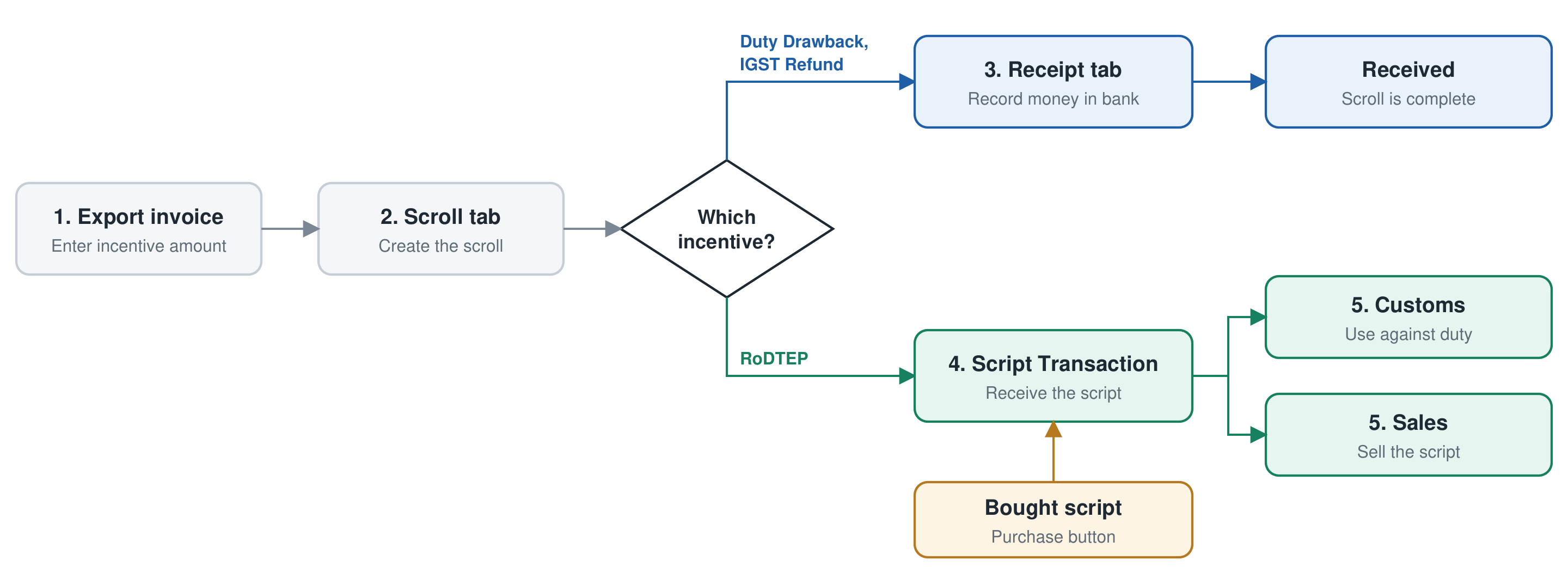
The first two steps are the same for every incentive. After that, cash incentives go to the Receipt tab, and RoDTEP goes to the Script Transaction tab.
Where to Find Export Scroll and Script
To manage export incentives, go to Sales → Scroll. You will find four tabs to manage scrolls, receipts, scripts, and script transactions.
| Tab | What you do here |
|---|---|
| Scroll | Create and manage scrolls |
| Receipt | Record money received in the bank for a scroll |
| Script | See all your scripts, their amounts and status |
| Script Transaction | Receive, use and sell scripts |
If you do not see this menu, ask your administrator to turn on the Export Incentive module for your company. Your user rights decide whether you can edit or delete entries.
Step 1: Enter the incentive on your invoice
Do this first. An invoice cannot be added to a scroll until it has an incentive amount.
- Open the Sales Invoice list.
- On your export invoice, open the action menu and choose Shipping Bill.
- Enter the Shipping Bill No and Shipping Bill Date.
- Under Incentives / Refund, enter the amount next to the incentive, such as Duty Drawback or RODTEP Script.
- Click Save.
Step 2: Create a scroll
- Go to Sales > Scroll and click Add Scroll.
- Enter the Scroll No given by Customs. This is required.
- Enter the Scroll Date.
- Check the Scroll Type, such as Duty Drawback. The first type is already selected, so change it if needed. The invoices for that type are listed below.
- Tick the invoices this scroll covers. Use the shipping bill details to match them with your Customs statement.
- Check the Scroll Amount. It adds up by itself from the invoices you tick, and should match your Customs statement.
- Click Save.
The scroll now shows as Pending.
Tip: You cannot type the Scroll Amount. If it does not match, check that the right invoices are ticked and that their incentive amounts are correct.
Step 3: Record the money received (cash incentives)
When the money reaches your bank, record it here. This is for Duty Drawback and IGST Refund. For RoDTEP, go to Step 4.
- Open the Receipt tab and click Add Receipt.
- Enter the date the money was credited.
- Choose your bank in Received in A/C.
- Tick the scrolls this payment covers. The total adds up by itself.
- Click Save.
The scrolls now show as Received.
Step 4: Receive a script (RoDTEP)
Open the Script Transaction tab. Use the Receivable From buttons to show where the script came from.
If you earned it from your exports
First create a scroll with the type RODTEP Script (Step 2).
- Click the Scroll button.
- Enter the Transfer Date.
- Enter the Script No, Script Date, Script Expiry Date and Script Amount.
- Tick the RoDTEP scroll this script belongs to.
- Click Save
If you bought it from another business
- Click the Purchase button and enter the script details.
- Click Next. A Purchase Invoice opens with the details filled in.
- Complete the invoice and save it.
Remember: A purchase saved as a draft does not count as a script you hold. Finalise the invoice to see the script in your list.
Step 5: Use or sell a script
On the Script Transaction tab, use the Issue To buttons to show where the script went. Only scripts you still hold are listed.
To pay customs duty
- Click the Customs button.
- Enter the Transfer Date.
- Tick the script.
- Click Save.
To sell it
- Click the Sales button.
- Tick the script and click Next. A Sales Invoice opens.
- Choose the customer, check the rate and save the invoice.
Remember: A script is used in full, one time. It cannot be split across two transactions. After it is used or sold, it shows as closed on the Script tab.
How to Edit or Delete Entries
| What you want to do | What to do |
|---|---|
| Change a Pending scroll | Open it on the Scroll tab and click Edit. |
| Change a Received scroll | Delete its receipt first, then edit the scroll and enter the receipt again. |
| Change the Scroll Type | This cannot be changed after saving. Delete the scroll and create a new one. |
| Delete a scroll | Delete its receipt or script transaction first. |
| Change a receipt | Delete the receipt and enter it again. Its scrolls go back to Pending. |
| Change a Shipping Bill amount | Do this before adding the invoice to a scroll. If you change it later, open the scroll and tick the invoice again. |
| Delete a script transaction | Use Delete on the Script Transaction tab. A script received from a scroll makes that scroll available again. |


